
Transfer operations

A transfer operation is a way to move an amount from one payment method to another.
It is used to break down results directly from the POS, for example:
- Cash <> Credit Card
- Credit Card <> Amex
This can be useful for merchants who need to finalize receipts quickly, such as a brewery, a fast-food restaurant, or a nightclub.
In this workflow, every transaction is paid as CASH, regardless of the payment method chosen by the customer. At the end of the day, the merchnt prints the credit card terminal report and transfers the amounts to the correct payment methods.
* Note: This does not apply when Lightspeed Payments is used as an integrated payment method.
Finally, they print the credit card terminal report and break down the amount from cash into the credit card account.
How do you create it?
You can configure a fixed amount to transfer and fixed payment methods. Or you can choose to be flexible and select both the amount and the payment methods directly from the POS.
Create a transfer operation in 2 steps:
- Step 1: Create it in the Back Office and link it to the menu so it is visible on the POS.
- Step 2: Perform the transfer on the POS.
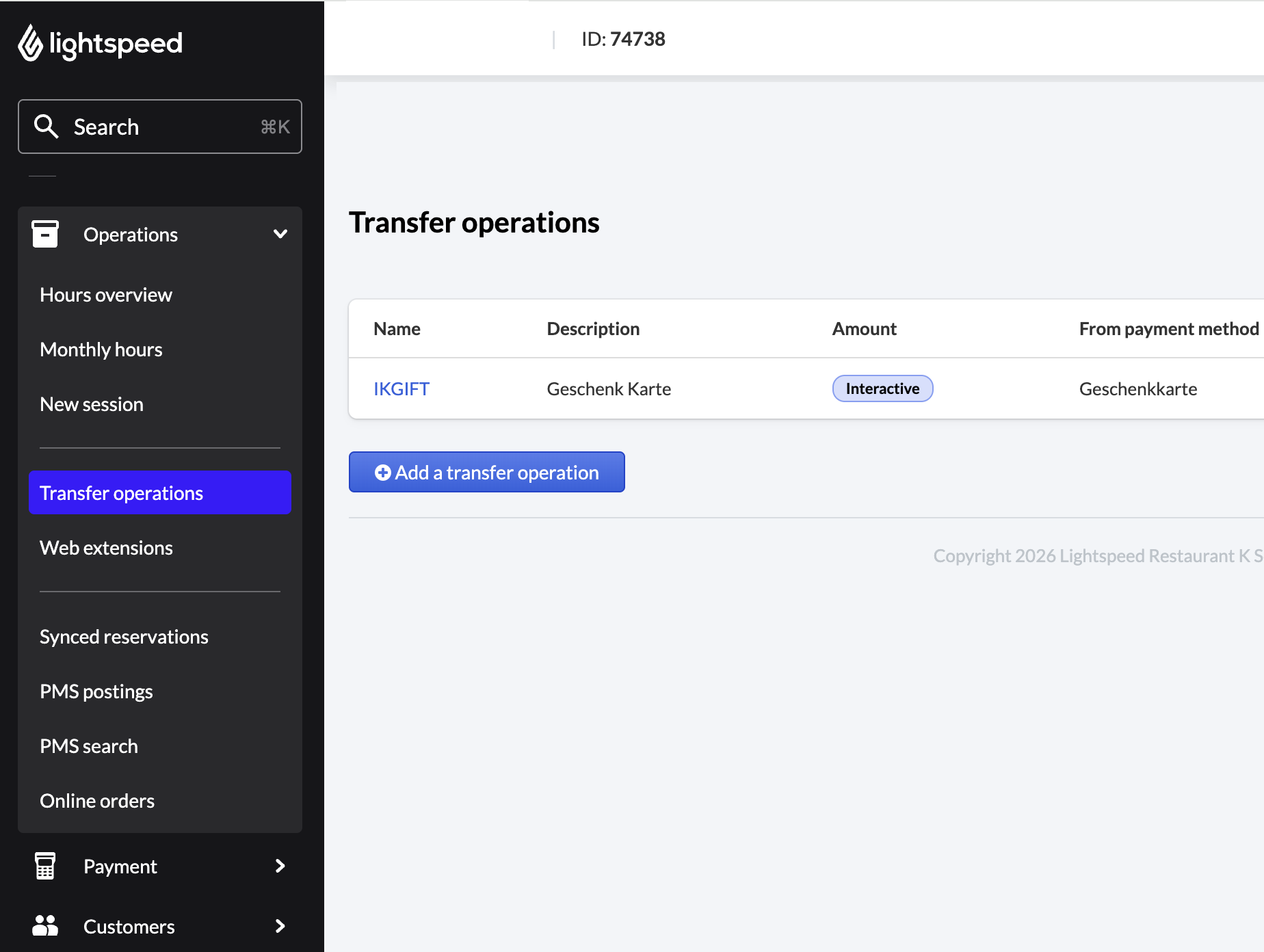
Go to Operations > Transfer Operations.
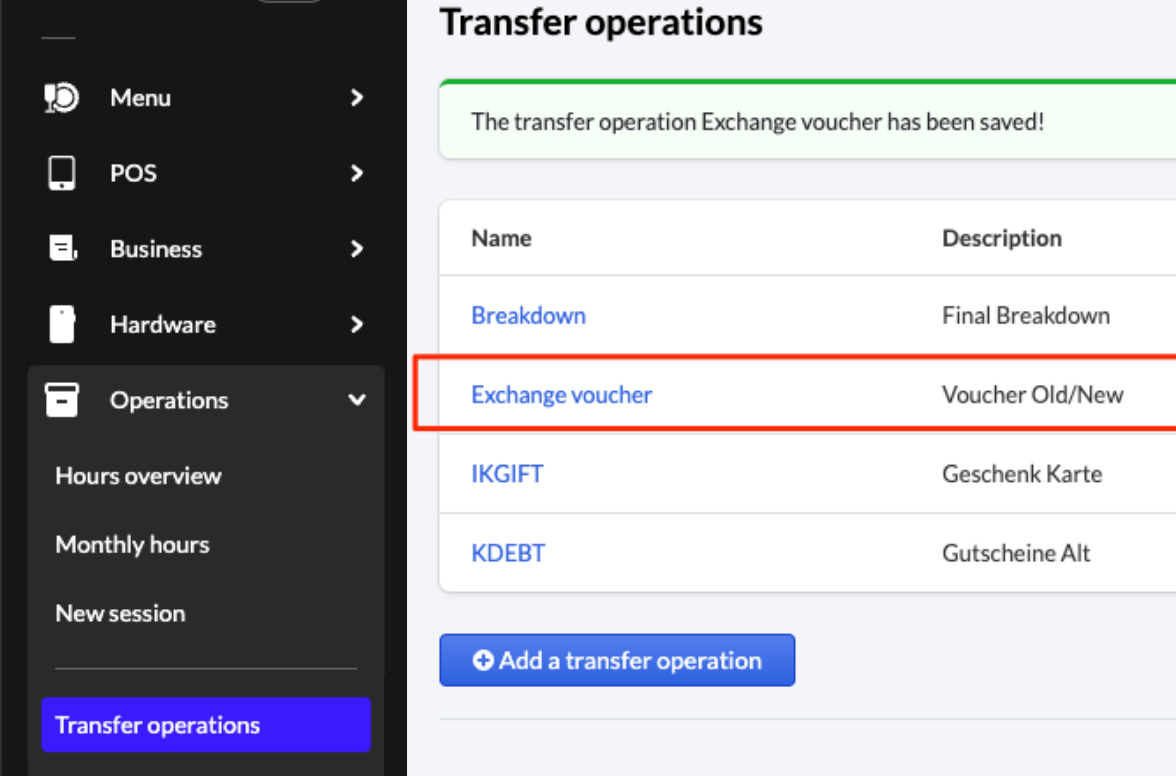
On this page, every account has (by default) a transfer operation named Gift card.
It is related to our Gift loyalty program > each refill is made via a transfer operation.
Note: Do not change these settings, as doing so may break the IKGIFT payment method.
To create one, click the blue button.
Then complete the information below:
- Name
- Description (how it will appear on the receipt)
- Amount (if you need to set a fixed amount for each transfer)
- Payment methods to debit and credit
Good to know:
— This is often set up for the final breakdown. If the merchant makes settlement errors, they can adjust results to match what they actually earned.
— To allow selection from the POS, keep the payment methods interactive and do not set an amount.
— Some merchants prefer to create one transfer operation per payment method.
2️⃣ From the POS:
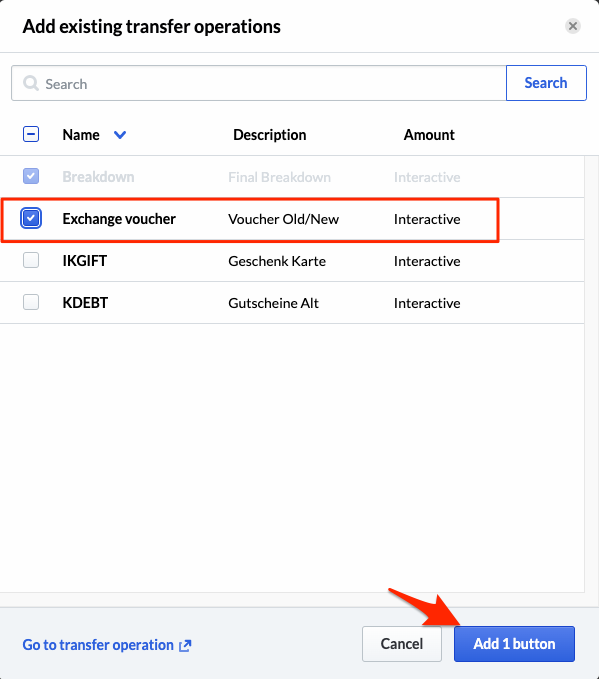
- Once the transfer operation is created in the Back Office, you need to create a button for it on your menu.
- Follow the same process as creating an item button. From Menus, edit the menu where you want to add the transfer operation.
- After you select the screen where you want to add the button, choose the Transfer operation menu and select your transfer operation.
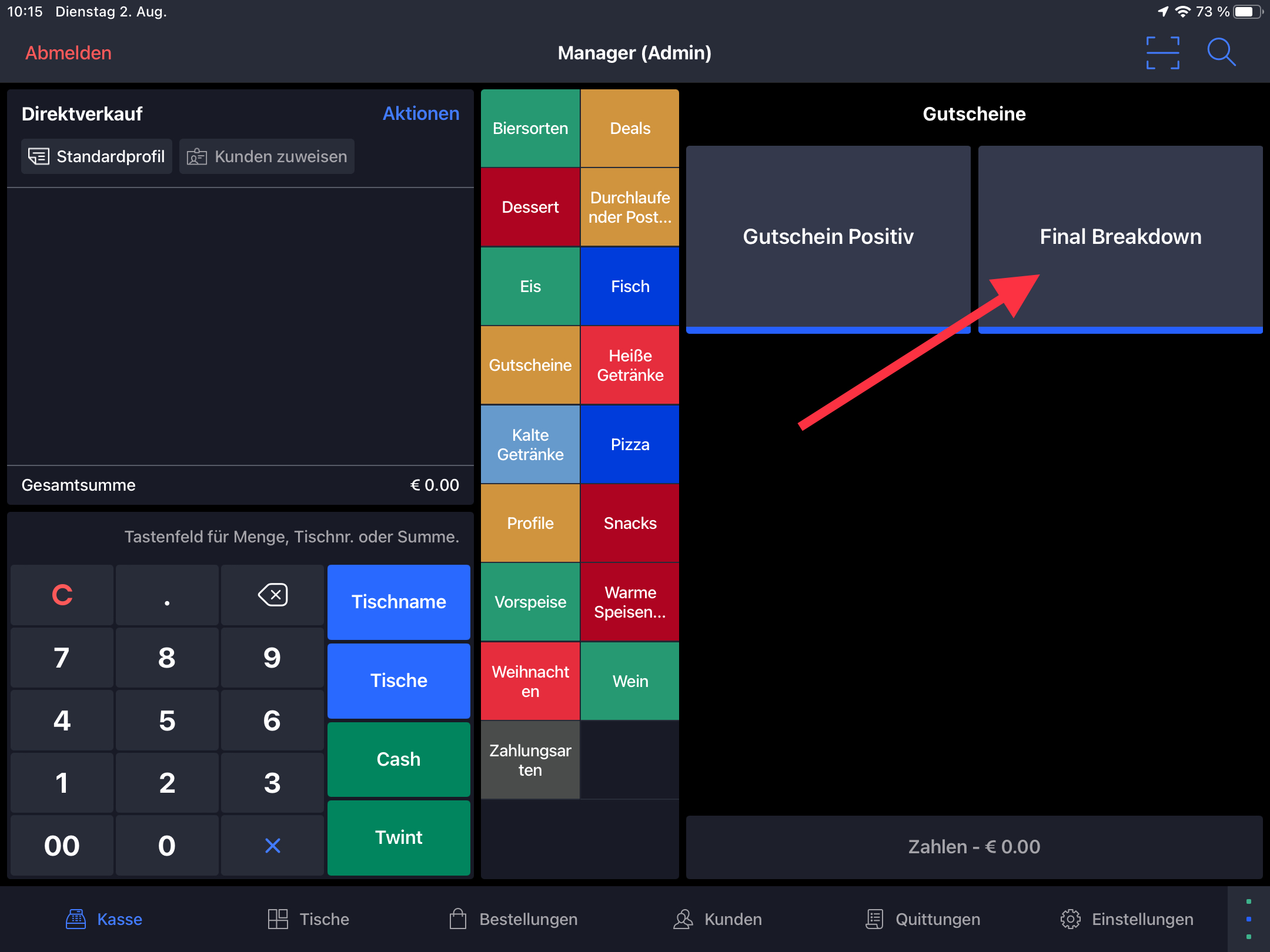
Let’s use an example (in £):
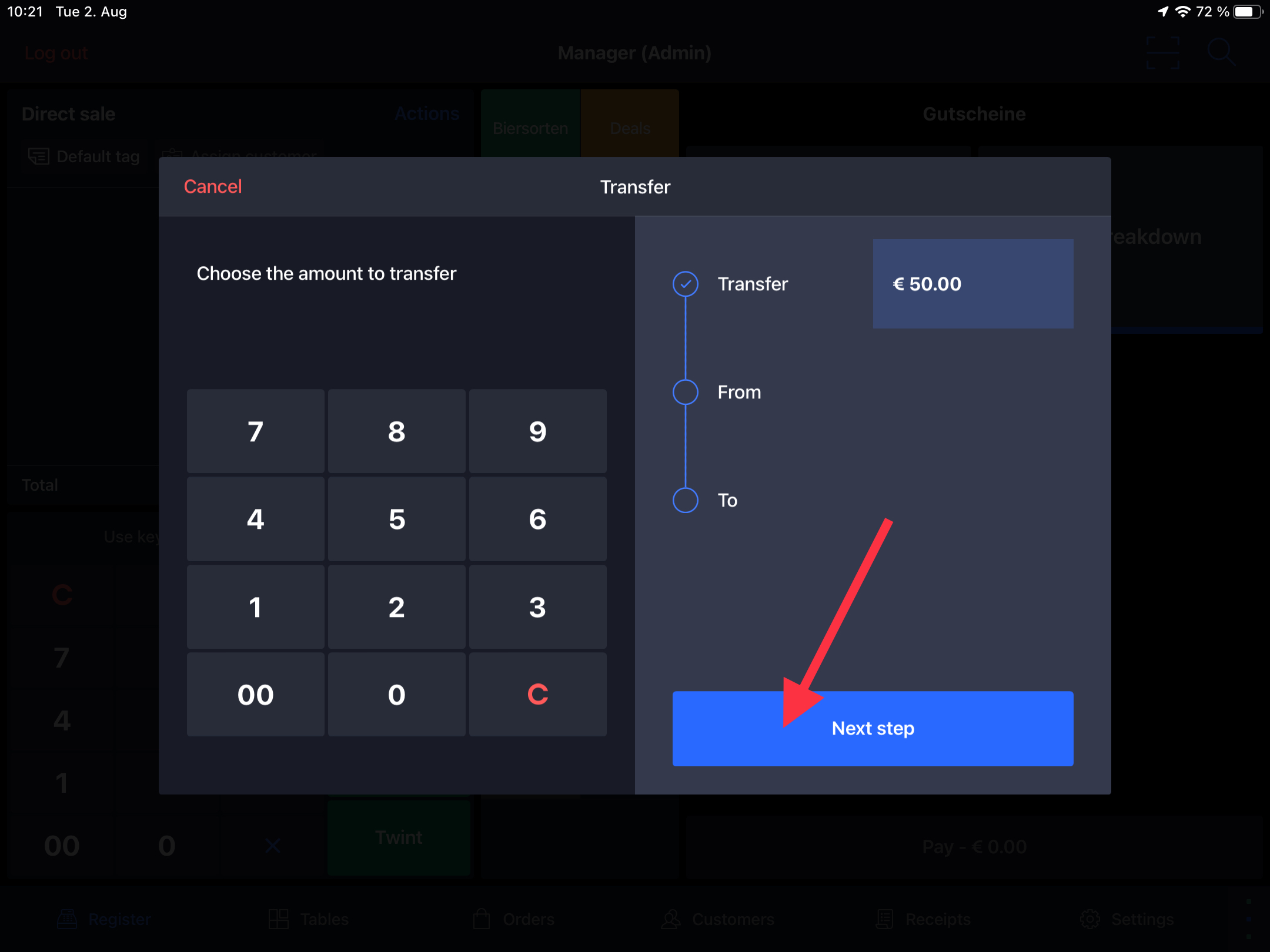
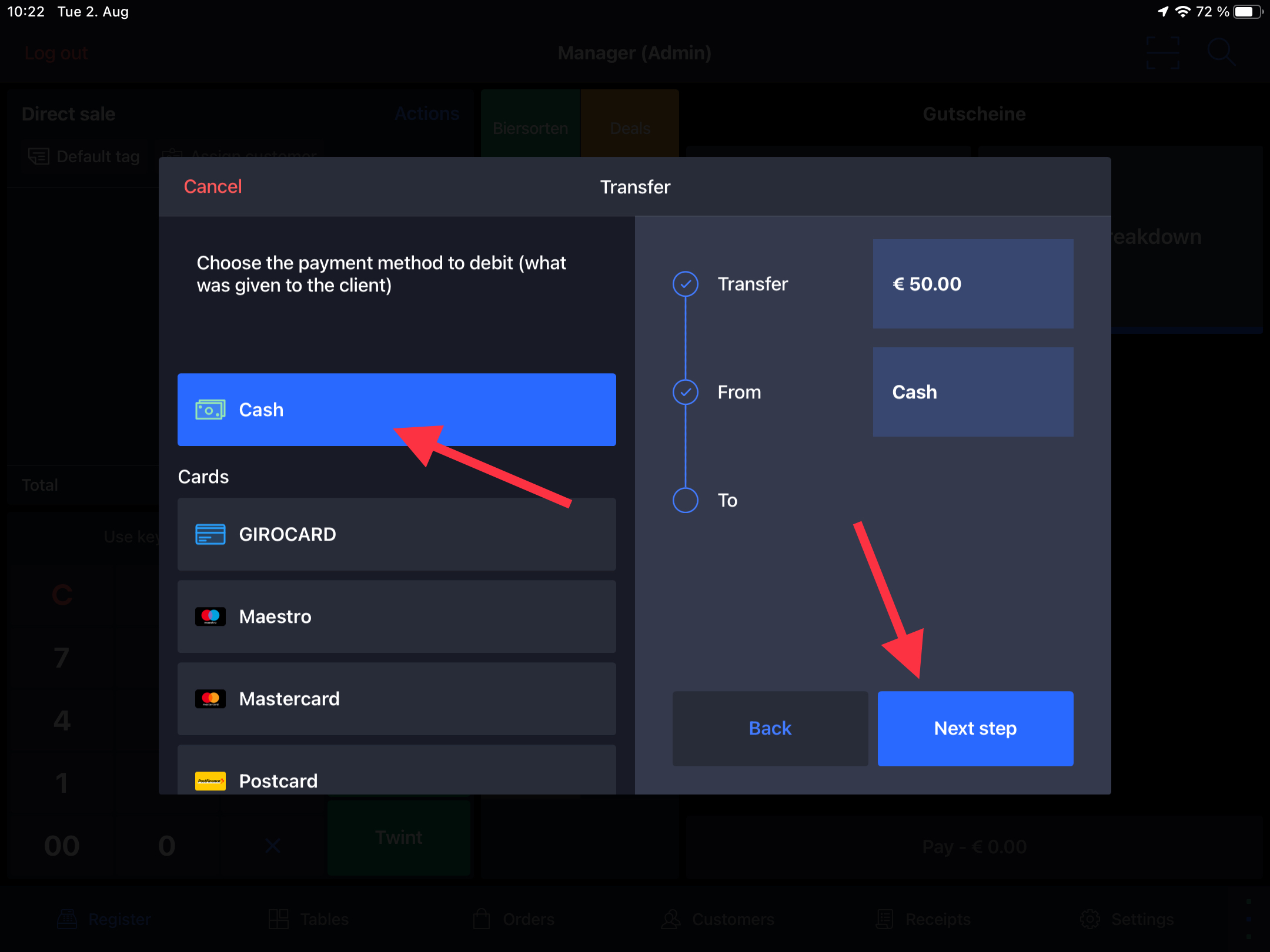
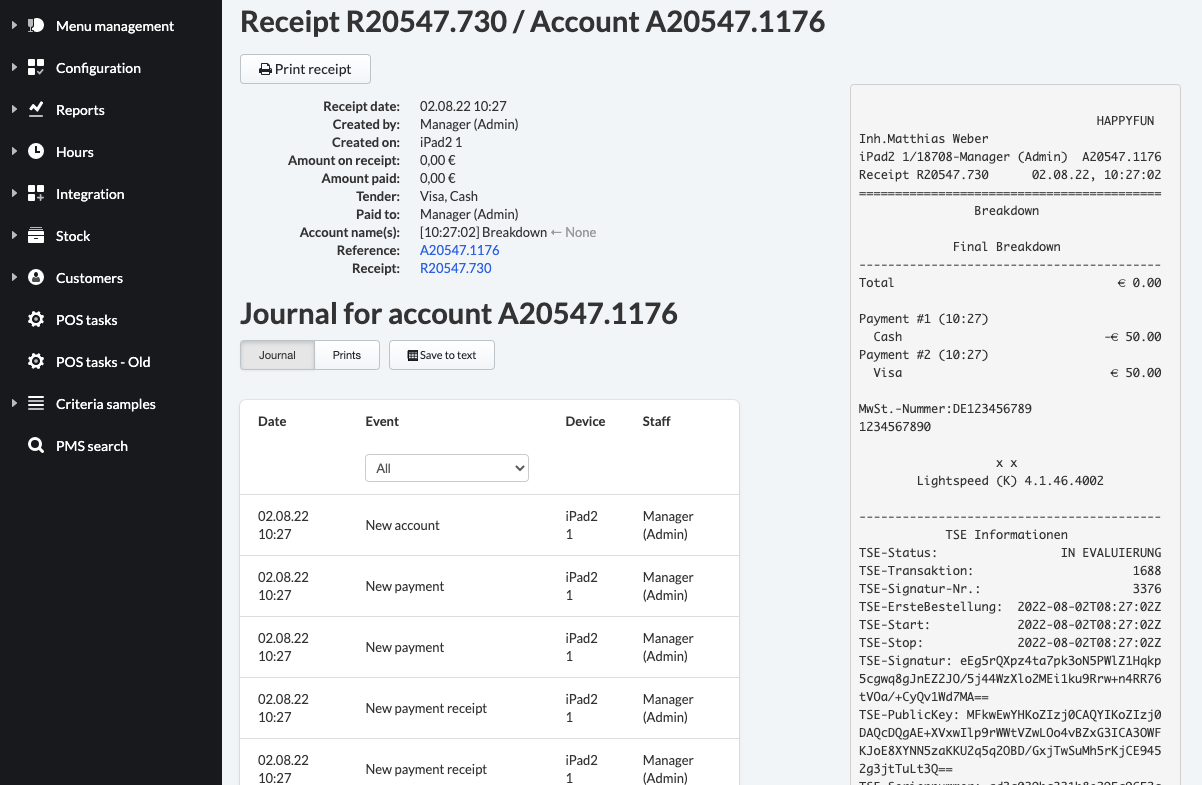
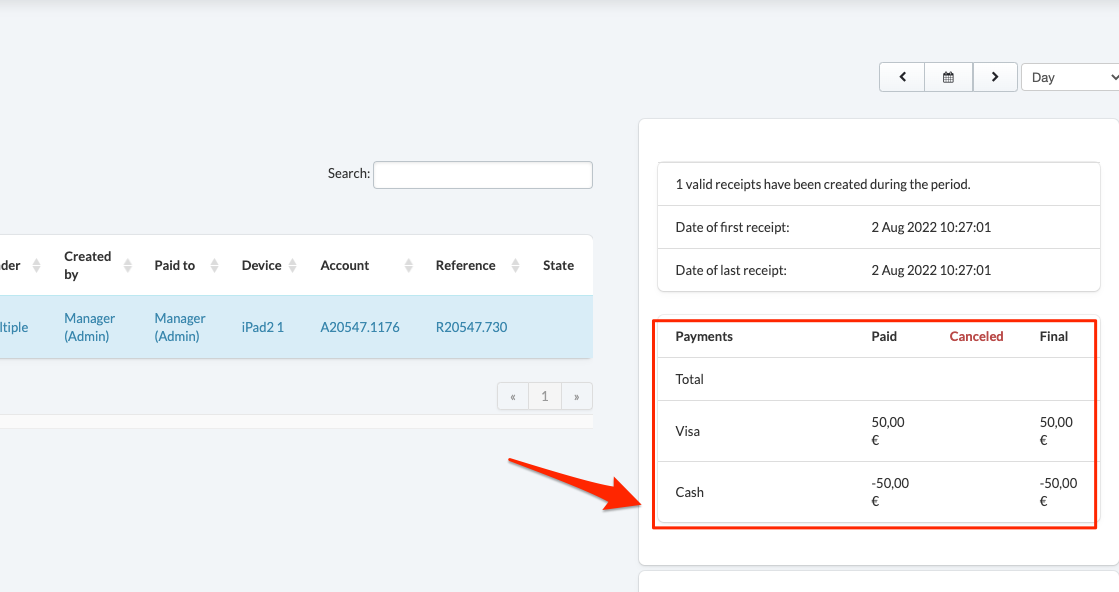
Here, we transfer £50 from CASH to VISA.
It creates a transaction for £0.
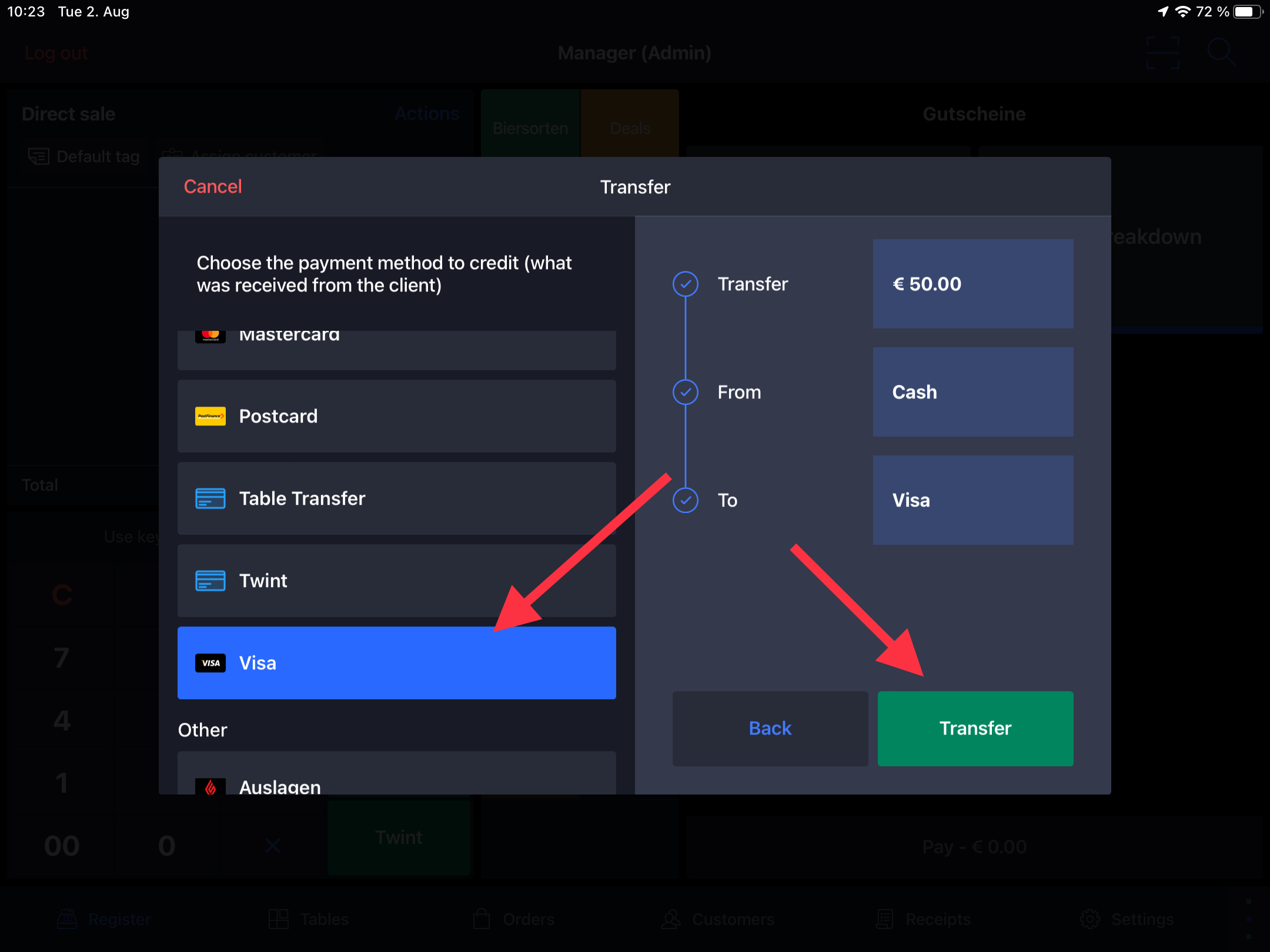
Why £0 ?
Because it creates 2 movements:
- – 50 in CASH
- +50 in VISA
ℹ️ In the receipts list, you will find a receipt for £0 showing these movements.
Step 1. Create transfer operation
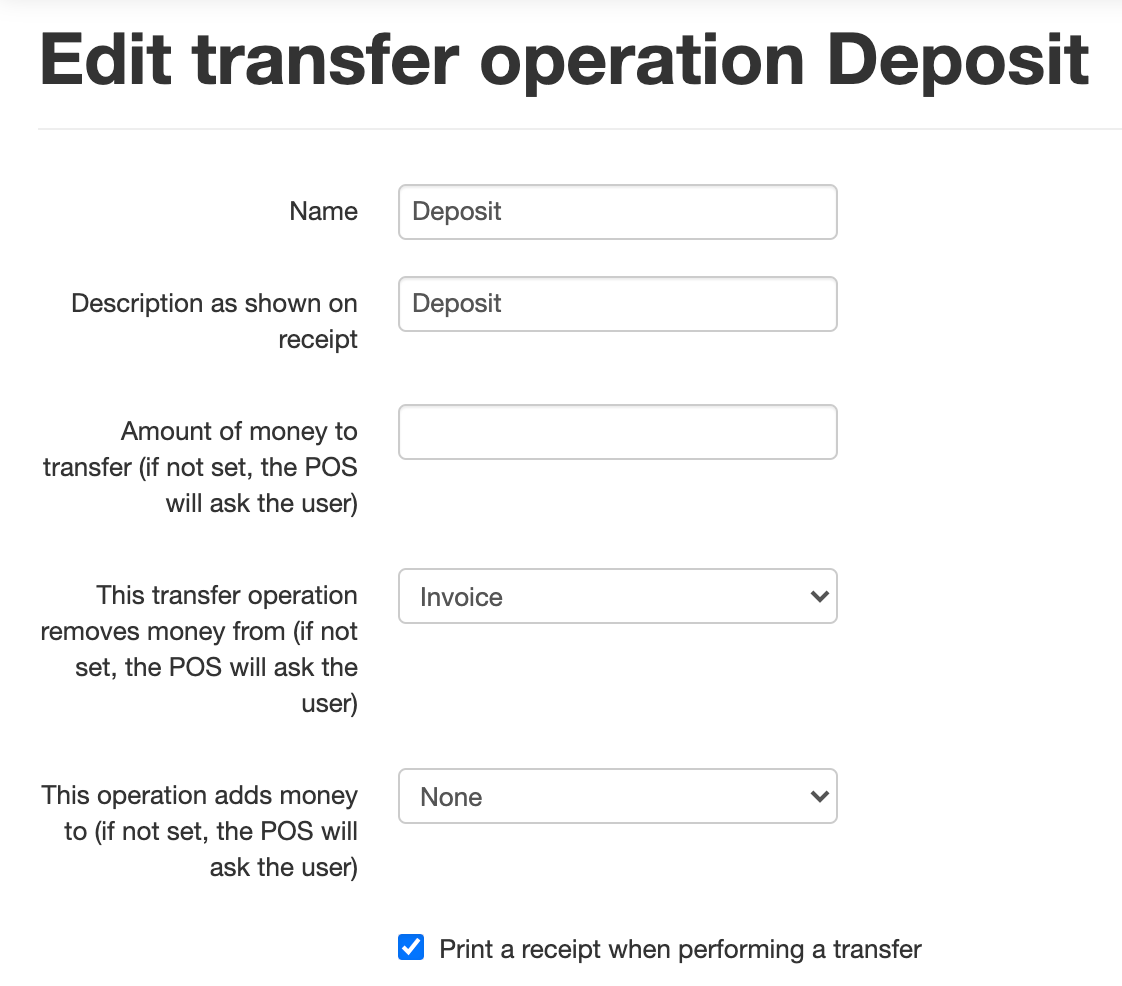
- Go to Operations > Transfer Operations
- Click Add a transfer operation and complete the following fields:
— Name
— Description as shown on receipt
— This transfer operation removes money from (if not set, the POS will ask the user), so choose Invoice - Click Save
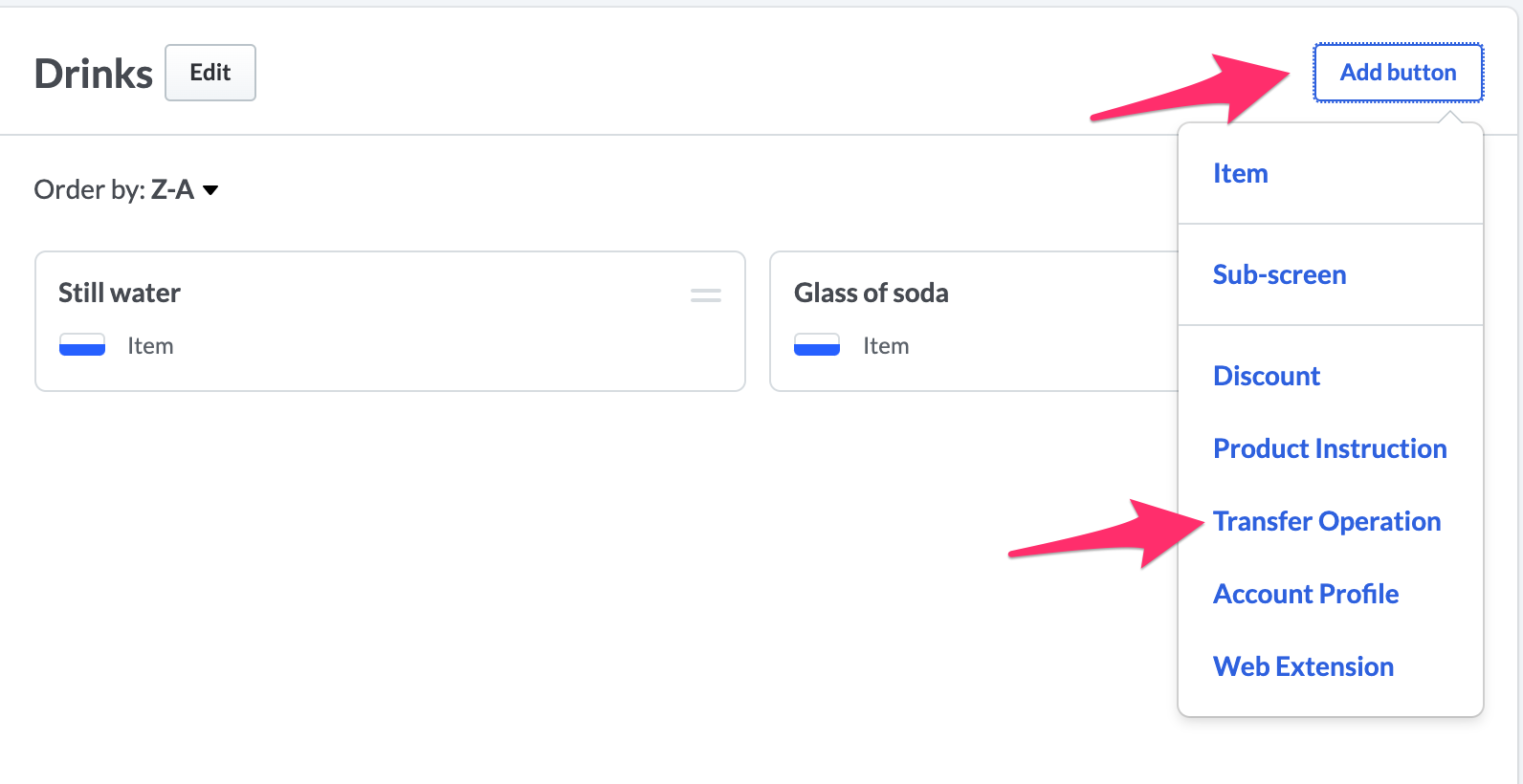
Step 2. Create deposit button on POS
- Go to Menu > Item List
- Select the menu that is synchronized with your iPad
- Click Edit
- Select Top level screens, choose which screen you would like to add the button on
- Click Editor
- On your right, select Add a new button
- Select the type of object you would like to link the button to, choose Transfer operation
- A drop down menu will show up No transfer operation selected
- Click the arrow and select the operation transfer
- Click Add Button
Step 3. Take deposit from the POS
- Take deposit:
— Click your Deposit button
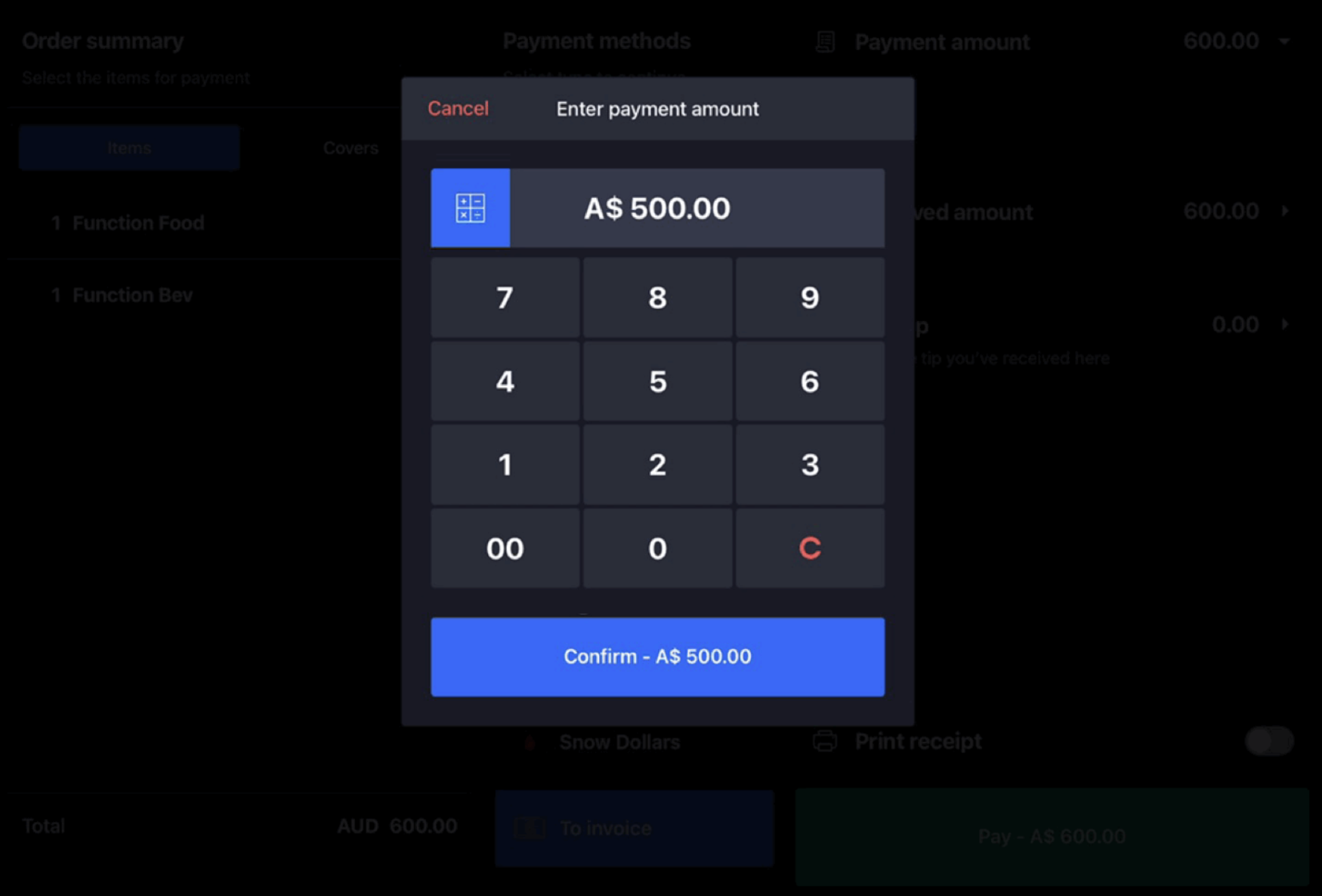
— Type the deposit amount
— Choose the payment method— Click Transfer
— In the search bar, enter the merchant’s name - Using merchant’s deposit:
— When paying , link the order/table to your merchant
— Type the deposit amount on the keypad
— Choose payment method (Debtors/Invoice)
— Select Pay on amount left to pay
— Choose Payment Method
— Confirm Payment on Pay
❗Note on gross/net results:
— If you go back to Business Reporting in the Back Office, you’ll see that deposits do not affect your results.
— Deposits are VAT-free because no items have been sold yet, so they are not included in sales totals.


