
K-Series
POS Configuration
Updates
Use this guide to understand what’s new, what was renamed or restructured in the new POS configuration system, and why it matters for setup.
August 2025
Here’s a breakdown of the new settings by category:
- Basic setup
- Order management
- Order tickets
- Payments
- Receipts
- Device settings
- Scheduling and reporting
New Setting
Old Setting
Details
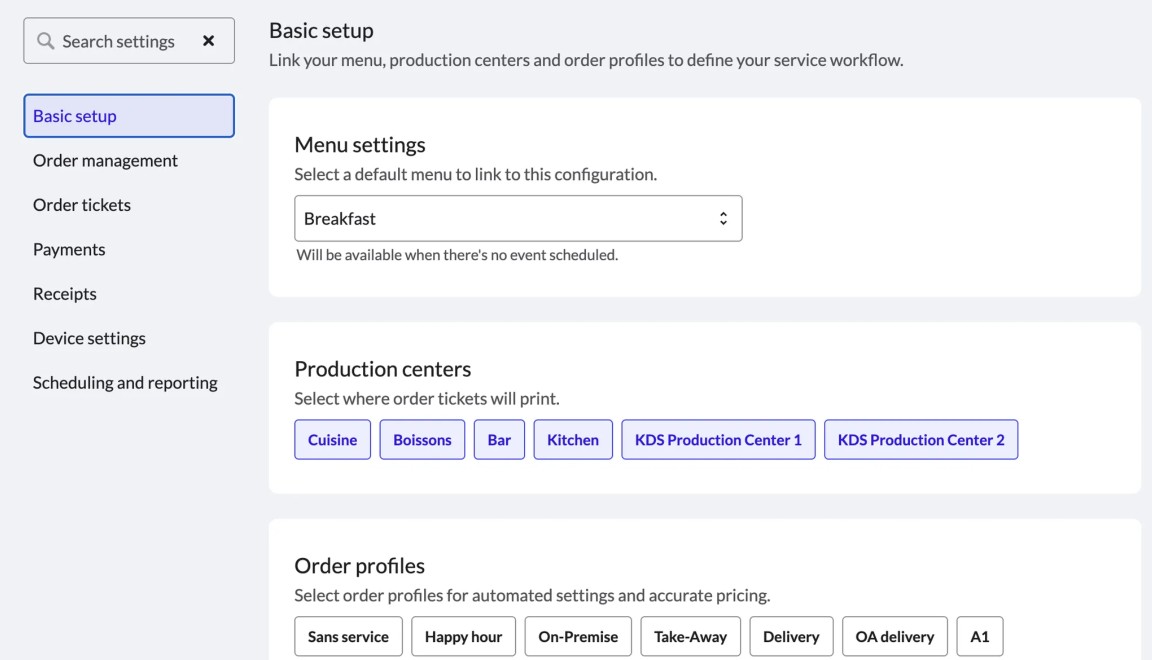
Menu settings
Select menu to link to this POS configuration
Choose a menu to link to this POS configuration.
Production centers
Select production centers for printing
Choose each production center where order tickets should be printed.
Order profile
Select order profile
Choose which order profiles are available on devices with this configuration (profiles in gray will not be selectable on the POS).
New Setting
Old Setting
Details
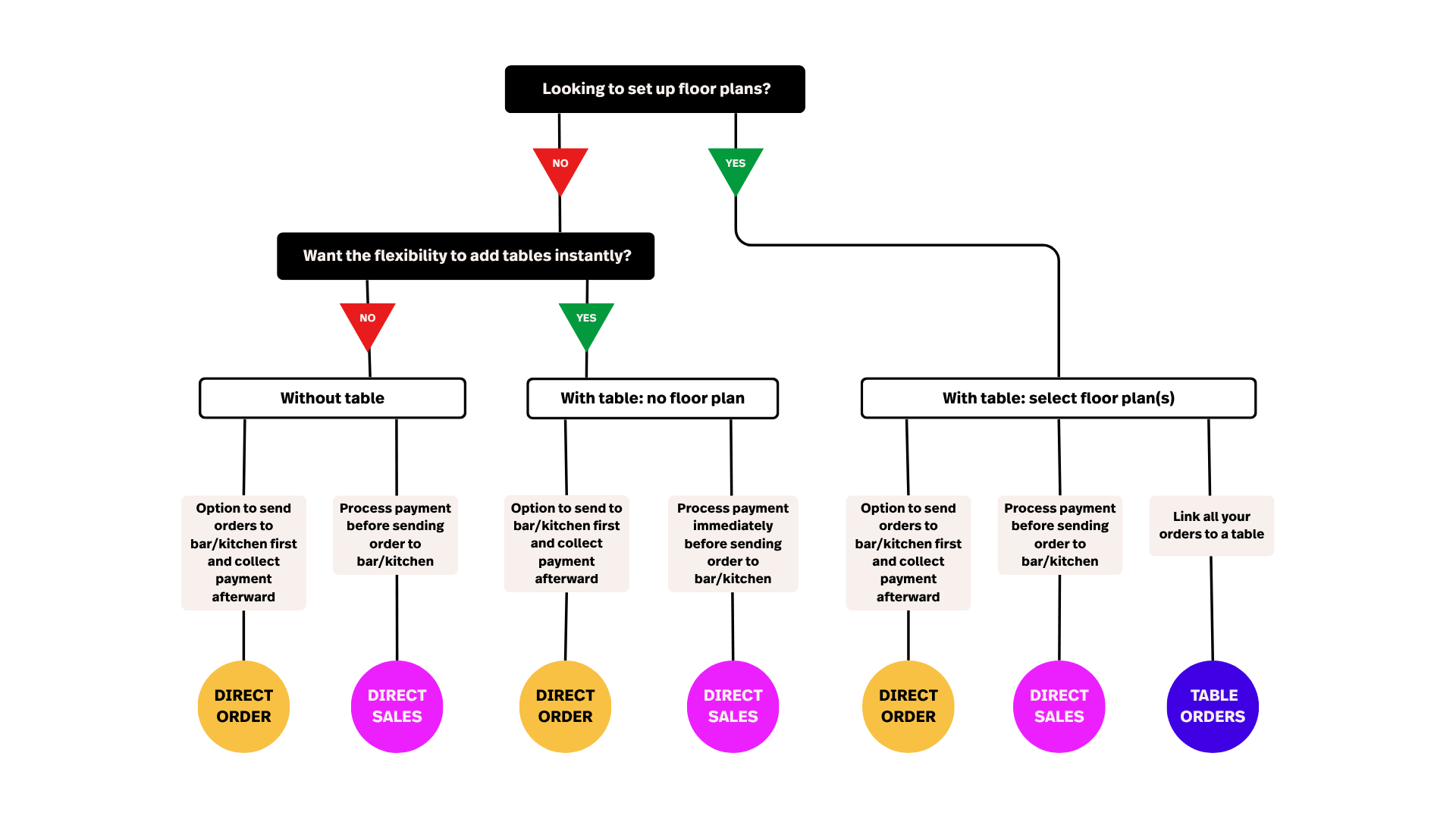
Without table
No table management
No option to create tables, only direct sales or direct orders.
With table service: no floor plan
Basic table management
Option to create tables on the fly, and to choose between direct sales or direct orders.
With table service: select floor plan(s)
Full table management
Create tables and select tables from floor plan, and option to choose direct sales or direct orders.
A few important notes:
- In Direct sales, you can’t do partial payments unless you enable the setting Allow direct sales to be placed on hold. If this option isn’t desired, you need to enable table service instead.
- Order naming is only available when using the With table: select floor plan(s) option. You cannot name orders when using Without table or With table: no floor plan options.
- Floor plan selection is only available with table service.
- Table orders only are available when With table: select floor plan(s) is enabled. You’ll need to link each order to a table before sending it for preparation.
New Setting
Old Setting
Details
Default order profile for direct sales
Select order profile for direct sales
Use the dropdown menu to select a default order profile for direct sales.
Require order profile for direct sales
Require users to select an order profile for direct sales
When enabled, this feature prompts POS users to select an order profile before proceeding to payment during direct sales.
Ask for order profile confirmation
Skip confirmation when selecting order profile for direct sales
Direct sales + Require order profile for direct sales.
New Setting
Old Setting
Details
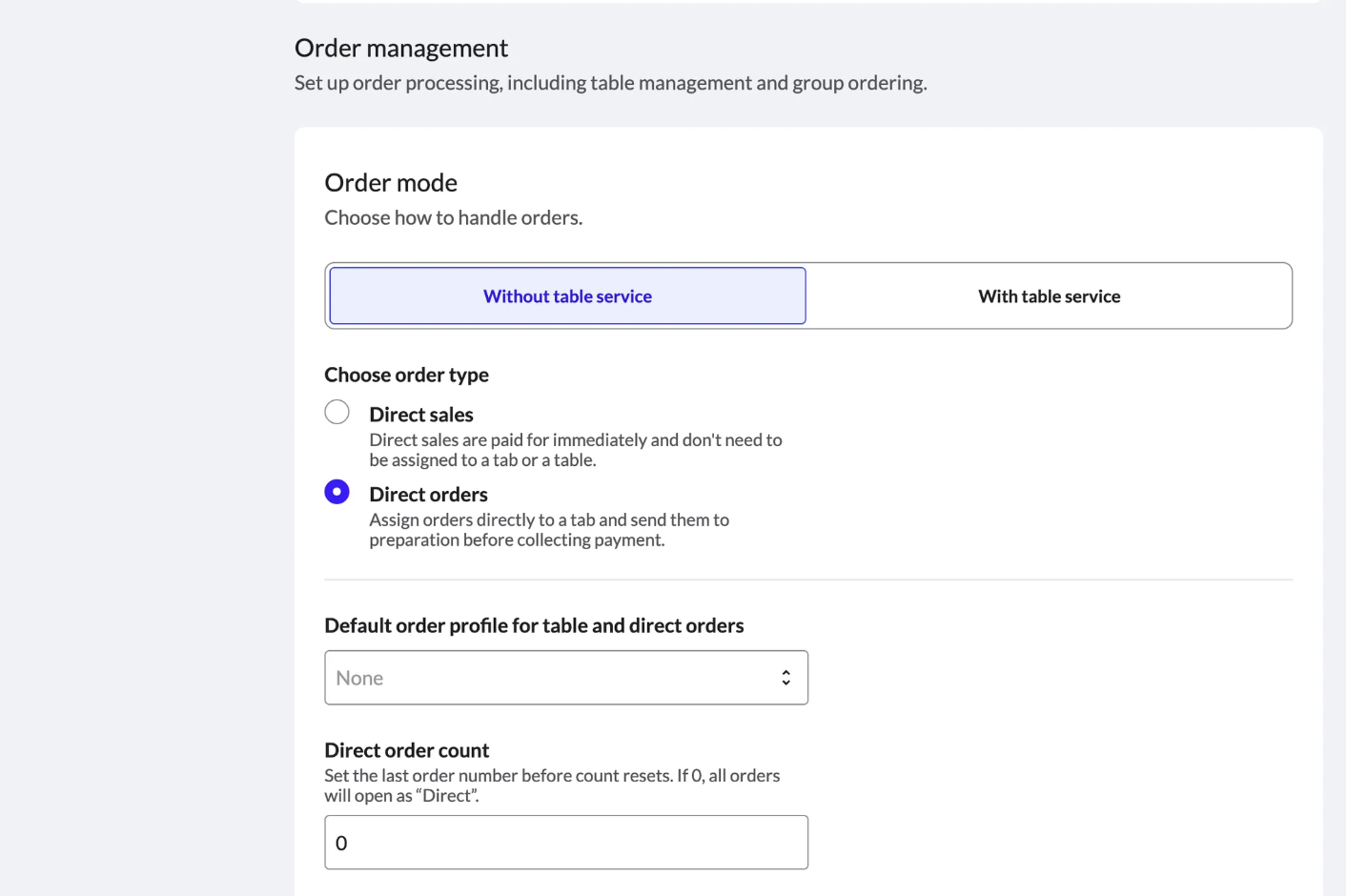
Default order profile for table and direct orders
Select order profile for table and direct ordering
Use dropdown menu to select a default order profile for table sales.
Direct order count
Number of direct orders to create
Landing screen after login
Select default screen to display after login
Starting course
Select starting course
Number of covers for table and direct orders
Default number of covers for new orders
Direct order and table orders settings that remain unchanged:
- Allow orders with zero covers
- Show Fire course button on register screen
- Limit order taking to the user assigned to a table
New Setting
Old Setting
Details
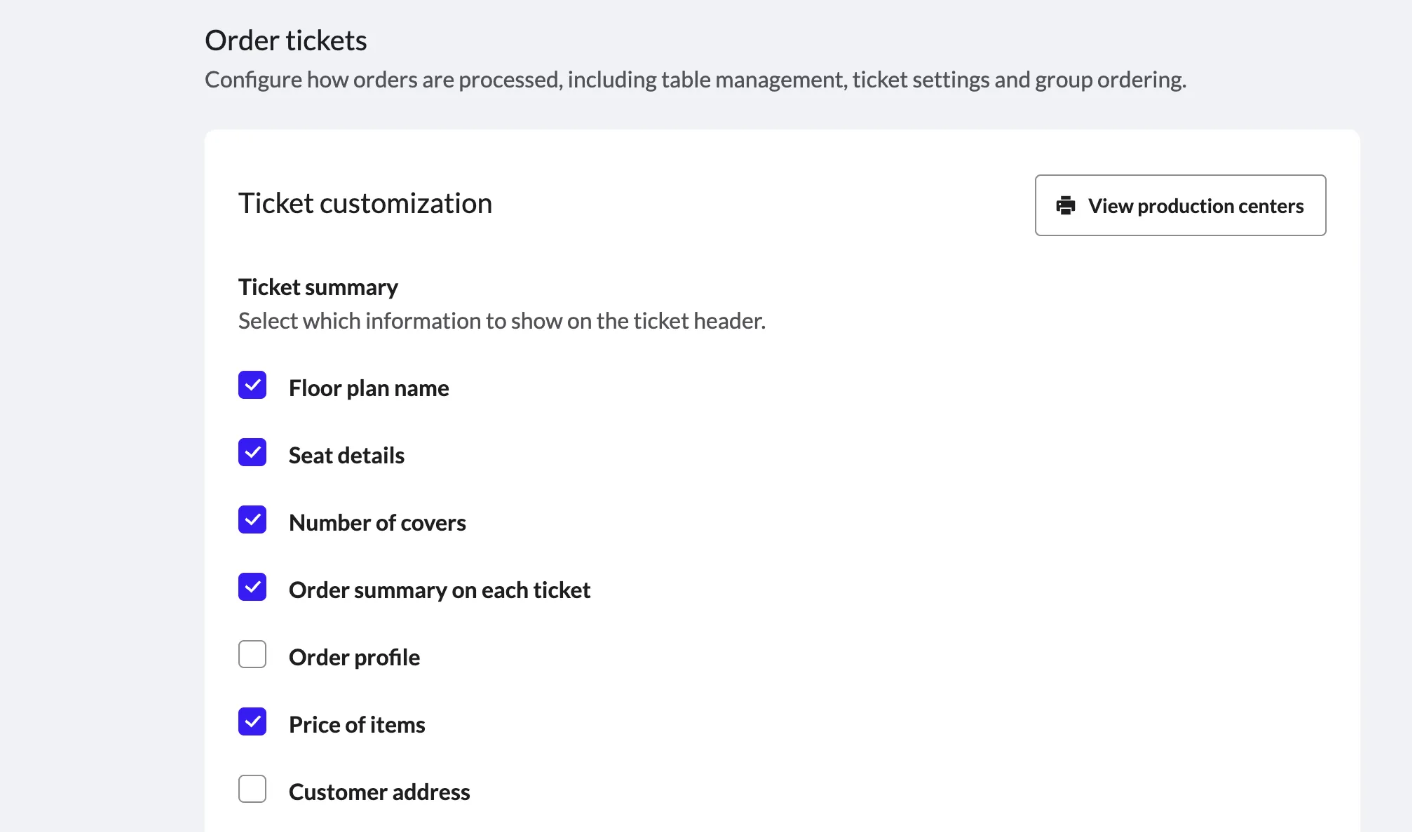
Floor plan name
Show floor plan name
Seat details
Show seat details on dockets
Number of covers
Show number of covers on the production dockets
Order summary on each ticket
Show order summary on each continuation docket
Order profile
Show current order profile name
Price of items
Show the price of items on production dockets
Customer address
Show full consumer address on production dockets
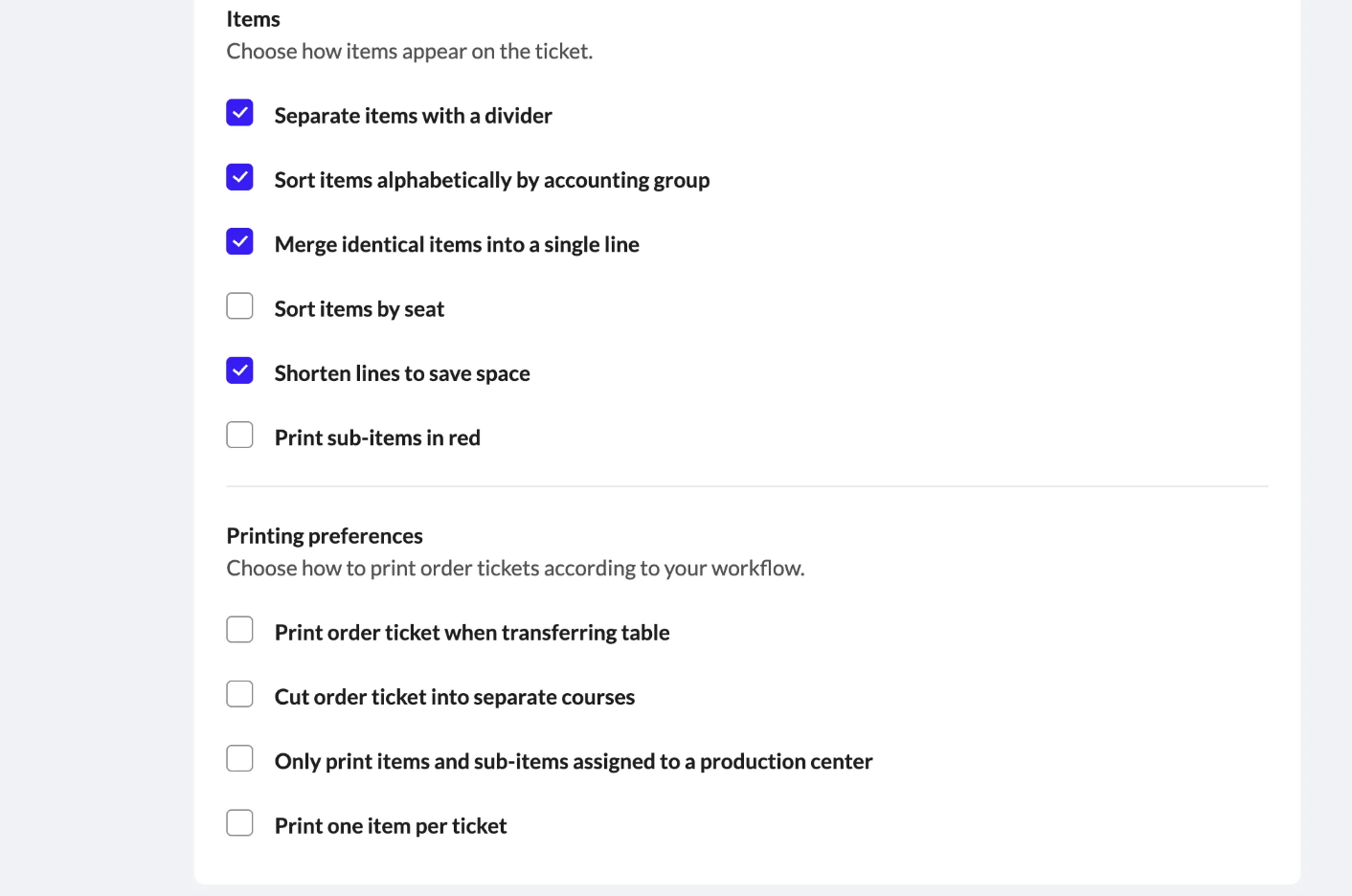
Separate items with divider
Separate items with a divider on production dockets
Sort items alphabetically
Sort items alphabetically by accounting group on production dockets
Merge identical items into a single line
Merge duplicate item on production dockets
Shorten lines to save space
Shorten lines on production dockets
Maximum 32 characters (or 16, depending on width). If disabled, you can print 64 characters, useful when you want text to appear on a single line.
Cut order tickets into separate courses
Cut production dockets into separate courses
Each course will be printed on a different ticket.
Print one item per ticket
Print one item per production docket
Order ticket settings that remain unchanged:
- Sort items by seat
- Print sub-items in red
- Print production docket when transferring table
- Only print items and sub-items assigned to a production center (only print items that have been set to print at a specific production center, not via accounting group)
New Setting
Old Setting
Details
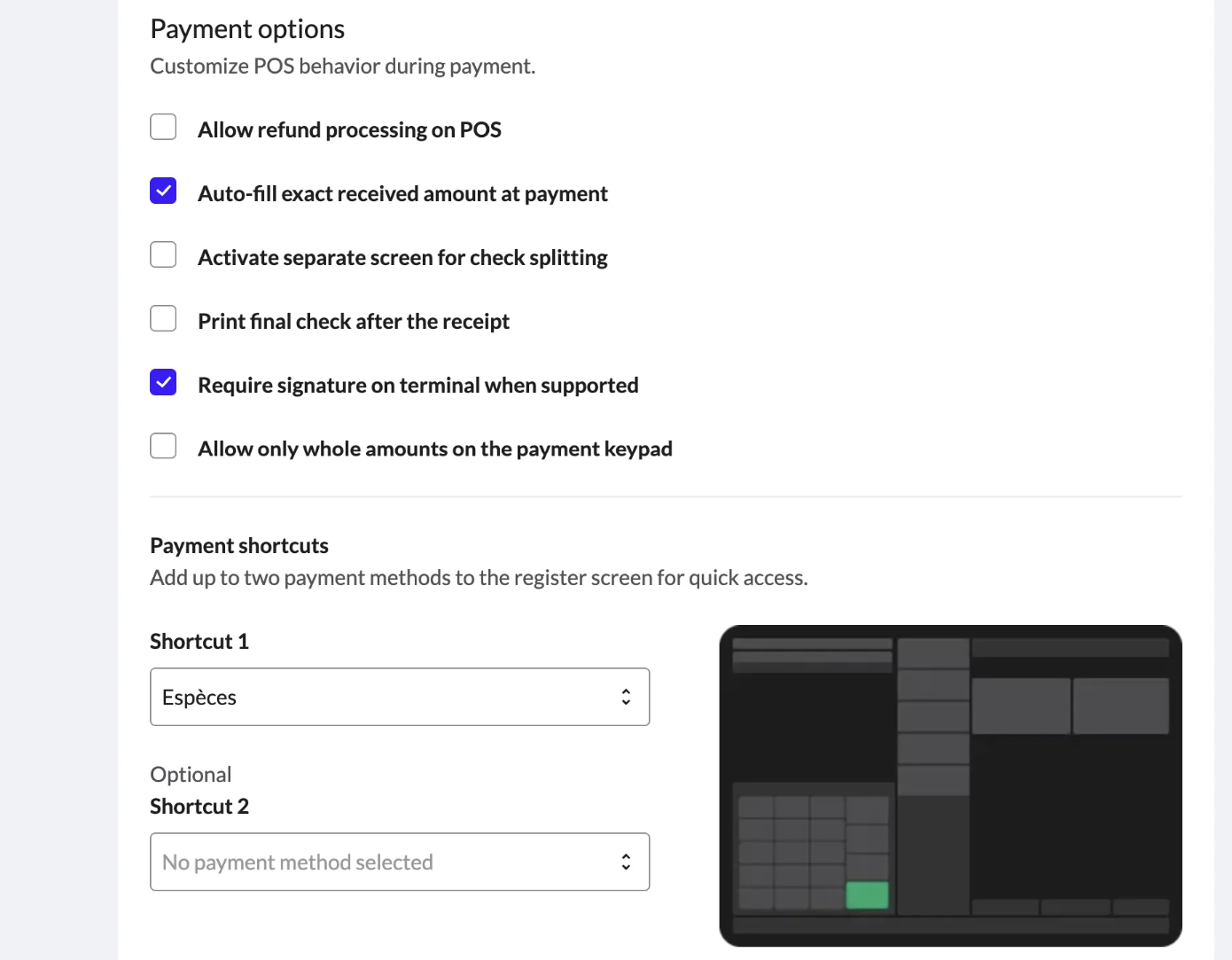
Auto-fill exact received amount at payment
Skip amount prompt at payment
— This feature only works when tipping or change is enabled, and can also be configured at the payment method level.
— When enabled, the system automatically fills in the exact amount on the totals screen during payment. This saves time, especially when customers frequently pay with exact change.
Activate separate screen for check splitting
Enable advanced check splitting
When enabled, this option allows staff to quickly and efficiently split checks between customers on the POS app.
Require signature on terminal when supported
Capture signature on terminal when supported
— When enabled, this option allows for on-screen signature capture
— Note: The payment terminal must support this feature
Disable automatic change calculation on cash transactions
Deactivate automatic change calculation on cash transactions
When enabled, the system will not automatically calculate change for cash payments.
Payment shortcut 1
Quick access payment shortcut 1
— Choose a commonly-used payment method from the dropdown to create a quick access button beside the numeric keypad.
— Setting a default payment method makes it the pre-selected option when completing a sale.
— Without a default payment option, you must manually select a payment method for each sale.
Payment shortcut 2
Quick access payment shortcut 2
Choose a second frequently-used payment method from the dropdown to create a quick access button next to the numeric keypad.
Amount paid notification
Select duration of amount paid notification
Adjust how long the payment confirmation notification displays on screen after completing a transaction (1-10 seconds).
Link loyalty card to customer
Users must link a loyalty card to a customer
To use a loyalty card, a customer must be attached to the order.
Enable credit for unused meal voucher amount
Activate money back on meal vouchers
Payments settings that remain unchanged:
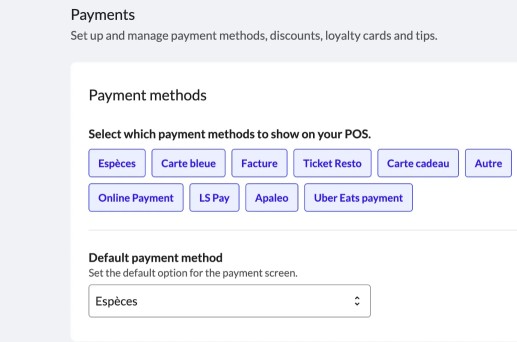
- Select payment method
- Default payment method
- Allow refund processing on POS (recommended for handling returns or workflows that include deposit returns on glass bottles)
- Print final check after the receipt (prevents note printing until the order invoice prints, which happens immediately)
- Allow only whole amounts on the payment keypad (prevents entering cents when processing payments)
- Select discounts (select which discounts will be active in the POS system; grayed-out options cannot be applied to orders)
- Process third-party QR codes (when enabled, the POS can scan QR codes from third-party Lightspeed integrations
New Setting
Old Setting
Details
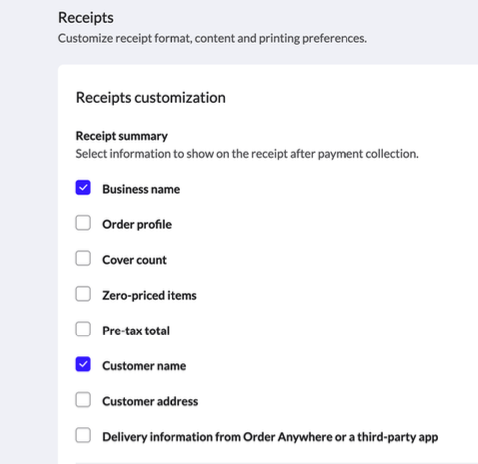
Business name
Hide business name
Orde profile
Show the orders profile on receipts
Cover count
Include cover count on receipts
Zero-priced items
Show items that have no price as free on customer receipts
Pre-tax total
Show pre-tax total on receipt
Customer name
Show customer name on receipts
Customer address
Show customer address on receipts
Delivery information from Order Anywhere or a third-party app
Include delivery information on printed receipts
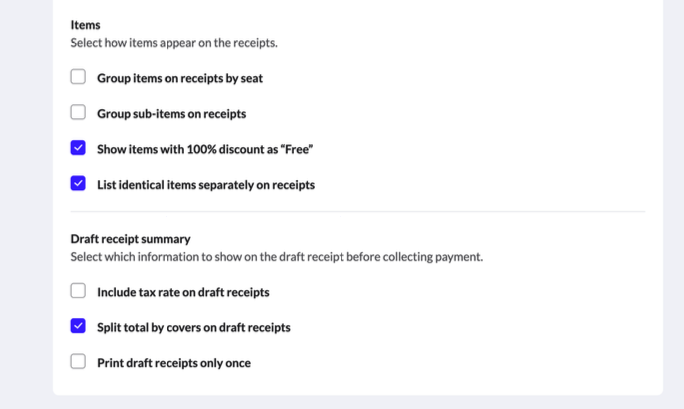
Show items with 100% discount as Free
Don’t include price on receipt when applying a comp discount
List identical items separately on receipts
Give each duplicate item its own line on receipts
Split total by covers on draft receipt
Divide the draft receipt total by the number of covers and print this on the receipt
Printing profile draft receipt
Default printing profile used for draft receipts
Printing profile receipt
Default printing profile for receipts
Print receipt with delivery slip
Automatically print receipt when delivery slips are printed
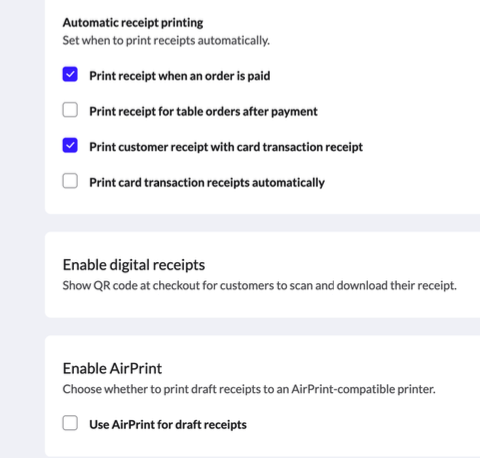
Print receipt when an order is paid*
Print receipt on paid orders automatically
The POS automatically prints a receipt when an order is processed.
Print receipt for table orders after payment*
Print receipt on paid table orders automatically
Receipt automatically prints for table orders after payment completion.
Print receipt with card transaction receipt*
Automatically print receipt when card payment receipts are printed
The POS automatically prints a regular receipt whenever a credit card receipt is printed.
Print card transaction receipts automatically*
Print card payment receipts automatically
Automatically prints a credit card receipt when payment is made by card.
*Note: Merchants in France must disable this setting to comply with French law.
Receipts settings that remain unchanged:
- Group items on receipt by seat
- Group sub-items on receipts
- Include tax rate on draft receipts
- Print draft receipts only once
- Print transaction lines on receipt in large font
- Print total on receipt in large font
- Print server name on receipt in large font
- Print receipt for history on refund receipt
- Print receipt for each partial payment
- Enabled digital receipts
- Enable AirPrint
- Use AirPrint for draft receipts
New Setting
Old Setting
Details
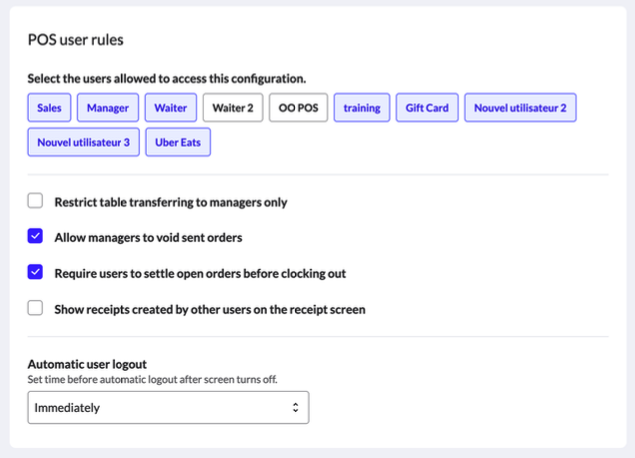
Select user rules
Users to allow within this configuration
Restrict table transferring to managers only
Only managers can transfer tables to other tables
Allow managers to void sent orders
Allow managers to void prepared items from order
Require users to settle open orders before clocking out
Users must settle open orders before clocking out
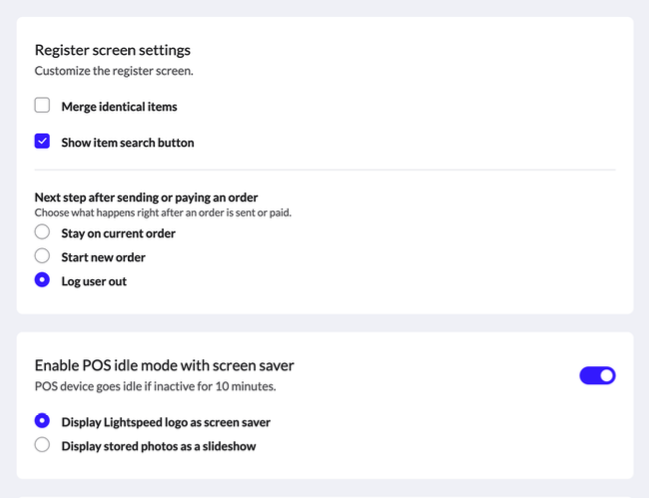
List identical items separately
Keep duplicate items separate on register screen
Even when multiple of the same item are ordered, each item will appear as a separate line on the customer receipt with the quantity displayed next to the item name.
Merge identical items with different production instructions
Merge duplicates with different production instructions onto one item line on register screen
— This option merges multi-ordered items with different production instructions onto a single line.
— For instance, if a customer orders two lattes prepared in two different ways, Latte will appear as one line with two separate production instructions beneath it.
Show item search button
Show item search button on register screen
Stay on current order
Remain on current order after tapping Send
— After sending an order to the kitchen, the POS remains on the current register screen instead of returning to the Home screen.
— This feature saves time for restaurants where servers add drinks to an order, immediately Send them to the bar for preparation, and then add food to the same order.
— This option is particularly valuable for quick-service restaurants that need to send orders to the kitchen or bar before collecting payment.
Start new order
NEW This option appears when both Stay on current order and Log user out settings are disabled.
Log user out
Log user out after order updates
When enabled, this feature automatically logs users out of the Order screen after they complete a transaction.
Enable POS idle mode with screen saver
Device does go idle
NEW If both screensaver options are not selected, this feature logs users out of the Order screen after they complete a transaction.
Display Lightspeed logo as screensaver
Show a Lightspeed screensaver when the POS is inactive after 10 mins
Show a Lightspeed screensaver when the POS is inactive.
Display stored photos as a slideshow
Show photos from the POS device as a screensaver
Show photos from the POS device as a screensaver.
Automatic user logout
Set time for automatic user logout from the POS
This feature only activates when the app becomes idle.
Prevent managers from sending new or existing orders
Managers cannot send new or existing orders
Automatically send open orders upon logout
When a user logs out, their open and unsent orders will automatically be sent to the production centers
Show main screen buttons in all caps
Show button names for main menu screens in all caps
Show item button in all caps
Show button names for items in all caps
Device settings that remain unchanged:
- Use AirPrint for draft receipts
- Show receipts created by other users on the receipt screen
- Users can only delete the last item entered on the POS (when enabled, this restricts regular staff to removing only the most recently added item from a sale; managers are exempt from this limitation)
- Show tax rate next to item on register screen (enables display of each item’s tax rate beside its name when added to an order; recommended for better tax transparency)
- Lock register screen when cash drawer opens (prevents POS users from accessing the register or proceeding to the next sale until the cash drawer is closed; requires a cash drawer with a microswitch, such as the Safescan LD-3336)
- Create automatic transactions for each item (when enabled, adding an item to a sale automatically sends it to a production center and completes the transaction using your preferred payment method; to change your preferred payment method, edit the Quick payment button setting)
- Protect selection of menu buttons with manager PIN code
New Setting
Old Setting
Details
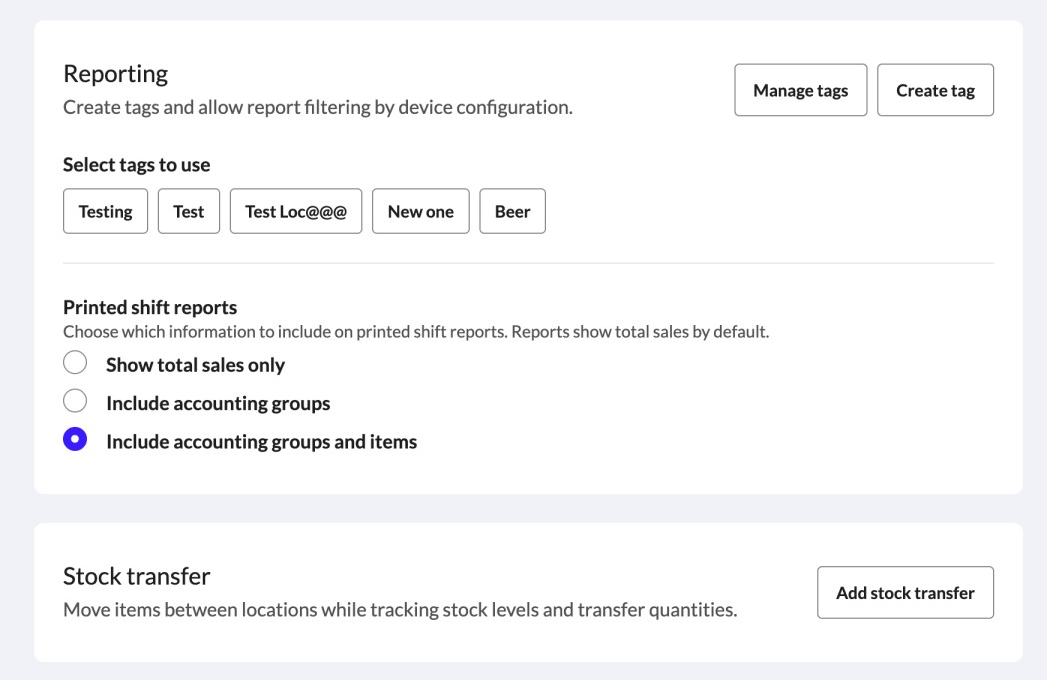
Create tags
Tags
Show total sales only
Don’t include accounting groups or items
Include accounting groups
Include accounting groups
Including accounting groups and items
Include accounting groups and items


