
Opening & Closing Procedures Troubleshooting Guide
ℹ️ EOD error message: Please wait, unable to end shift, no shift found.
When trying to close, error message appears: “Please wait, unable to end shift, no shift found”. Manager is then clocked out by the system, and the shift remains open the next morning.
Solution: Use the reports in Back Office to investigate:
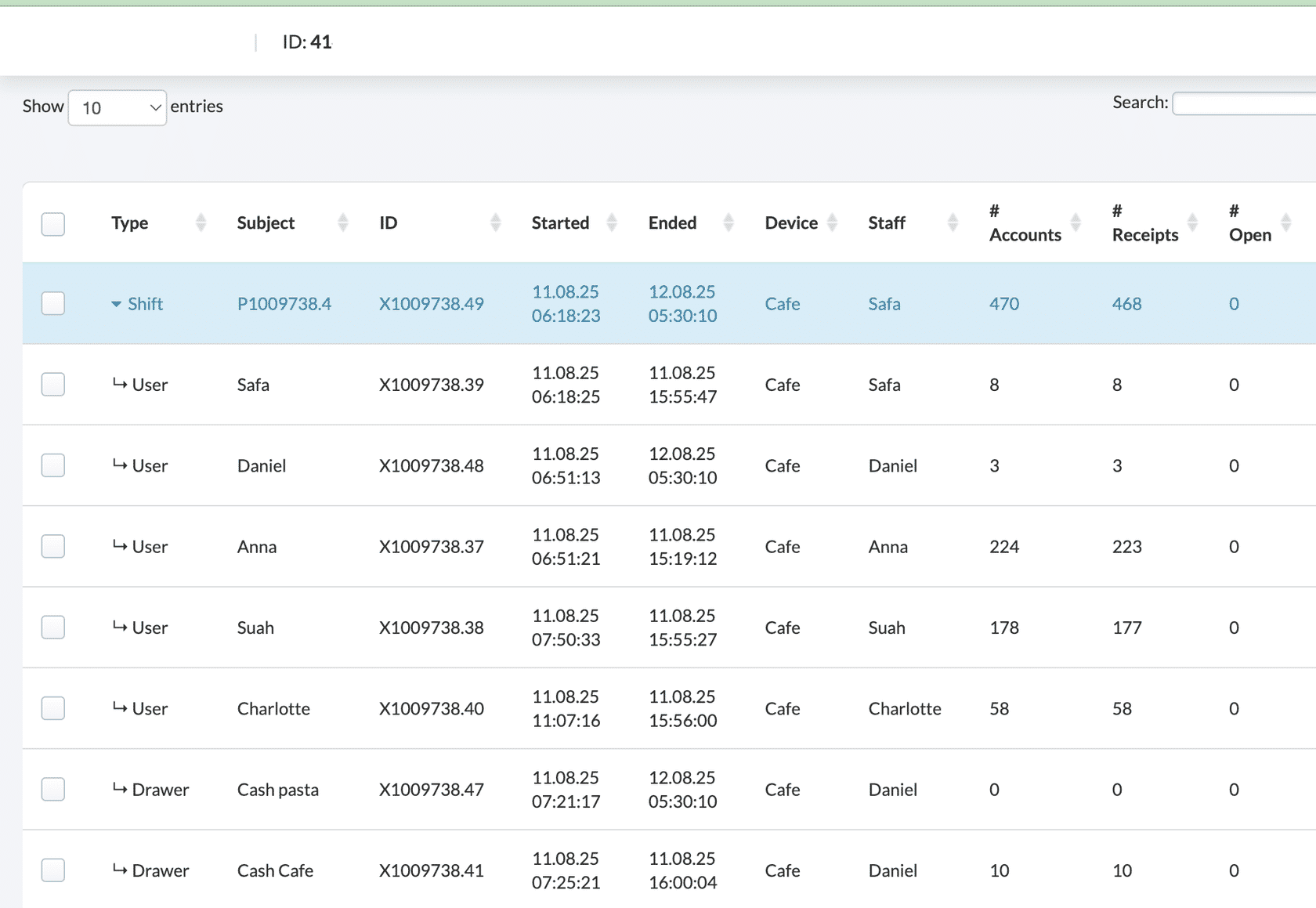
- Go to Reports > Fiscal reports > Shift report, and check whether the shift was actually closed.
To verify this: - Find the manager in the Subject column, and confirm if the manager properly closed out and ended the shift via the Ended and # Open columns.
- Check if any cash drawer(s) remained open (and carried over to today) (check the Type column to identify cash drawers).
- Determine if the merchant had to close any remaining open cash drawers on the new day before reopening them (for this, check Started and Ended dates).
Important: Verify the server group’s permissions. While giving servers the ability to open/close shifts is convenient (allowing them to clock in before a manager arrives), it can create problems. Managers aren’t required to close shifts when clocking out, which can trigger these situations/error messages.
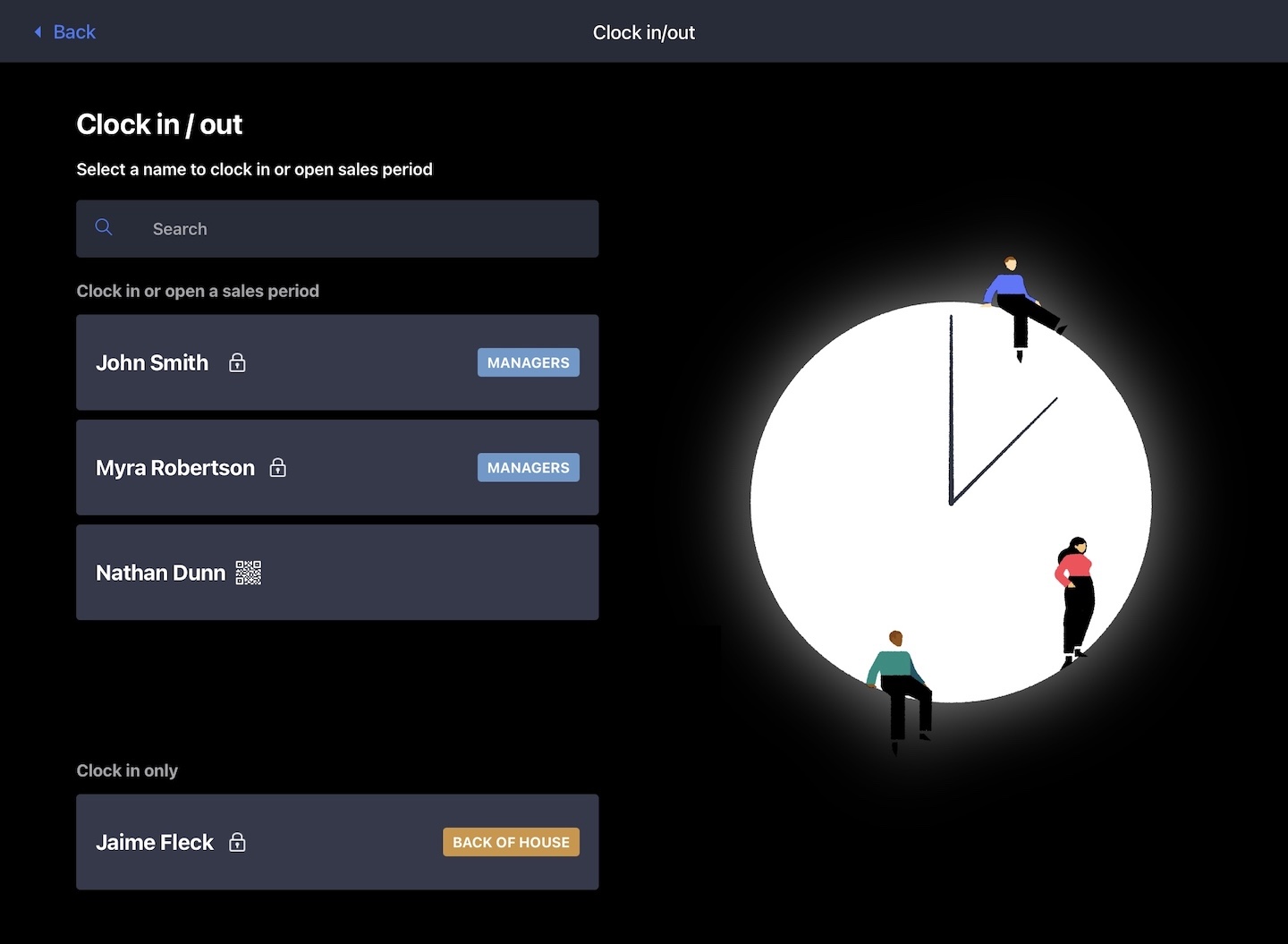
ℹ️ Issue: Need to add a session for a few users under the Clock In and Out Only role, but the users don’t appear in the selection list
- Solution: Need to adjust the Clock In Only role permissions
ℹ️ Issue: Add cash tips to transactions so it shows up on EOD report since they see “Cash Tip” on that report. Right now they are adding cash to cash drawer and putting note “Cash Tips,” but is any way possible?
- Solution: From the settings section of the POS, proceed to the payments section, where you can manually add cash tips to closed out transactions.
- This is the only way to do it unless they ask how much the customer wants to tip prior to payment and use the payment screen itself.
ℹ️ Issue: In terms of AM bartender still having some open tabs and needing to close tips out, but PM bartender comes in during changeover to start day. What is the best way to make sure reports do not get screwed up?
For context: they use only one cash drawer.
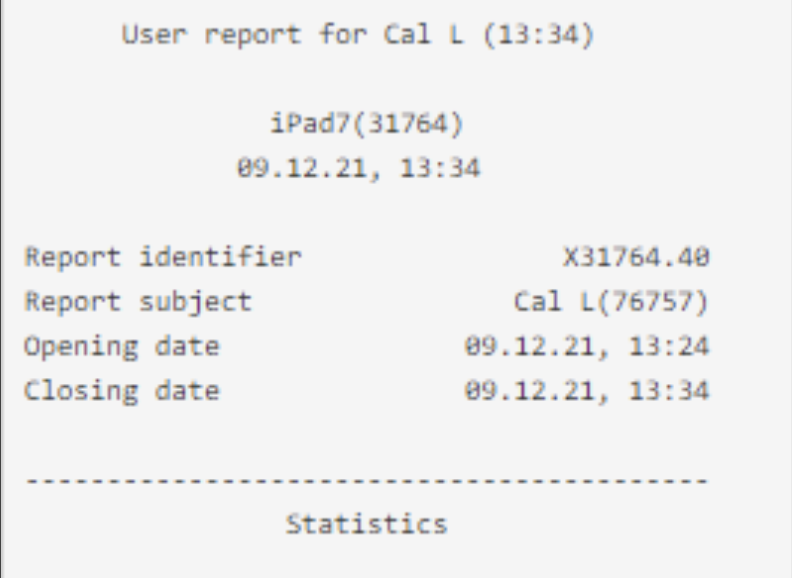
- Solution: For this, use Back Office > Reports > User report.
- AM Bartender would need to input their tips and close the shift. PM Bartender can still clock in, but sales will go towards AM shift. Otherwise, use just one continuous shift but might have to sacrifice some reporting delineation between shifts.
ℹ️ General cash drawer troubleshooting
- If the iPad cannot print a receipt to the printer connected to the cash drawer, it won’t be able to control the drawer.
- First troubleshoot the printer issue, then test the drawer again to see if it still needs troubleshooting.
ℹ️ Error message: A cash drawer must be configured
If the cash drawer appears to be set up correctly but you consistently receive this red banner error on the POS when trying to close a cash sale, verify the following:
— Which POS user is encountering the error?
— Who owns the table/receipt that the user is attempting to close as cash?
— Do both these users have permission to use the drawer?
- When a manager has permission to use a drawer but the server doesn’t, the manager may not be able to close the receipt as cash for that server.
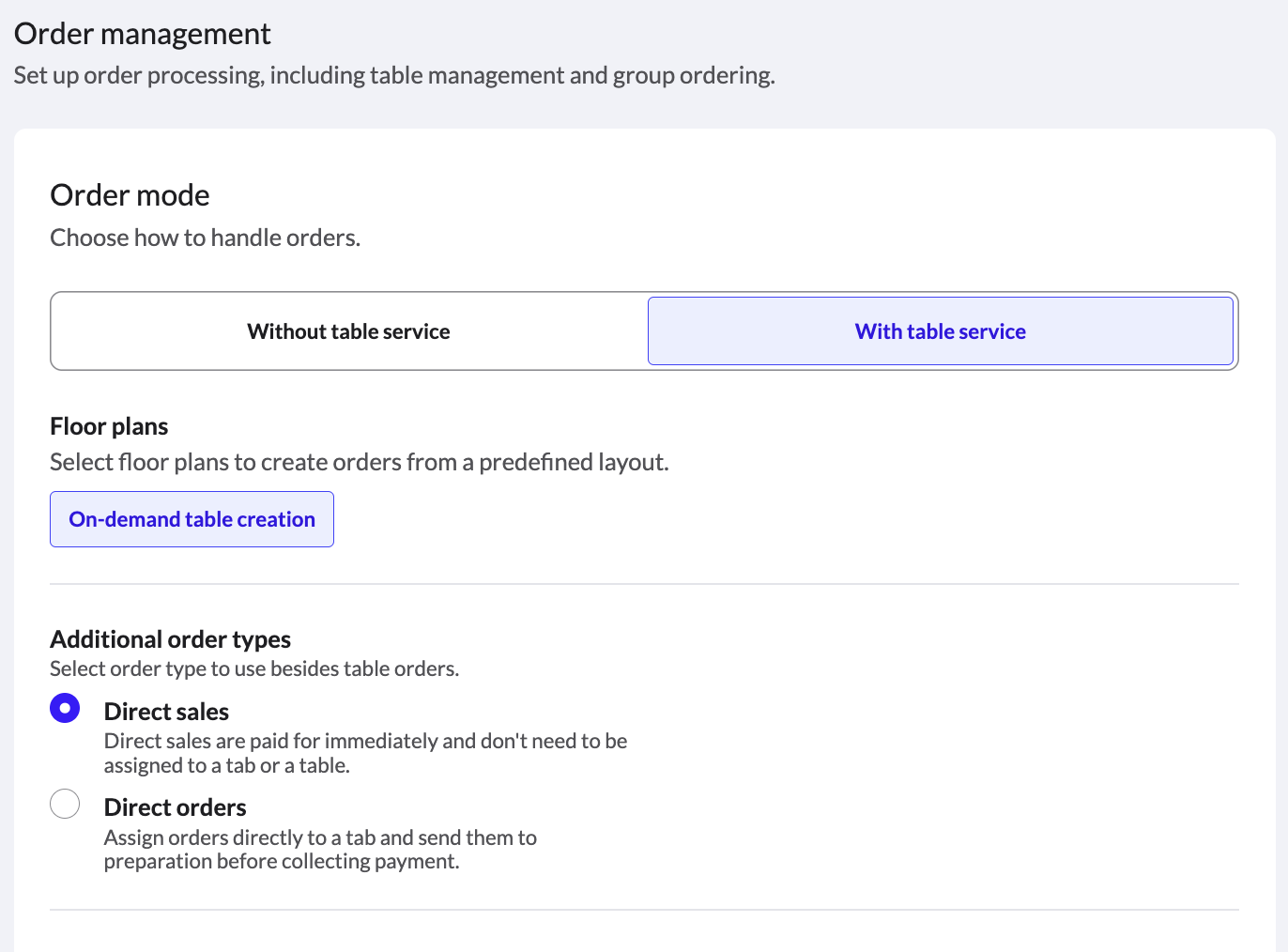
- This issue can be bypassed by enabling Limit order taking to the user assigned to the table in the Configuration > Table Management settings.
- Before implementing this change, ensure it won’t negatively impact other workflows the merchant currently uses.
ℹ️ Issue: Cash drawer does not open
If the drawer fails to open when a cash payment is processed or when manually triggered, check these potential issues:
- Verify the drawer is properly connected to the printer using the RJ11 connector port.
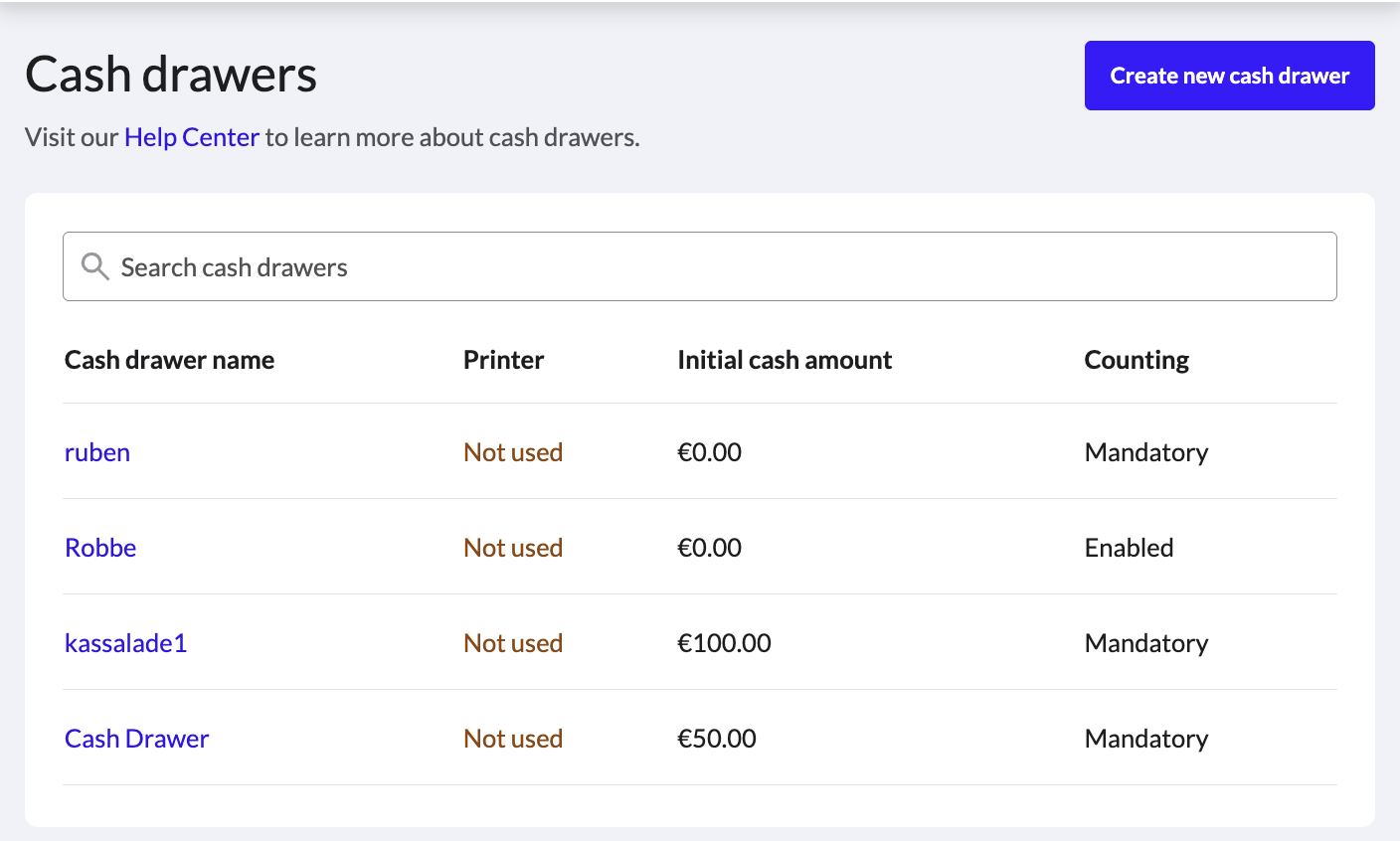
- Ensure the drawer is correctly configured in Back Office settings.
- Check if the drawer was configured after the current shift was opened (if so, close and reopen the shift).
- Examine device logs for Kick commands to determine if the system is attempting to open the drawer.
- If using multiple drawers, test by swapping hardware to isolate whether the issue is with the drawer, cable, or printer port.
ℹ️ Issue: Cash drawer does not appear on POS
If the merchant reports:
— Not seeing Open drawer button
— Not having the Cash drawer section on their POS Settings
— Not getting the cash count prompt when opening a new sales period
One of these 3 issues is likely the cause:
- The drawer is newly configured and the sales period was already in progress
- No users have permission to manage this Cash Float
- No devices are configured to use this cash float
ℹ️ Error message: Close the cash drawer before clocking out
- Close the drawer first
- On the iPad the drawer is linked to: go to Settings > Cash drawer > Close drawer
- Then clock out
- Tip: You can use this command even if the drawer isn’t physically connected, as the POS system doesn’t detect whether a physical drawer is actually present.
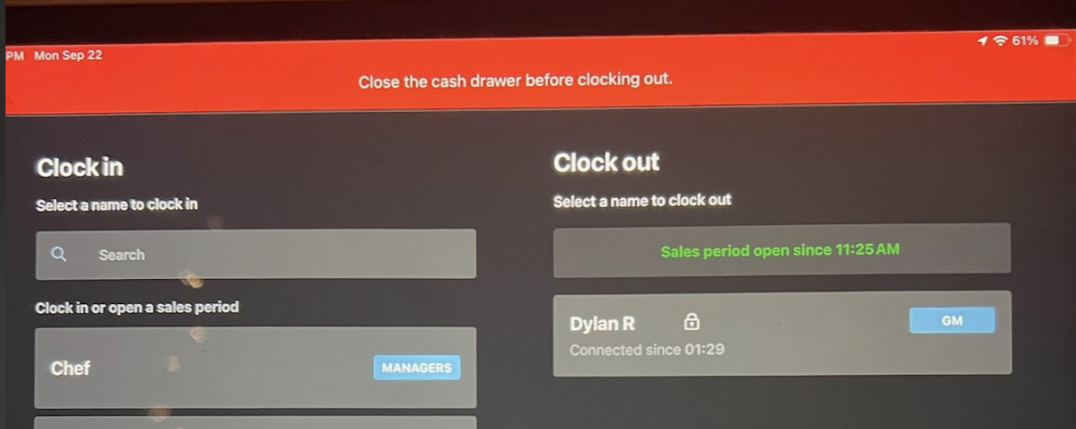
ℹ️ Issue: When trying to close a shift, the system prompts to close the cash drawer first, even though the drawer has been disabled and isn’t connected anymore.
- Solution: Cash drawer updates often only apply to the next shift.
- Close the drawer for the current shift by going to the iPad that has the cash drawer configured.
ℹ️ Issue: An employee tries to log in and receives the error message: Cash Drawer is currently locked. Please ask manager to open it.
- Answer: The error indicates the cash drawer hasn’t been opened yet (initial count).
- Explanation: Both the cash drawer and the POS user group can have counting set as disabled, optional, or mandatory. Regardless of this setting, the drawer must be opened before use—only managers can do this.
- Tip: Consider creating “supervisor” roles for senior staff. These would function like “staff” roles but with permission to manage the drawer.

ℹ️ Issue: Employee trying to log in and receiving error message: Cash Drawer is currently locked. Please ask manager to open it.
ℹ️ Issue: Cash drawer not opening
If the cash drawer for iPad is not opening, and everything is hooked up properly, check the following:
- Did you end the shift, then open a new one? If you set up the cash drawer while a shift was already open, you’ll need to close the shift and re-open it.
- If you’ve closed the day and reopened, and still nothing happens, triple check that the cable is inserted in the correct port of the printer.
- Note: Be careful with this. Even though the cable might fit in the ethernet port, doing so can bend the pins.


