
About Lightspeed Reservations
Beta
This guide helps you navigate the beta, with key details on setup, workflows, troubleshooting, and FAQs below.
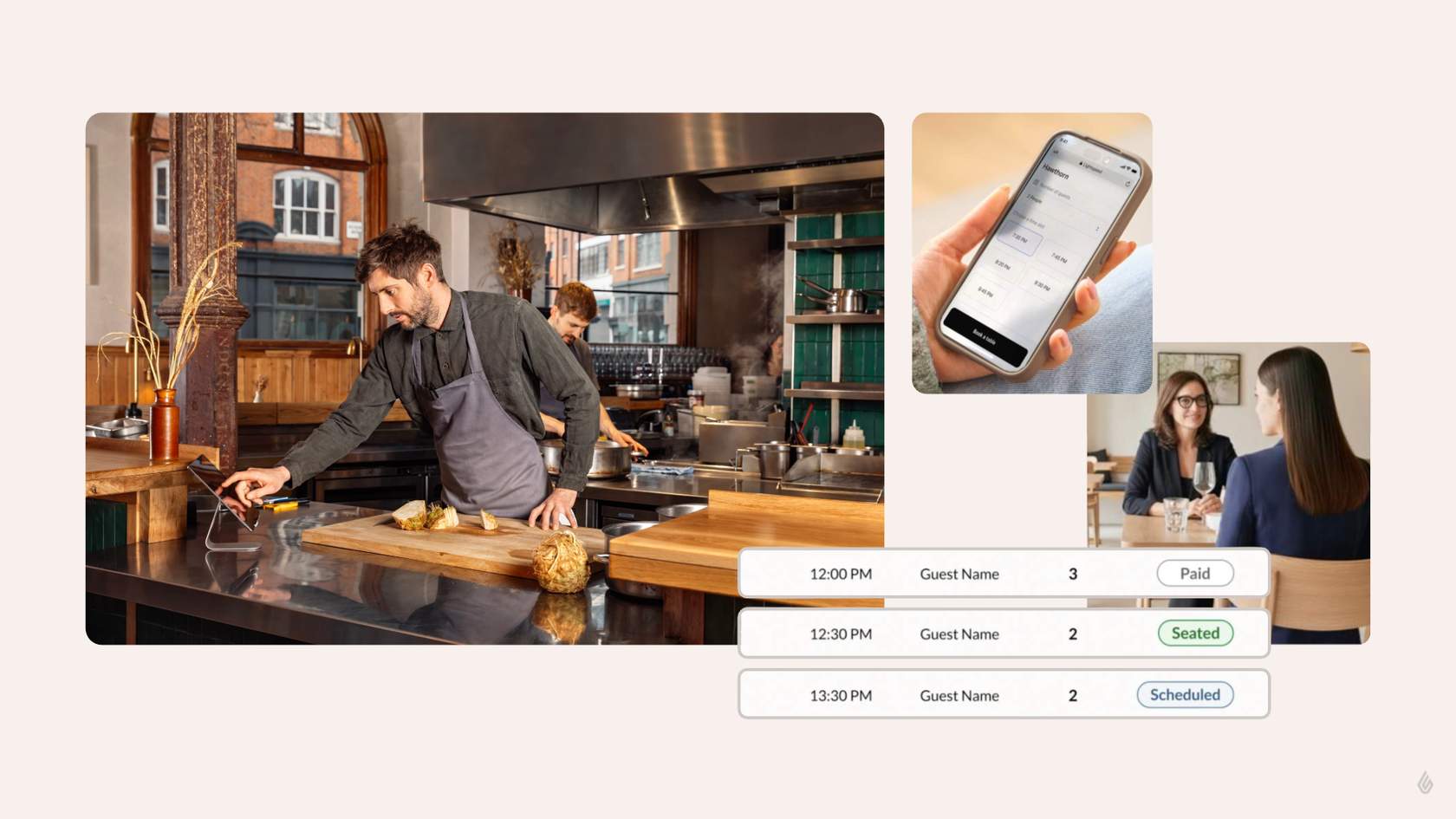
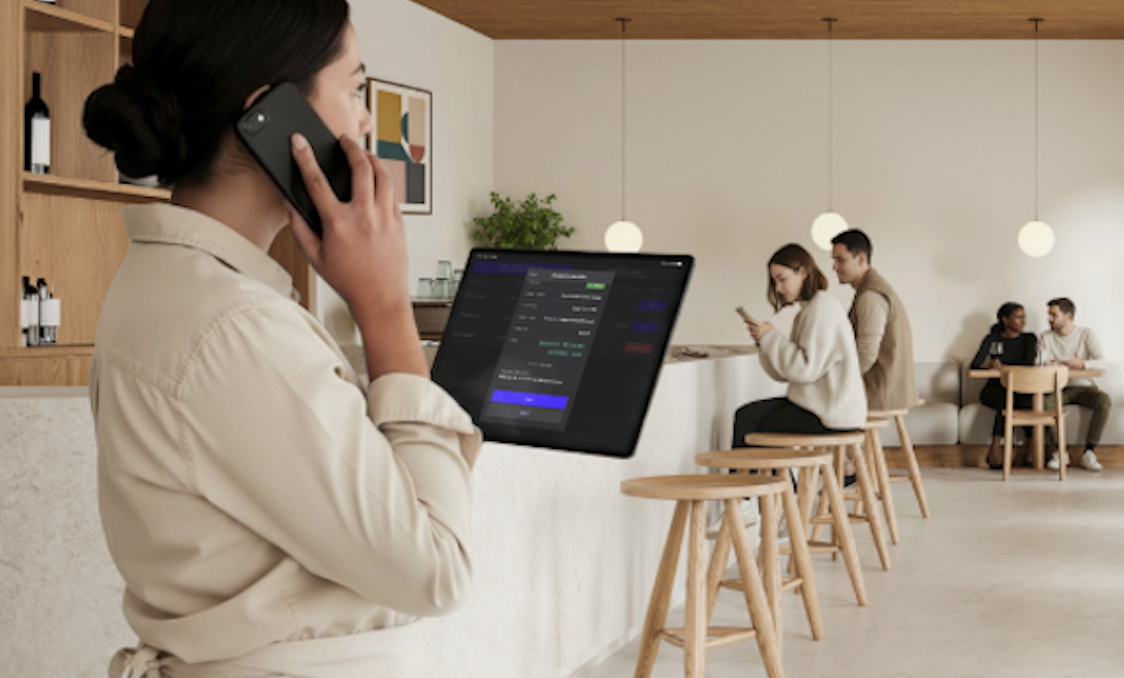
What is Lightspeed Reservations?
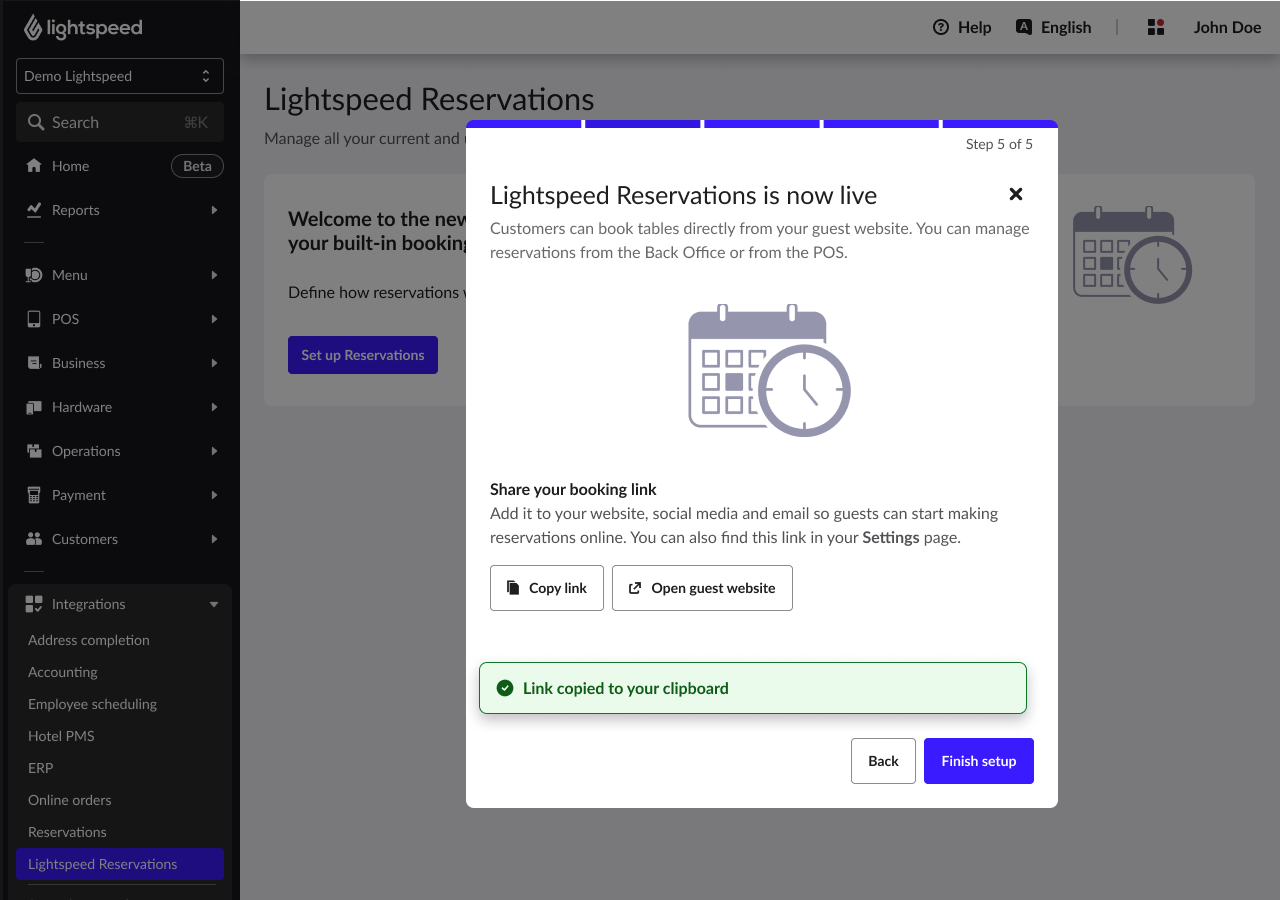
- Lightspeed Reservations lets merchants accept and manage reservations through Back Office, POS, and an online guest booking flow (via a shareable booking link).
Who is it for?
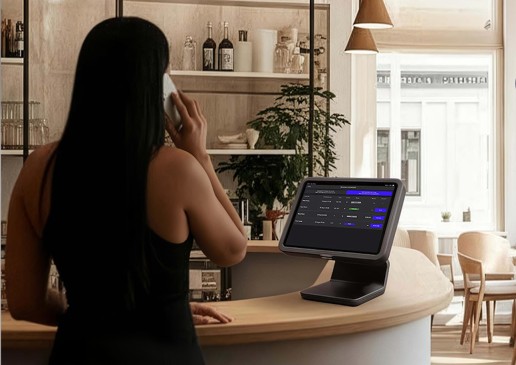
- Merchants who want a simple way to start accepting reservations quickly with minimal setup.
Is it free?
- Yes. During the Beta period, merchants can test and use Lightspeed Reservations for free.
Step 1️⃣
Go to Business > Beta.
Step 2️⃣
Toggle Lightspeed Reservations ON.
Step 3️⃣
Confirm Lightspeed Reservations appears in the side menu.
Refresh the page if needed.
Step 4️⃣
Complete the short onboarding flow to configure your schedule and settings.
After onboarding, you can start accepting reservations immediately.
What happens next?
A new Lightspeed Reservations tab appears. This is where you store and manage reservations and related settings.
To find the online booking link:
- Go to Lightspeed Reservations > Settings.
- The booking link is in the Reservations settings.
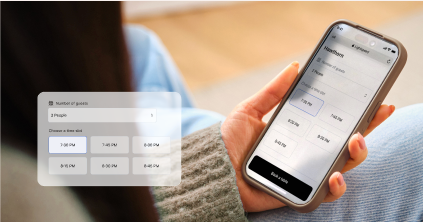
ℹ️ Guests receive the following emails:
Note: Reminder emails are sent automatically and cannot be configured during the Beta.
- Confirmation email sent after booking (includes a cancellation link)
- Cancellation email sent if the reservation is canceled
- Reminder email sent 1 day before the reservation (for advance bookings)
Want to see it in action?
Watch the video to explore key workflows.
Limitations
Note: These limitations apply during the Beta period.
- Automatic table assignment is not supported.
- Deposits and payment-related features (such as prepayments or payment holds) are not supported.
- Advanced reservation features are not available at this stage. The Beta focuses on delivering a simple, reliable core experience.
I enabled Reservations, but I can’t receive or manage reservations properly. What should I check first?
Ensure the merchant’s floor plan is properly set up. A missing or incomplete floor plan can prevent reservations from being handled correctly.
I don’t see the Lightspeed Reservations tab after enabling it. What should I do?
1. Confirm Lightspeed Reservations is toggled ON in Business > Beta.
2. Confirm the onboarding flow was completed.
How can merchants provide feedback?
Feedback can be submitted in multiple places:
- In Beta Center
- In the Lightspeed Reservations tab
- When disabling Lightspeed Reservations (you’ll be asked for a reason)
What happens when a merchant disables Lightspeed Reservations?
They’ll be asked to share feedback explaining why they disabled it. This helps improve the Beta.
Who should I contact if I have customer feedback or questions?
Contact the Product Team with merchant-reported issues, feature requests, or recurring questions, and we’ll update this FAQ as needed.


