
Lightspeed Payments Application Troubleshooting

Find answers to commonly asked questions about:
- Onboarding
- Account Edits
Situation
Description
Solution
Merchant doesn’t have access to the “Finance” / “Financial Services” tab
Each product manages access to the FS tab. The tab may not appear if a feature flag isn’t enabled, the country or timezone is incorrect, or there are similar configuration issues.
Contact the relevant product team via the Partner Ops Team. This can also be a Salesforce issue where the timezone is set incorrectly or no custom rate is pushed to the application.
Merchant rates look different on the Financial Services home page and the second onboarding portal page
The Financial Services portal shows the custom fee profile assigned by the rep. When the merchant clicks “Activate Payments,” they see a higher rate on the “Let’s Get Started” page (typically the country default). This issue occurs frequently with multi-location merchants.
The Financial Services portal displays the custom fee profile assigned to the first location in the locations list. The onboarding portal shows the country default if no custom rate is assigned. Custom rates must be applied at the account level. If a custom rate has been set at the Salesforce account level but doesn’t propagate to all location fee profiles in SF, contact the Deal Desk team.
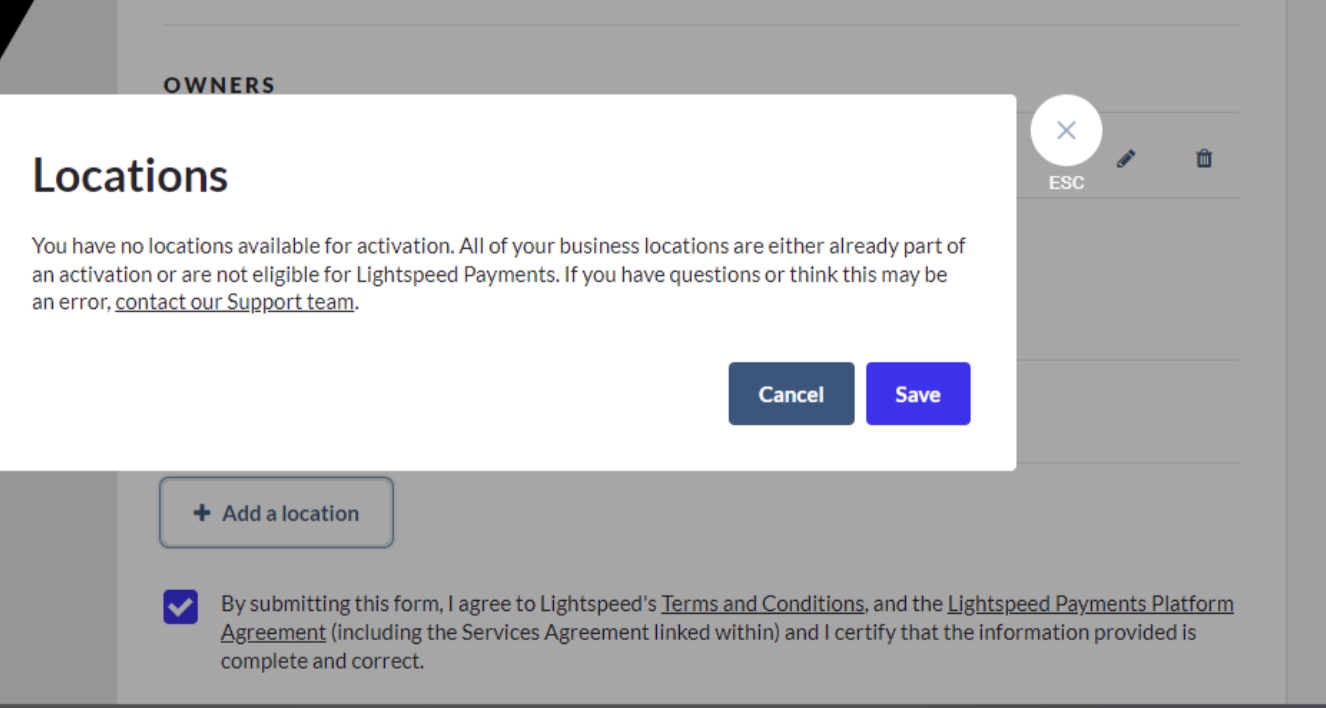
Merchant receives the message “You have no locations available for activation. All of your business locations are either already part of an activation or are not eligible for Lightspeed Payments”.
Someone on the merchant’s side started the payments application using a specific email (the Payments Team can see which one). This prevents them from completing the application under another Back Office admin user.
See Screenshot 1️⃣
The merchant must complete their Payments application with the email that started it.
- If they want to use a different email, forward the ticket to the Payment Advisors team, who can manually add an email to the activation.
- Alternatively, the merchant can email Underwriting@lightspeedhq.com, but it’s better to escalate a ticket directly in Zendesk or through the Salesforce integration.
Merchant has access to the “Finance” / “Financial Services” tab but can’t click “Activate Payments”
Each product manages access to the FS tab.The merchant may not have the correct super admin access in the backoffice. Only the highest role can start the payments application process.
The merchant may not have the correct super admin access in the Back Office.
- Only the highest role can start the payments application process.
Submit button is greyed out and merchant can’t submit their application
The merchant is trying to submit their application, but the submit button is greyed out and no errors appear on the review section.
This usually means information is missing or incorrectly filled out.
- Have the merchant double-check their information.
- Check the tabs in the merchant’s Payment Application in POP. At the top, it will show which validation errors are preventing submission.
- Payments Support, Payments Advisors, and PayOps can check this.
Merchant has an existing Lightspeed Payment Account but needs to re-onboard due to being resold
The merchant needs to reapply for Payments but currently sees the Finance tab with reporting because they have an active Lightspeed Payments account from the past. They need to onboard again via In-App Onboarding.
Escalate to Payments Support.
- They’ll need to find the merchant’s application in Pay Ops Portal, change the status to Rejected, and mark it as duplicate/submitted by mistake.
- If they don’t have a POP application, you’ll see a button for “Allow Re-onboarding” on their location page in POP—Payments Advisors and Underwriters can action it.
Merchant can’t log in via their bank account
The merchant is trying to log into their bank account via the Trustly module, but it returns an error.
See Screenshot 2️⃣
If the merchant can’t or doesn’t want to log in via their bank account in the application form, they can provide their bank details manually. Just below the bank options, there’s an option to add bank details manually and upload supporting documents.
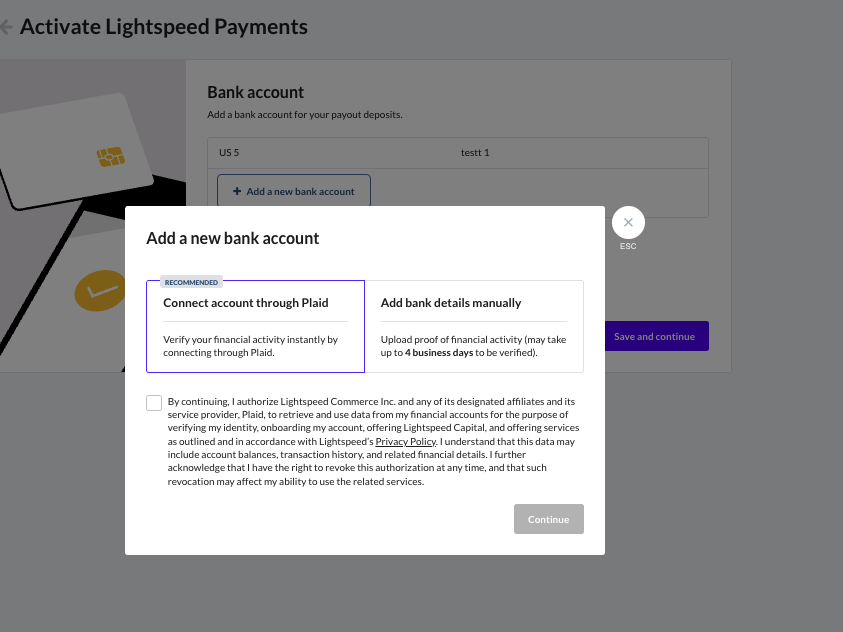
2️⃣ Merchant can’t login via their bank account.
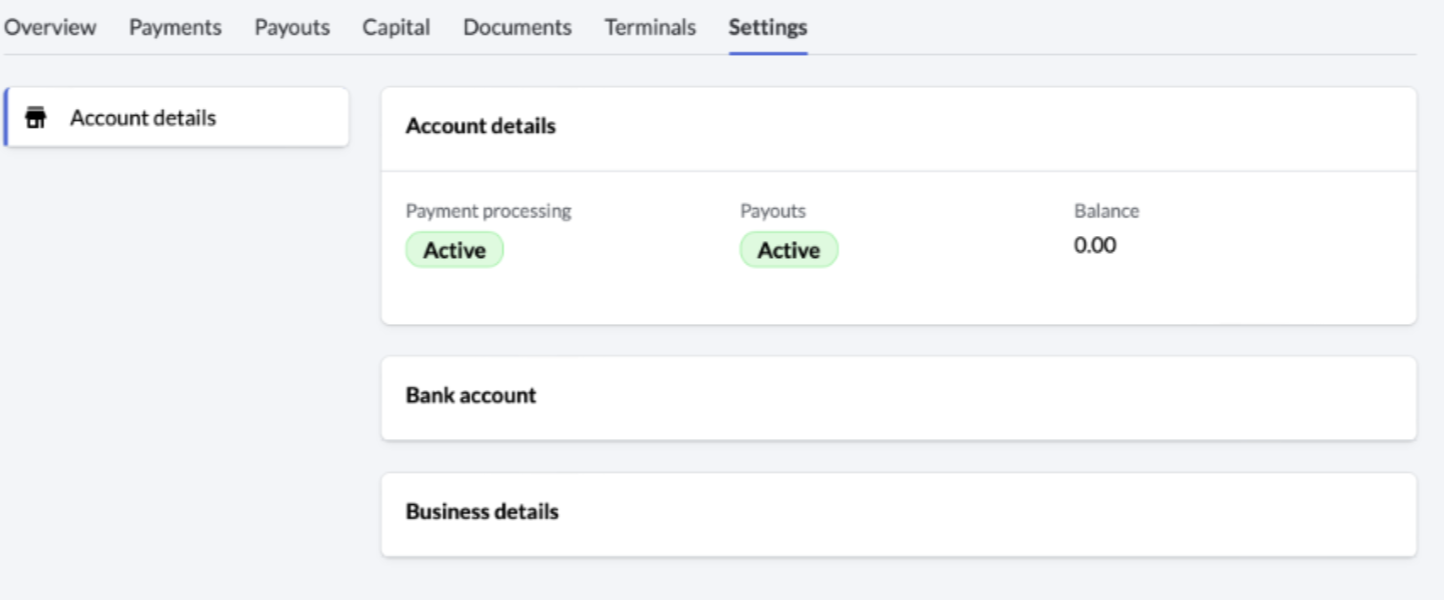
3️⃣ Merchant can’t see the “Change” Button (but can see the account details page).
Situation
Description
Solution
Merchant’s bank change request keeps getting denied
The merchant needs to update information due to an ownership change or legal entity change. They tried to change the banking first, but this isn’t the correct process.
Start the flow to change all information (which includes banking):
- Start the LEC flow by clicking “Change Business Details” or “Change Bank Account.”
- Then select “Change of Business Ownership or Business Structure.”
Merchant doesn’t have access to the original email that applied for Payments
The merchant is trying to change their account settings (LEC / bank account change) and needs to go through the access code flow but no longer has access to the original email address used to apply for Payments.
Escalate to Payments Advisors:
- They need to validate that this user should have access to make changes to this account.
- Once validated, generate an access code from this merchant’s Payment Application in POP, and they can enter it manually in the flow, bypassing the access code being sent to the old email.
Merchant needs to update the email address used for the access code
The merchant is trying to update the emails on file that can receive the access code.
Escalate to Payments Advisors. Underwriters and Payments Advisors can add or remove Onboarding User emails on the merchant’s Payment Application in POP.
“Change” button is greyed out
The merchant is trying to change their account settings, but the “Change” option is greyed out.
The merchant already has an active LEC/BAC submitted that is currently under review. You can check this on the Overview page in Financial Services. Payments Advisors can also check for open requests. Once a LEC/BAC is submitted, we disable further changes until the active one is reviewed. If they need to make another change, the existing one must be approved or rejected first.
Or escalate to Payments Advisors. Something may be wrong with the information entered.
Merchant can’t see the “Change” button (but can see the account details page)
The merchant is trying to change their account settings, but the “Change” button isn’t available.
or
The merchant is blocked from in-app payments applications. This could be because the merchant is a multi-location merchant that was onboarded to one Adyen account. Hospo Escalations support can see this when they look up the account.
See Screenshot 3️⃣
Products assign a user permission per role—either read (PAYMENTS_VIEWER) or write (PAYMENTS_OWNER).
- Only PAYMENTS_OWNER users can edit account settings, which is usually assigned to admins or store owners.
- If the user trying to make the change doesn’t have access, the product will need to update their permissions.
- Or Escalate to Payments Support.
Merchant doesn’t have access to Account Edits section
The merchant can’t see “Business Details” or “Bank Details” in the Settings page because they haven’t been migrated from UWS to POP.
Escalate to Payments Support or Payment Advisors. We can migrate a merchant from POP > Locations > Find PLI > Click Migrate to V3.
Merchant sees a change button, but the information page is blank
The merchant is trying to change their account settings. The “Change” button is available, but the information is blank.
The Change request flow should still work. This is most likely due to a dummy tax ID or similar. The information on file is simply hidden.
Merchant sees an error immediately after entering the access code that was emailed
The merchant is trying to change their account settings. The request access page is available and the email is sent with the code, but after entering the code, it throws an error.
Check in POP to see if you can find the issue; if not, check with Onboarding Devs.
Merchant is entering a bank account, but the form returns an error
We currently only support banks that match the country. For example, a French merchant can only onboard or edit to an IBAN starting with FR. The same applies to any other country.
No workaround at this time.


