
Elo Screen Troubleshooting Guide
If your KDS isn’t displaying orders properly on your Elo screen—whether items are cut off, require excessive scrolling, or the layout feels cramped—the following steps will help you optimize your display settings to ensure all order information is clearly visible and easy to read at a glance.
General Troubleshooting
- Enroll with GMS: Create or use a Google account to log in
- Update Chrome: Ensure you’re using the latest version
- Reset device: Press and hold both side buttons simultaneously
- Use wired connection: Connect the KDS with an Ethernet cable
1️⃣ Power off the device completely.
2️⃣ Locate the Home button.
On I-Series 4 and BackPack 4 devices, it’s usually on the right side.
3️⃣ Hold the Home button and reconnect the power.
Keep holding until the device boots into Android System Recovery.
4️⃣ Navigate using the Home button.
Select Wipe data/factory reset and press the Home button.
5️⃣ Confirm your selection.
Press the Power button.
6️⃣ Select Yes – delete all user data.
Navigate with the Home button and confirm with the Power button.
7️⃣ Reboot the system.
Once the data wipe completes, select Reboot system now.
8️⃣ The device will restart and display the factory setup screen.
Follow the on-screen instructions to complete setup.
Optimizing Display Size in Device Settings
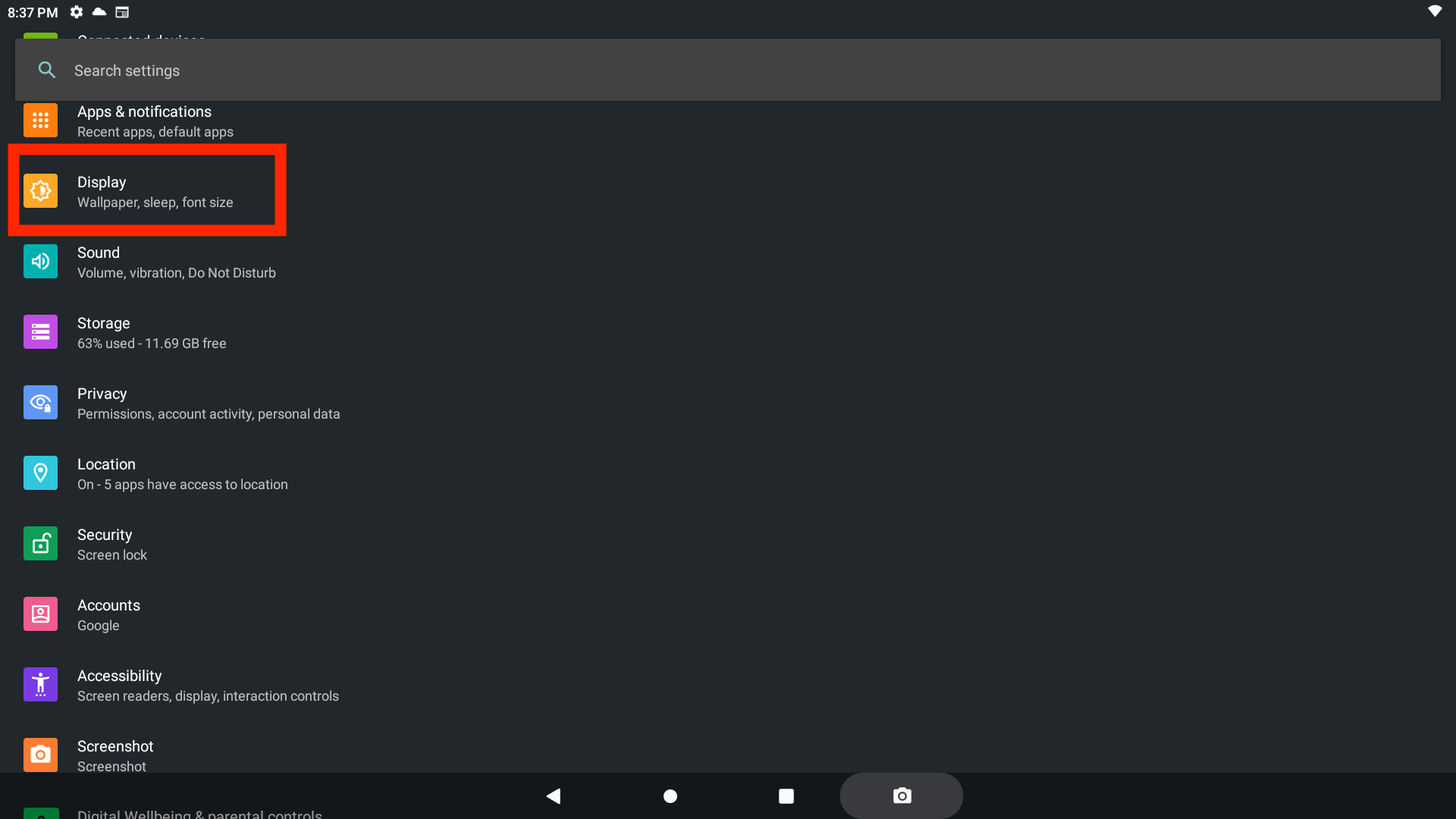
1. On your Elo device, navigate to Settings, then Display > Advanced > Display Size. This Display Size setting can also be found under Accessibility.
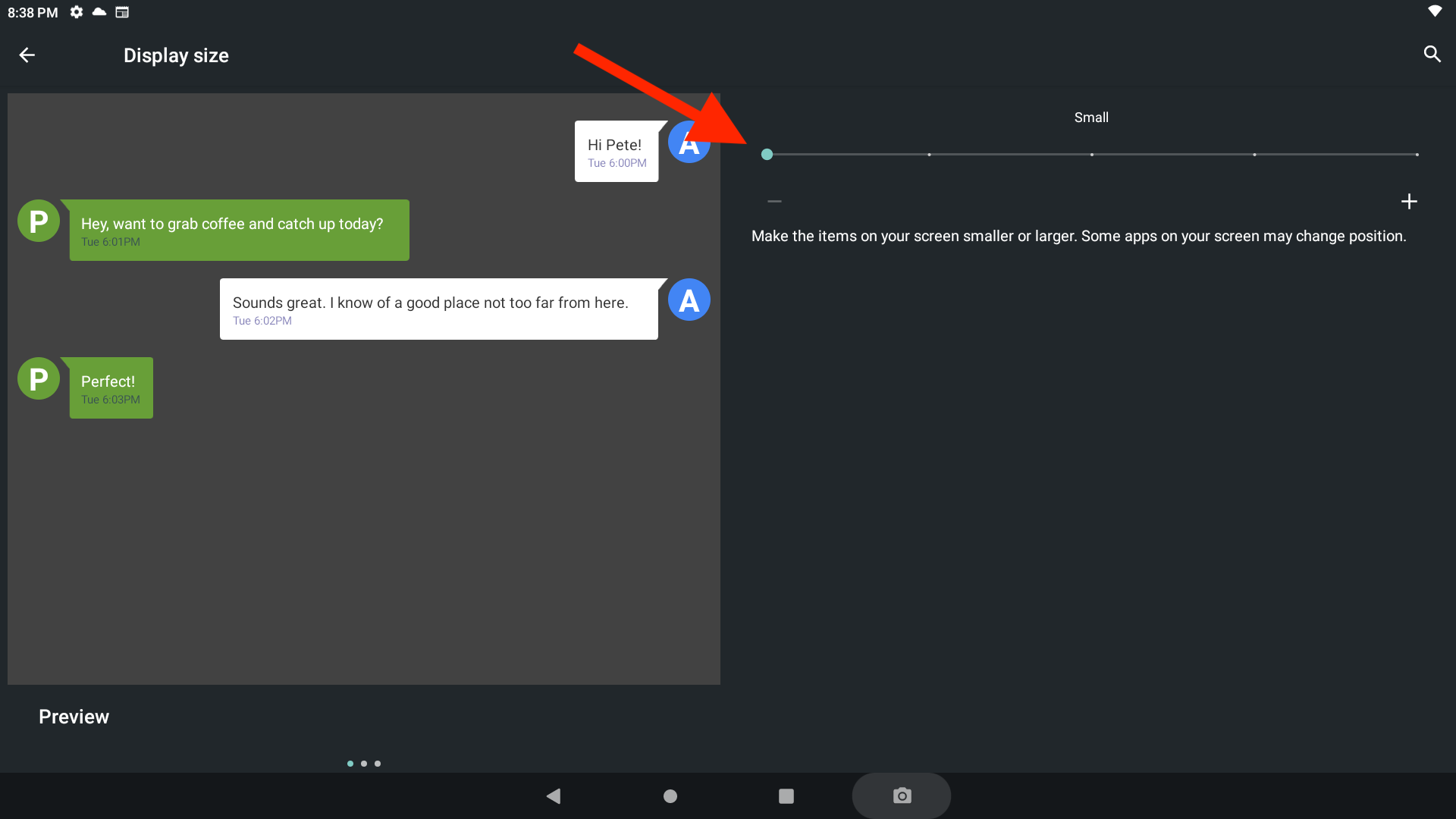
2. Adjust the slider to set your preferred display size. Smaller settings will show more content on screen.
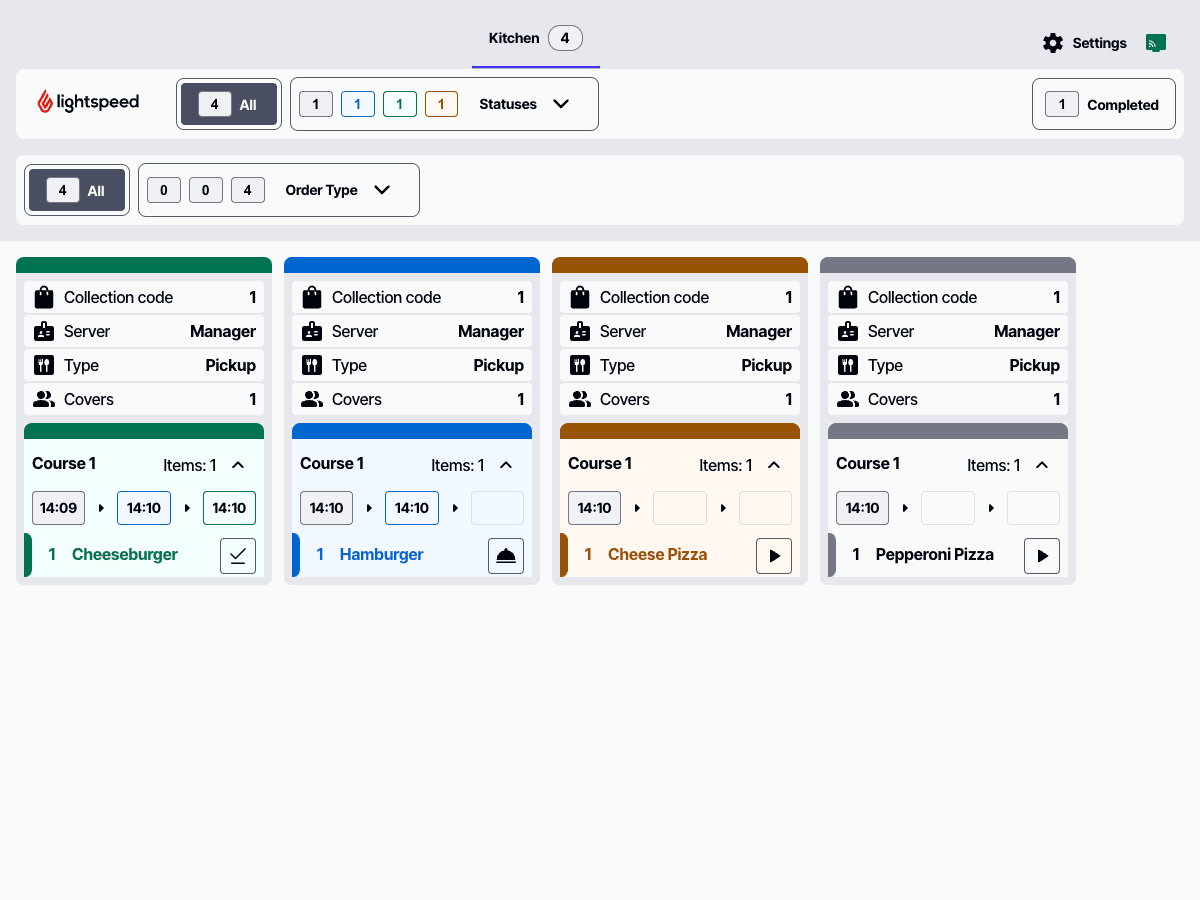
3. Return to KDS. If the display looks satisfactory, you can skip the additional adjustments below. If you need further improvements, continue reading.
Customizing KDS Display Elements
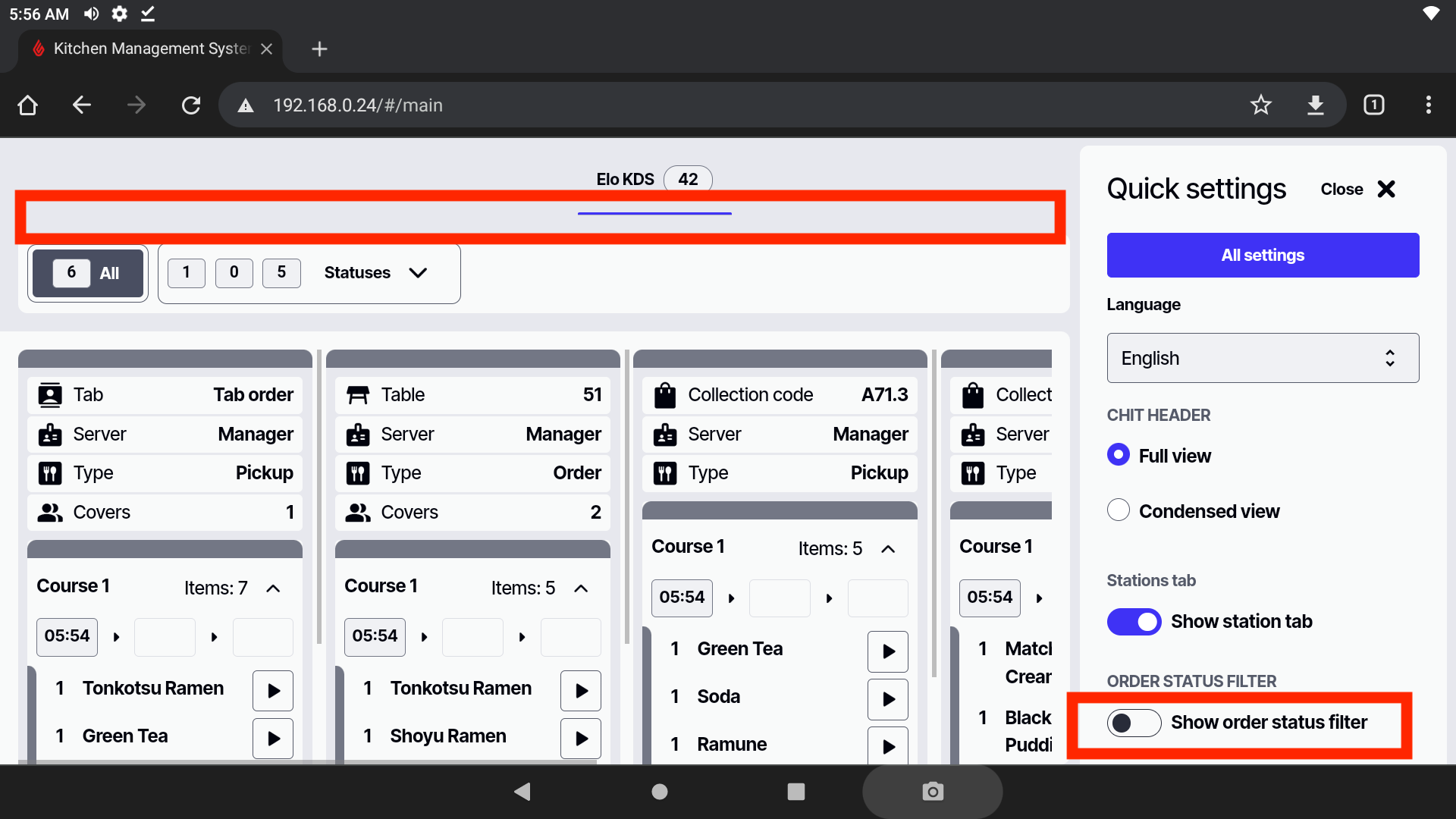
1. Hide the order status filter. This will conceal the entire filter for order status (New, Preparing, On Hold, etc.)—located between the Order type filter and the Station tab.
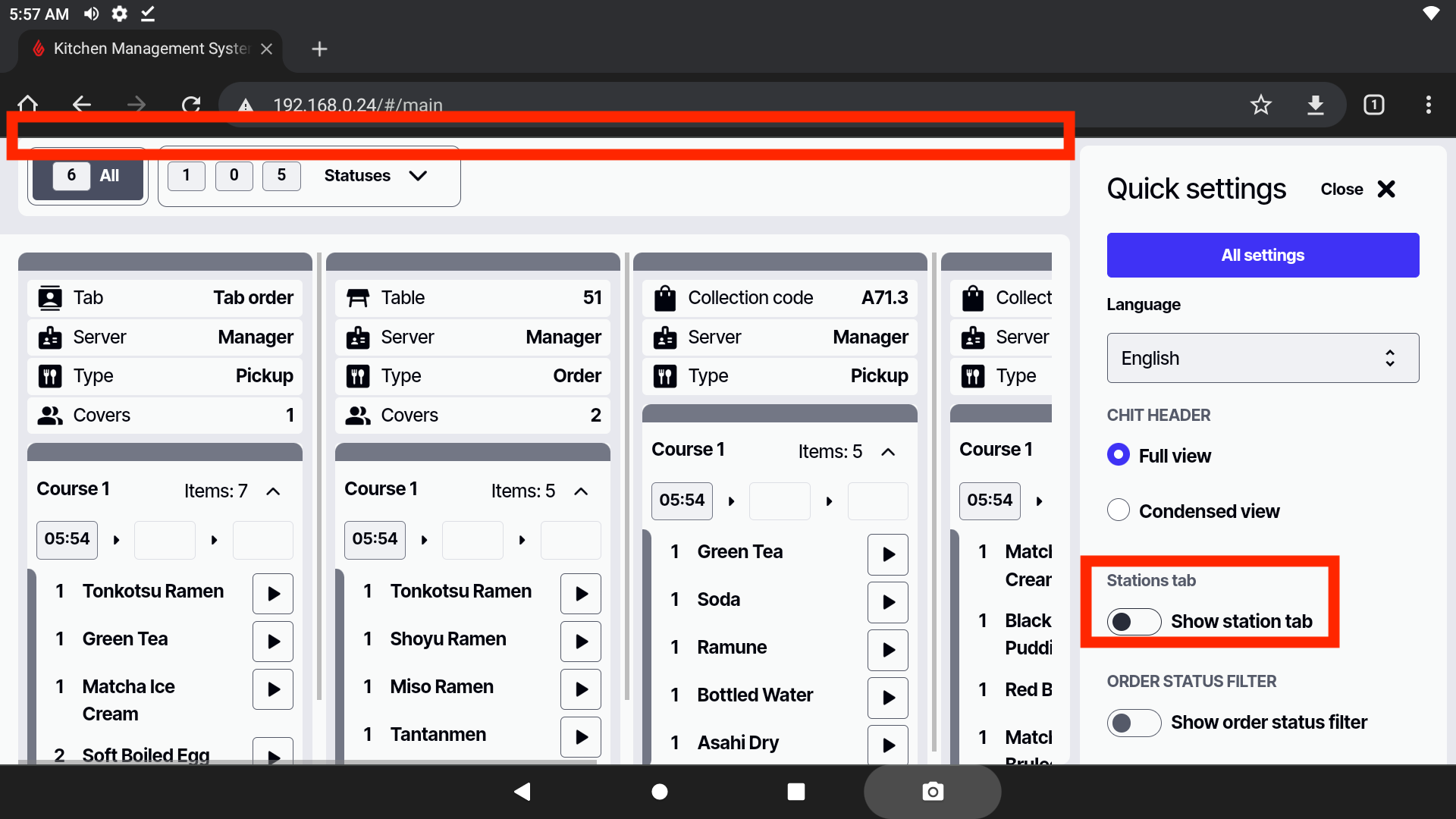
2. Hide the Stations tab. This will conceal the section that displays the KDS device name and total item count on the device.
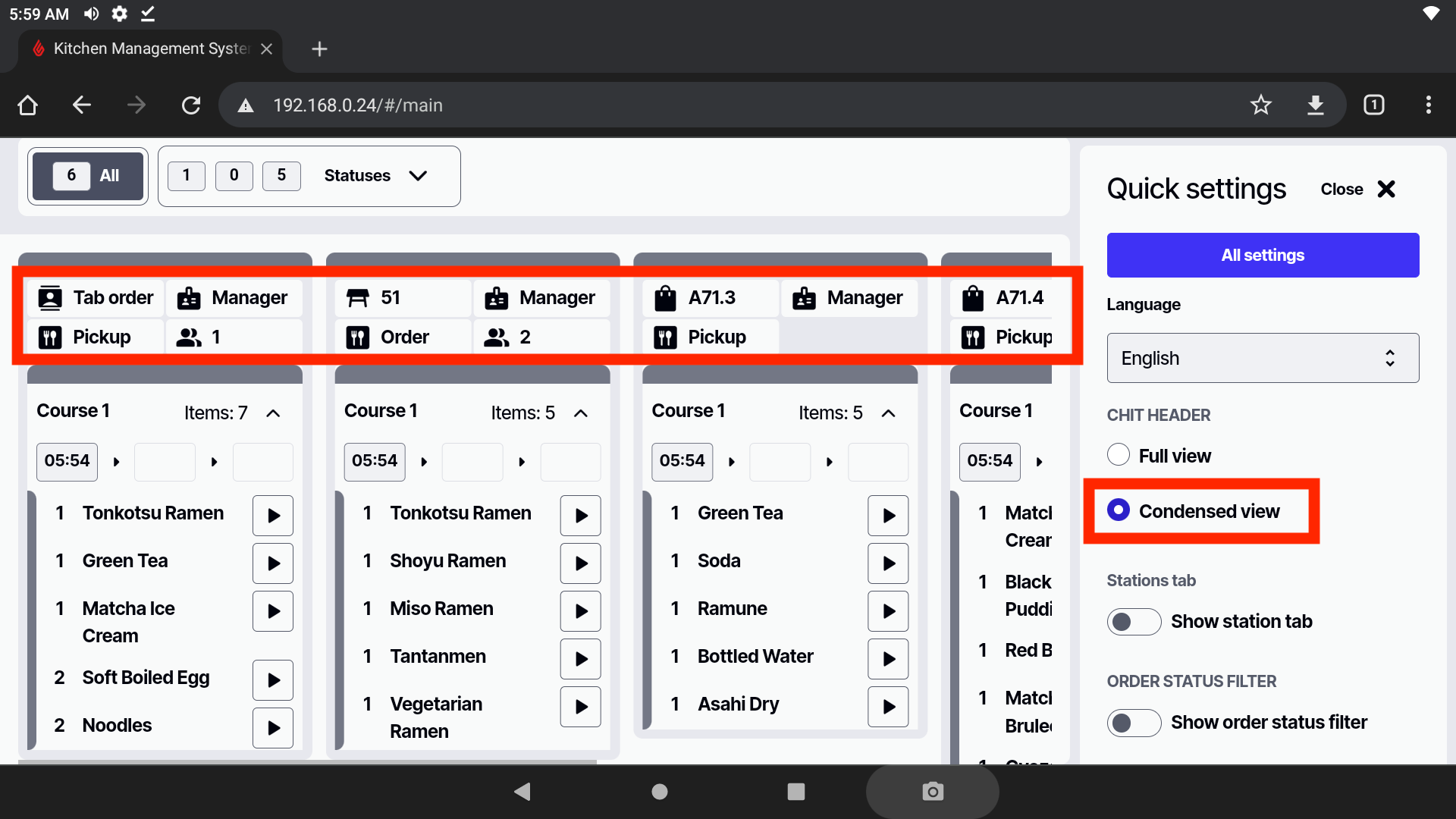
3. Enable condensed view for chit headers. This displays order information in a compact format rather than the full view.
Enabling zoom on Chrome for site
* By default, zoom features may not be visible on all devices.
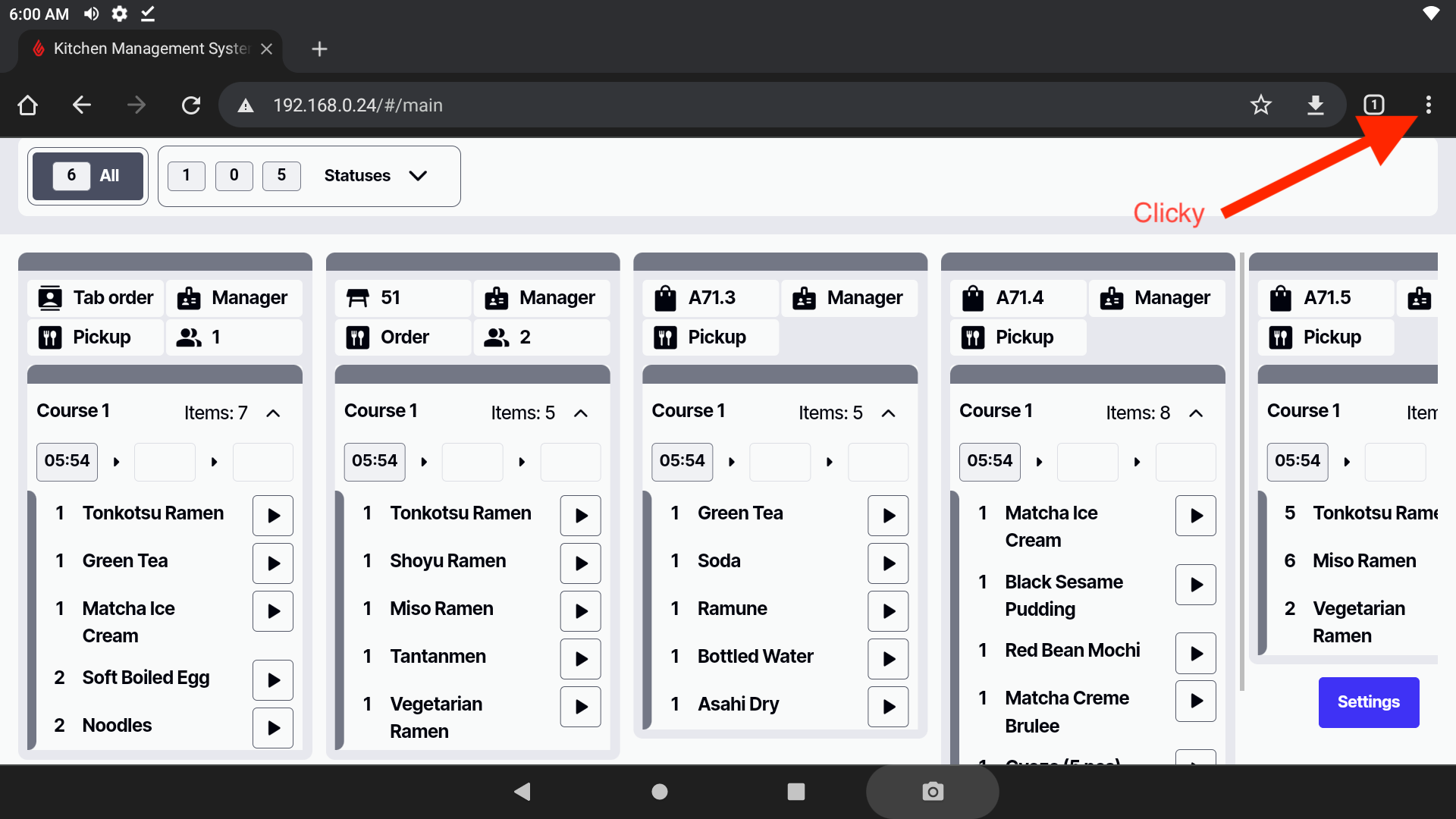
1. Click on the three dots in the upper right corner of the browser, then scroll down and click on Settings.
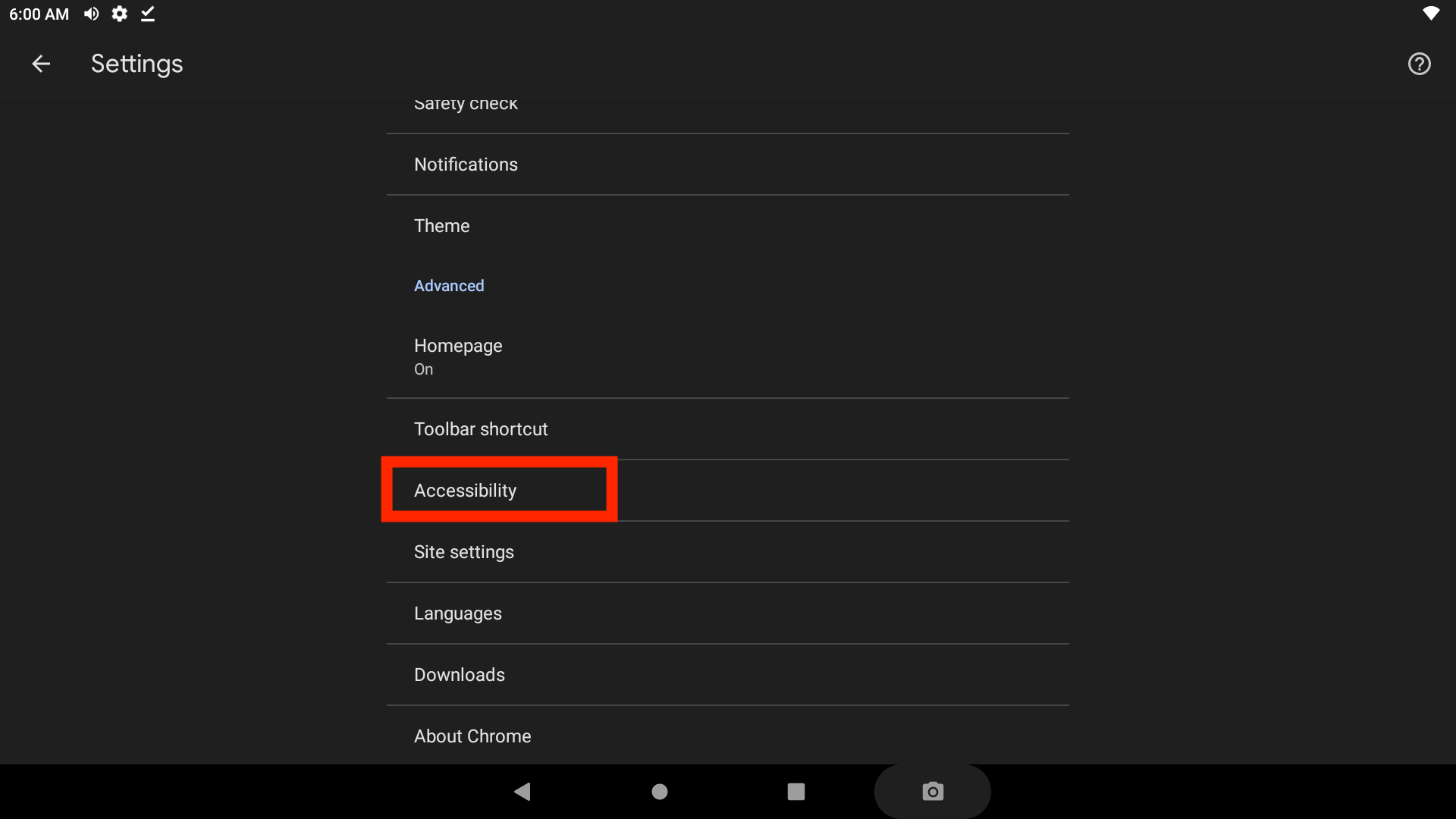
2. In the Settings page, scroll down to the Advanced section and click on Accessibility.
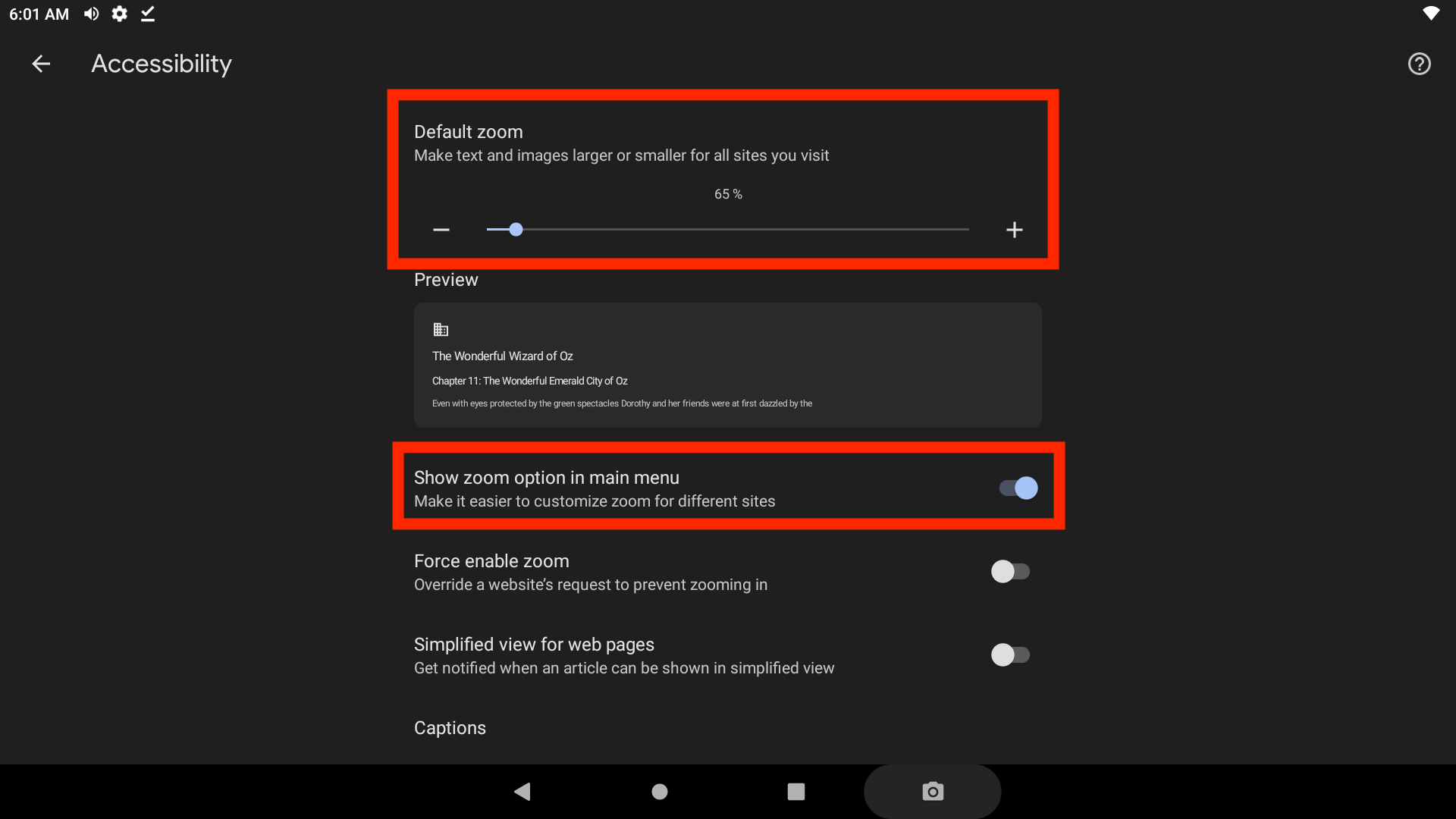
3. On the Accessibility page, adjust the Default zoom to your preferred level. All sites will now load with this zoom setting, which shouldn’t be an issue if the device is exclusively used for KDS. Also, enable Show zoom option in main menu so you can easily adjust the zoom level while using KDS.
Using Google Search Instead of Chrome Browser App
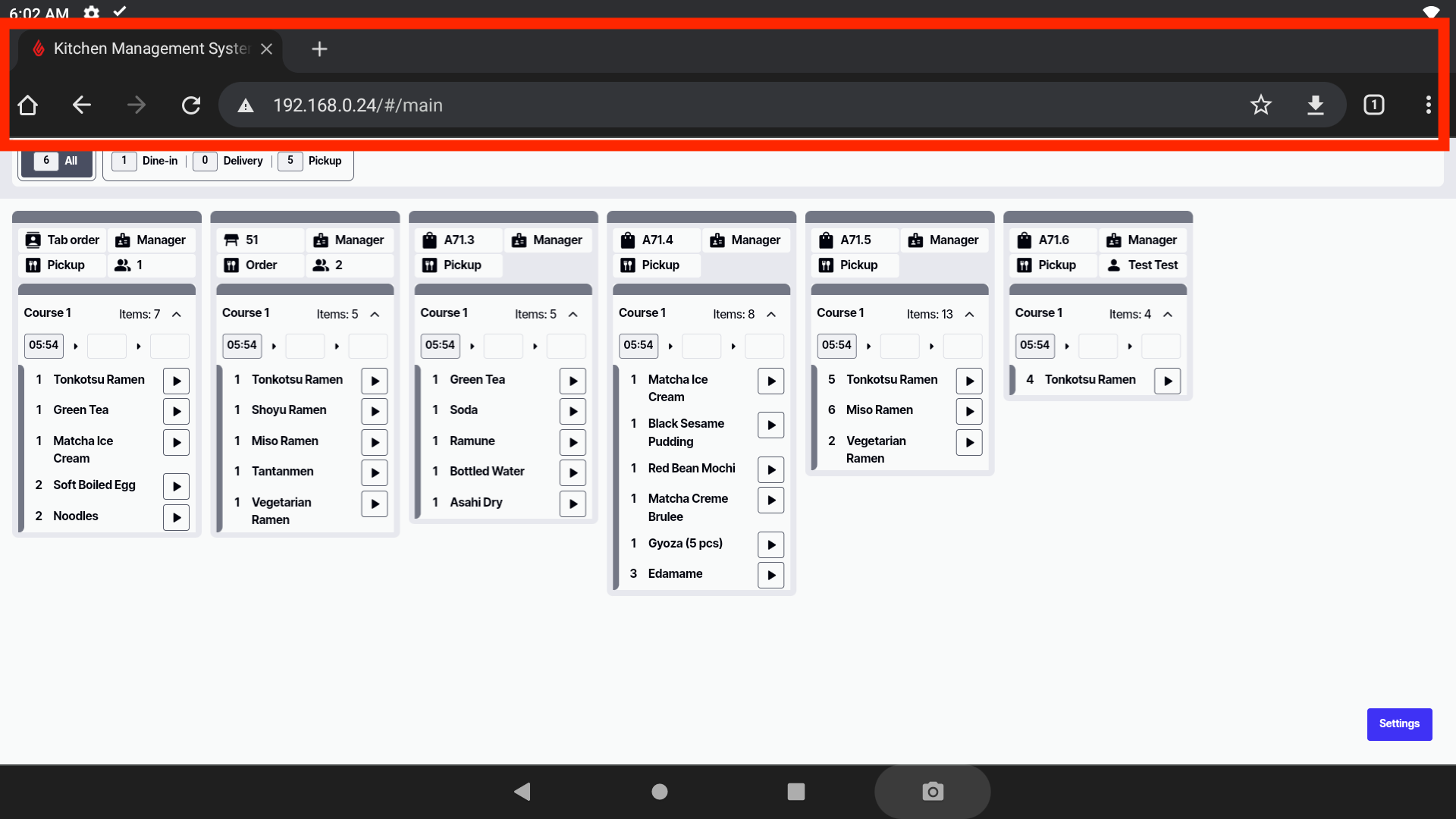
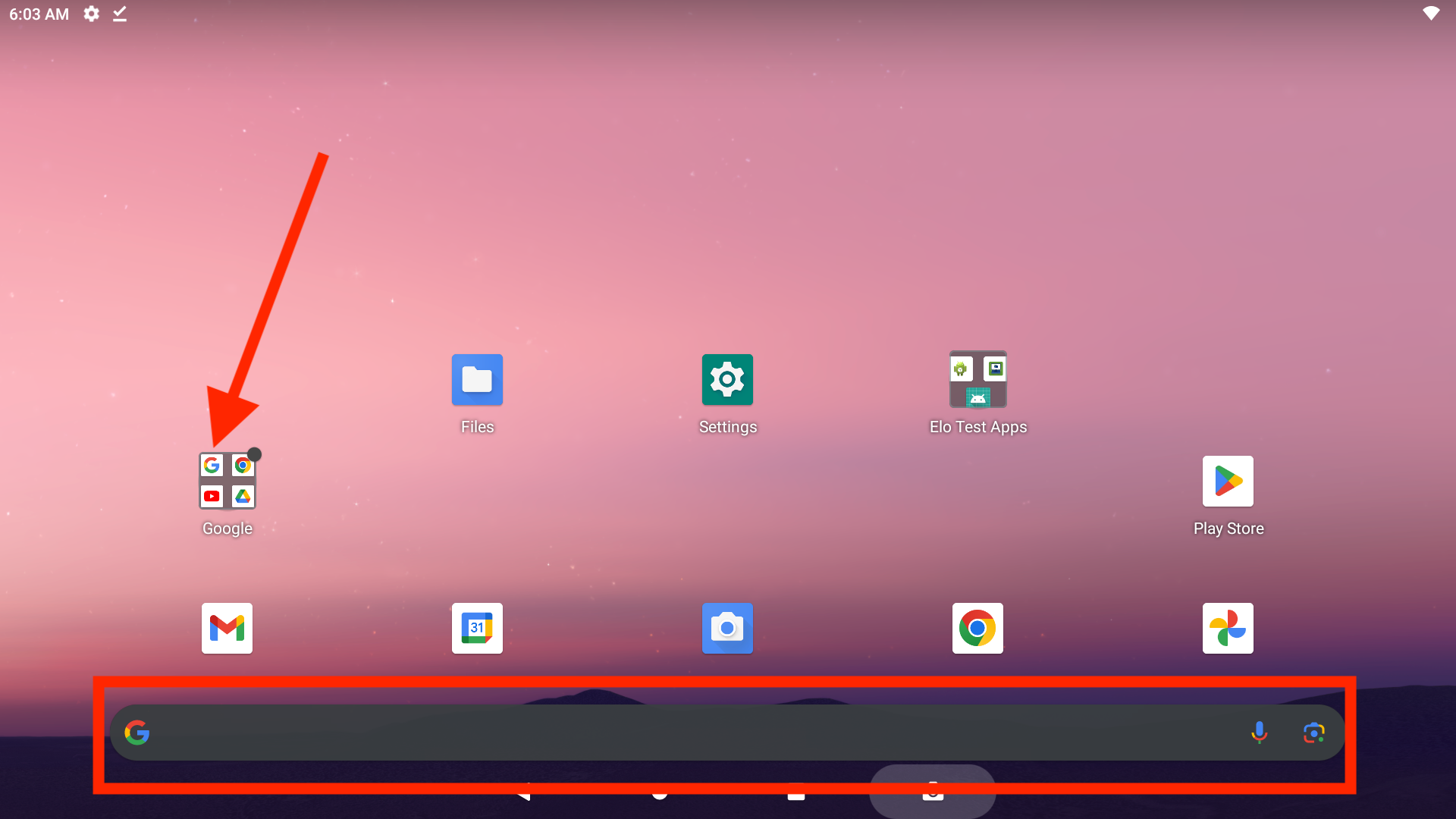
1. Open the Google search app or simply enter the KDS IP address in the search bar on your home screen.
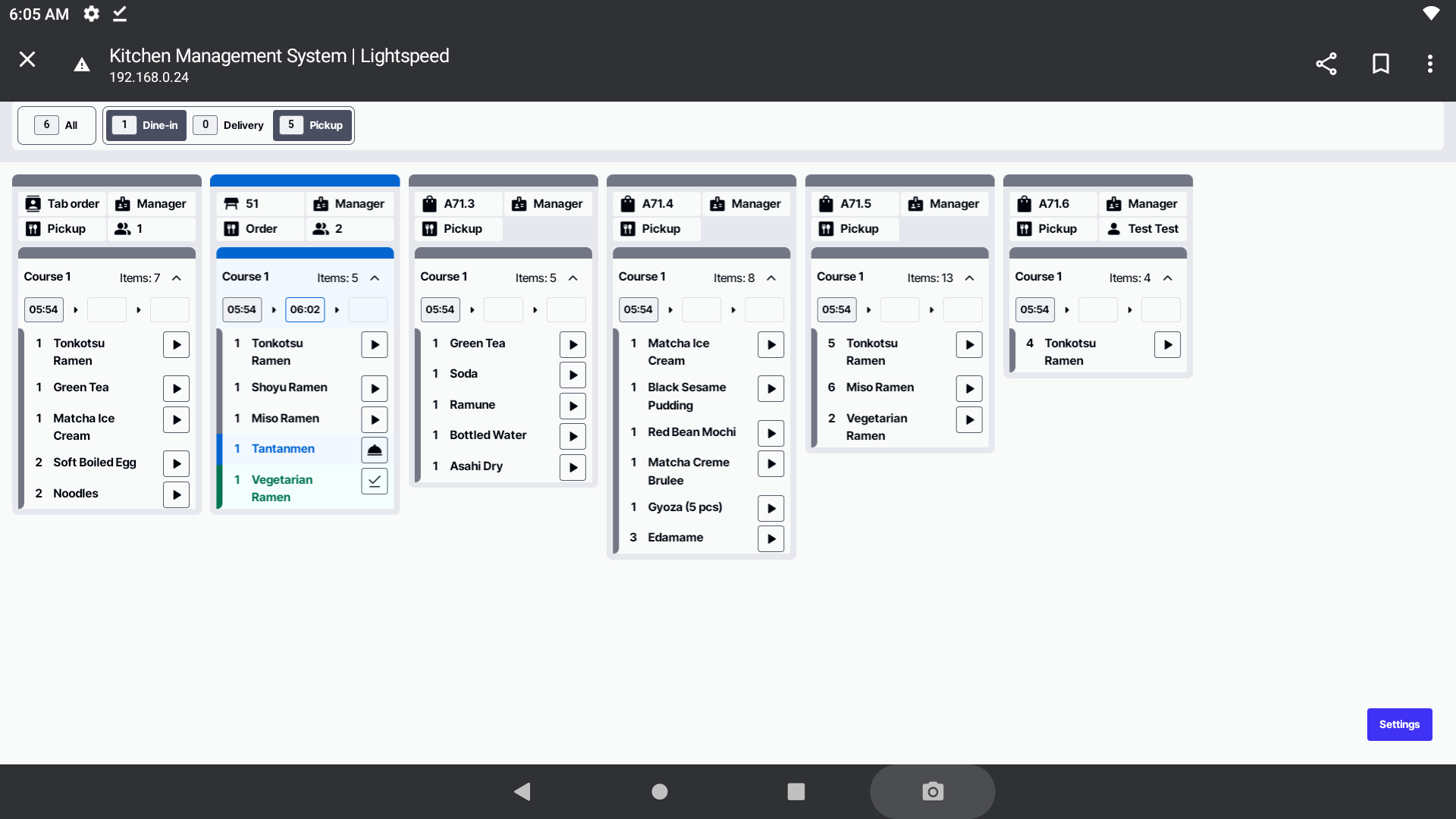
2. After setting up KDS, this is what your display should look like.
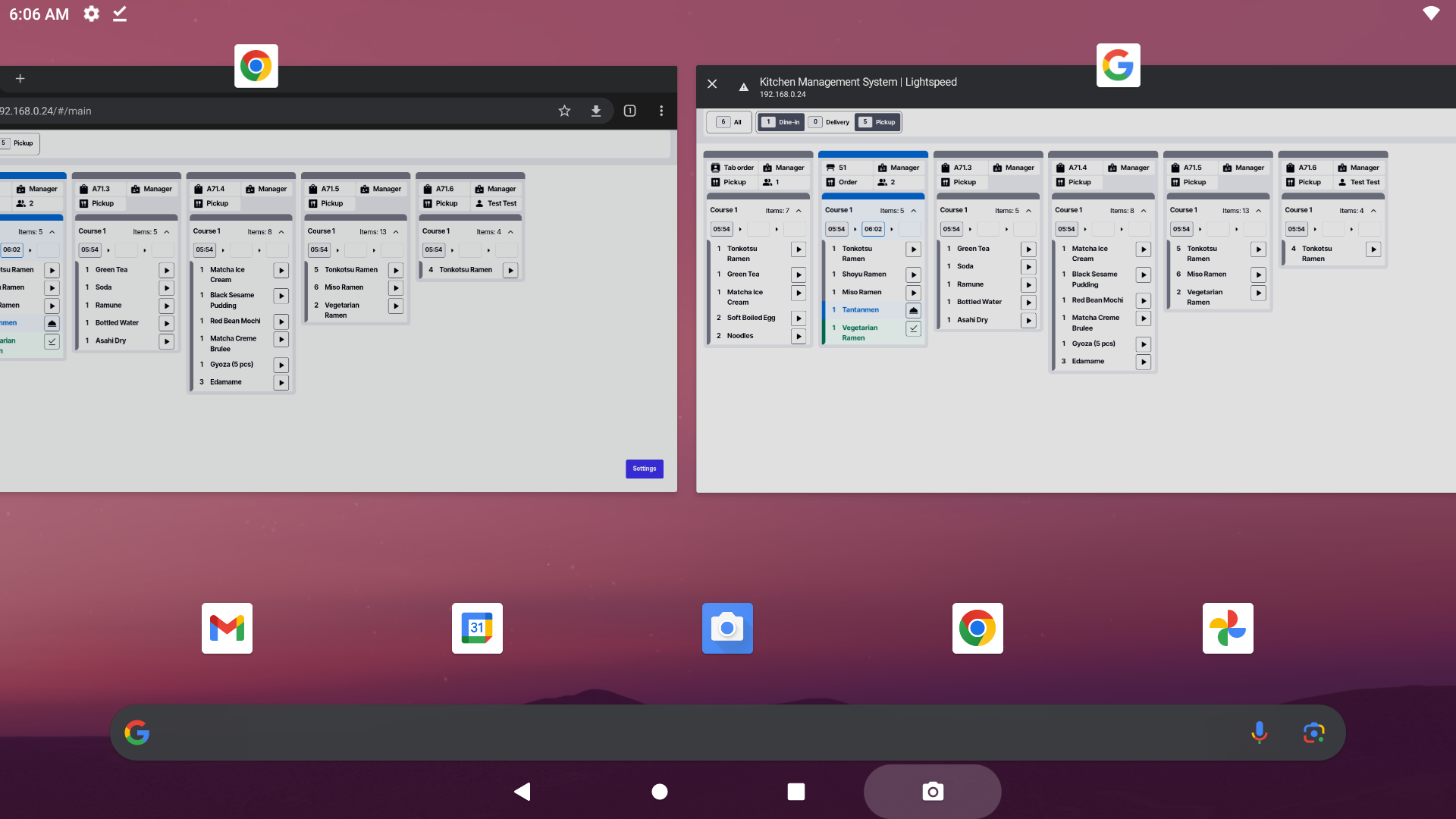
3. Although both retain the browser header, a side-by-side comparison reveals the Chrome app’s header is slightly wider than Google’s.
(Chrome left | Google – right)
The Google search bar automatically inherits all Chrome settings by default, including your zoom preferences.
What does the final KDS product look like after implementing these modifications?


