
Floor Plan Revamp Guide
A complete visual and technical refresh of the POS floor plan. It brings the floor plan in line with the modern look merchants already see across the POS and lays the groundwork for larger feature additions in future phases.
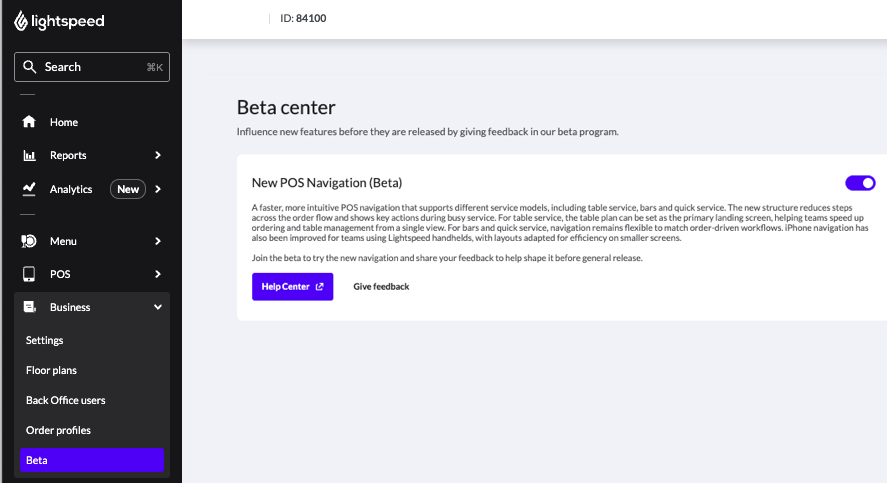
1
Back Office
Log in with your credentials.
2
Beta Center
Navigate to Business > Beta.
3
Toggle ON
Enable New Navigation.
* Wait few minutes
4
Reload POS
Sync device to apply.
Key takeaways:
- Table search is available on handhelds, not the main POS view.
- Phase 1 is a visual and navigation refresh, POS floor plan editing and other future enhancements are not included.
- Bar tabs remain in the Orders list and are not shown as tables in the floor plan.
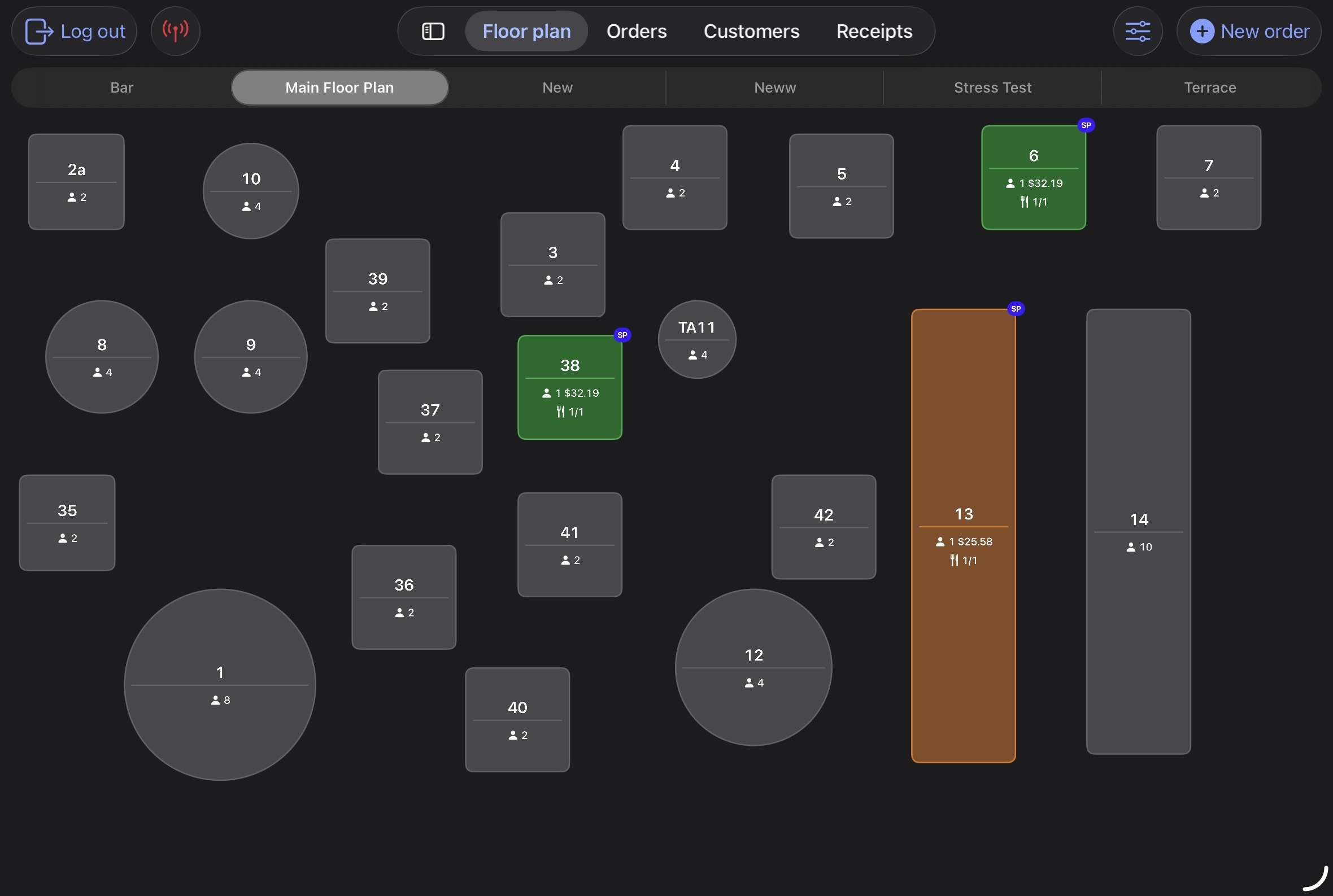
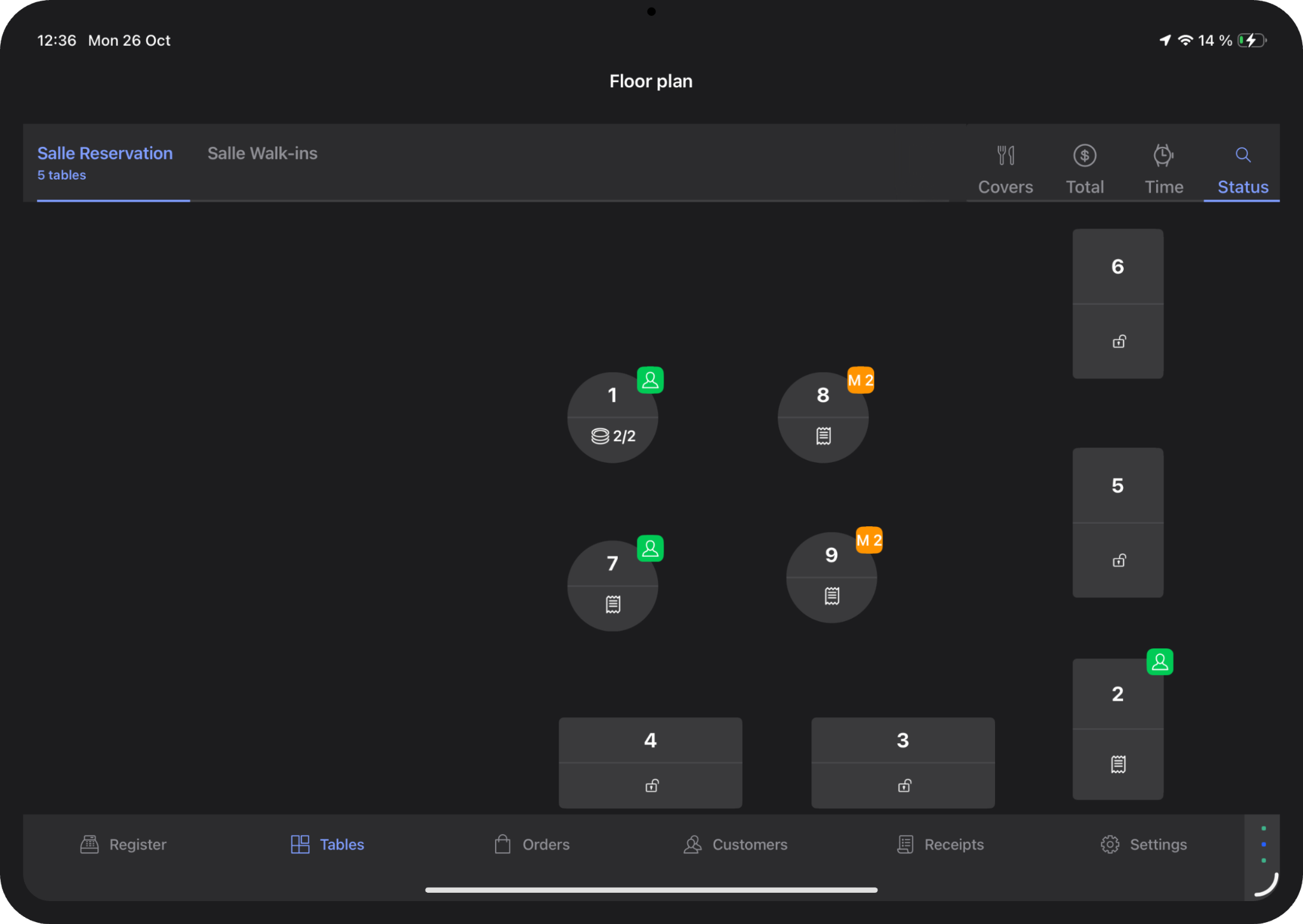
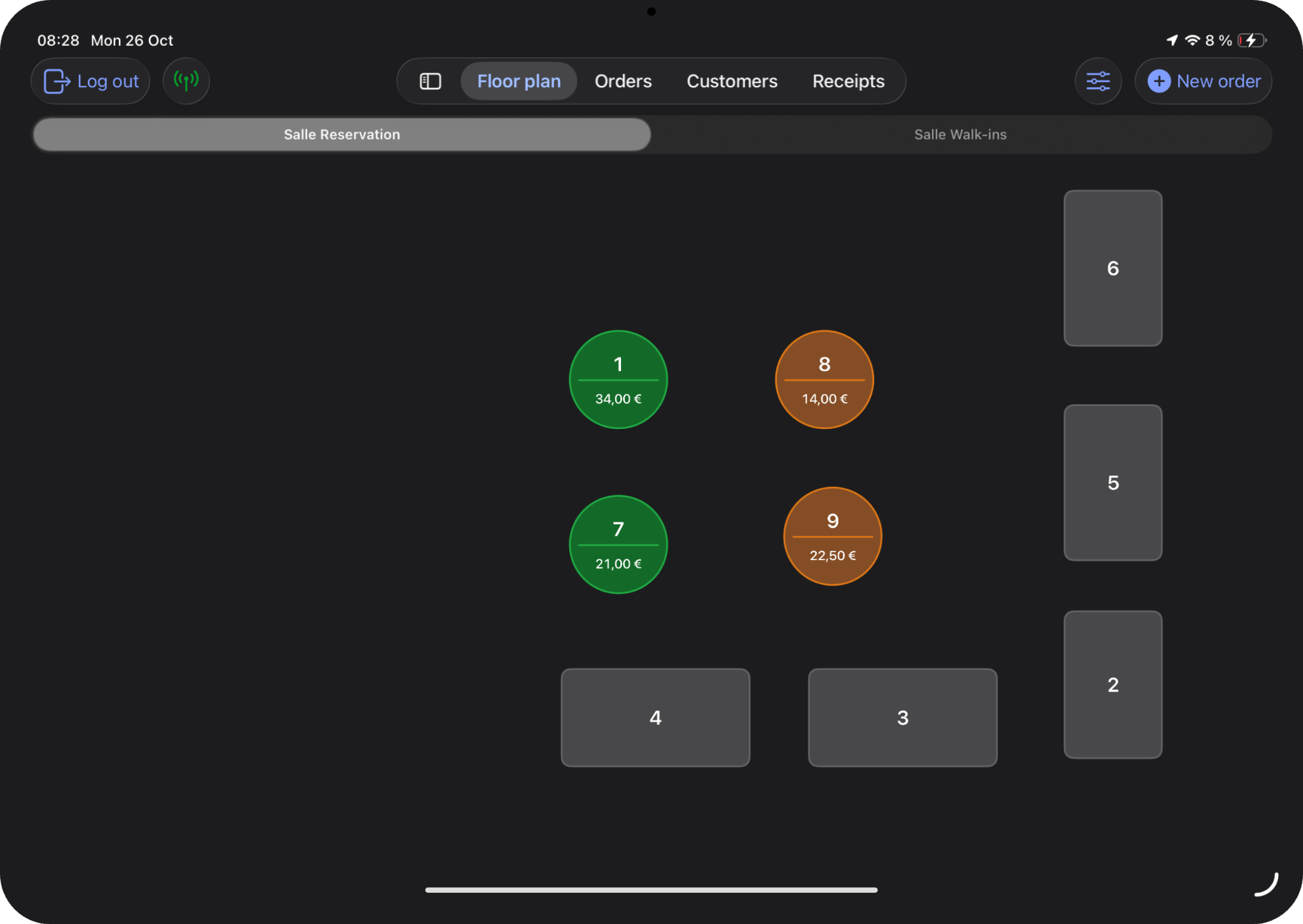
What changed
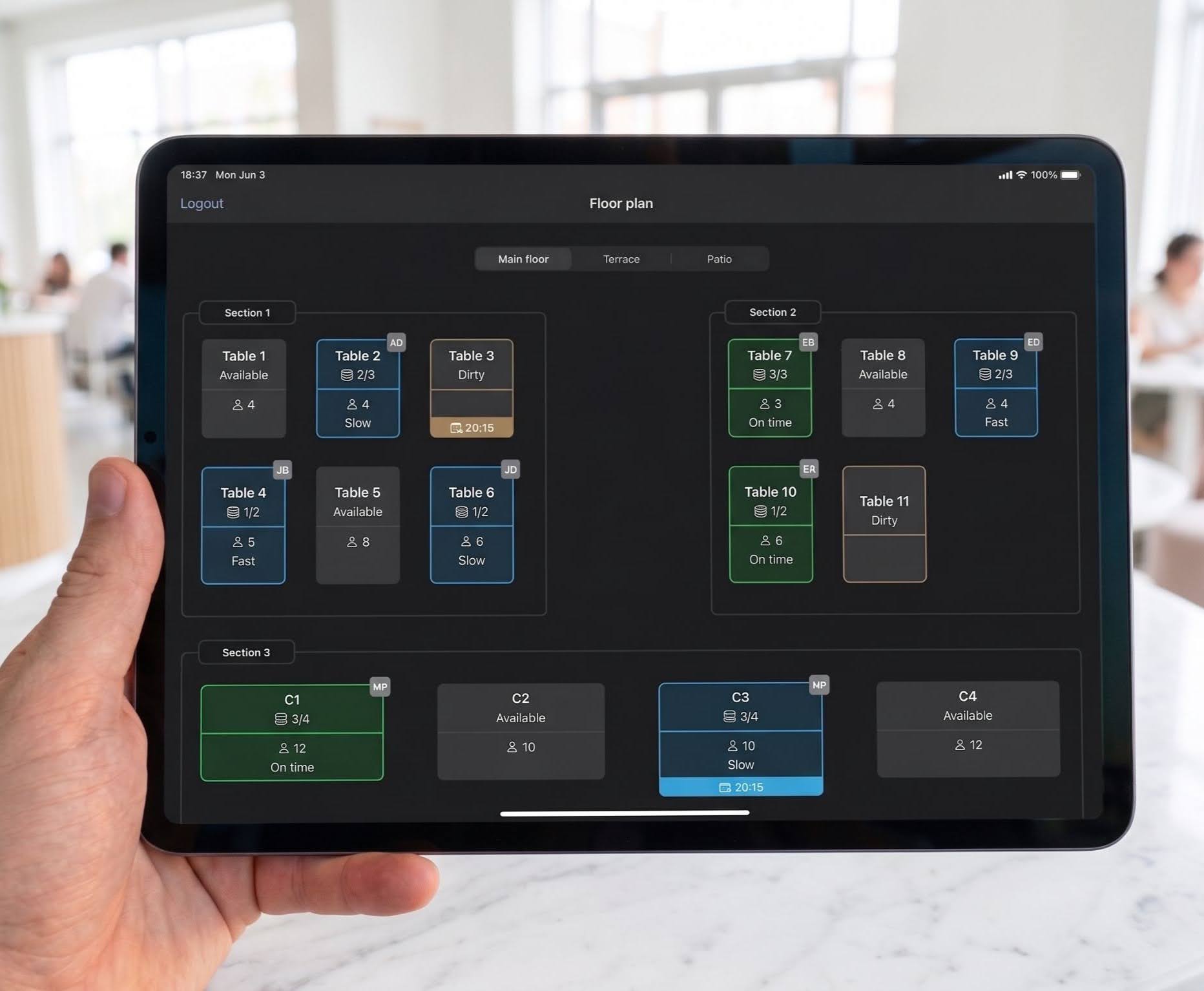
- More prominent table status colouring
- Statuses are configured in Floor Plan settings
- Choose tile info: Covers, time seated, check total or course
- Live metrics visible without opening the table
- Server badges on table tiles are now independent of statuses
- Toggle the feature on or off to optimize spatial efficiency
Why it matters
- Staff instantly understand every table’s status, even on a crowded floor.
- Staff see critical live metrics on the floor plan itself, so they can pace service and spot long-seated tables.
- See clearly who owns what to navigate busy service stress-free.
- Managers balance sections faster and servers see their own tables instantly.
- With faster tableside navigation, staff reach the right table in seconds, wherever they are on the floor.
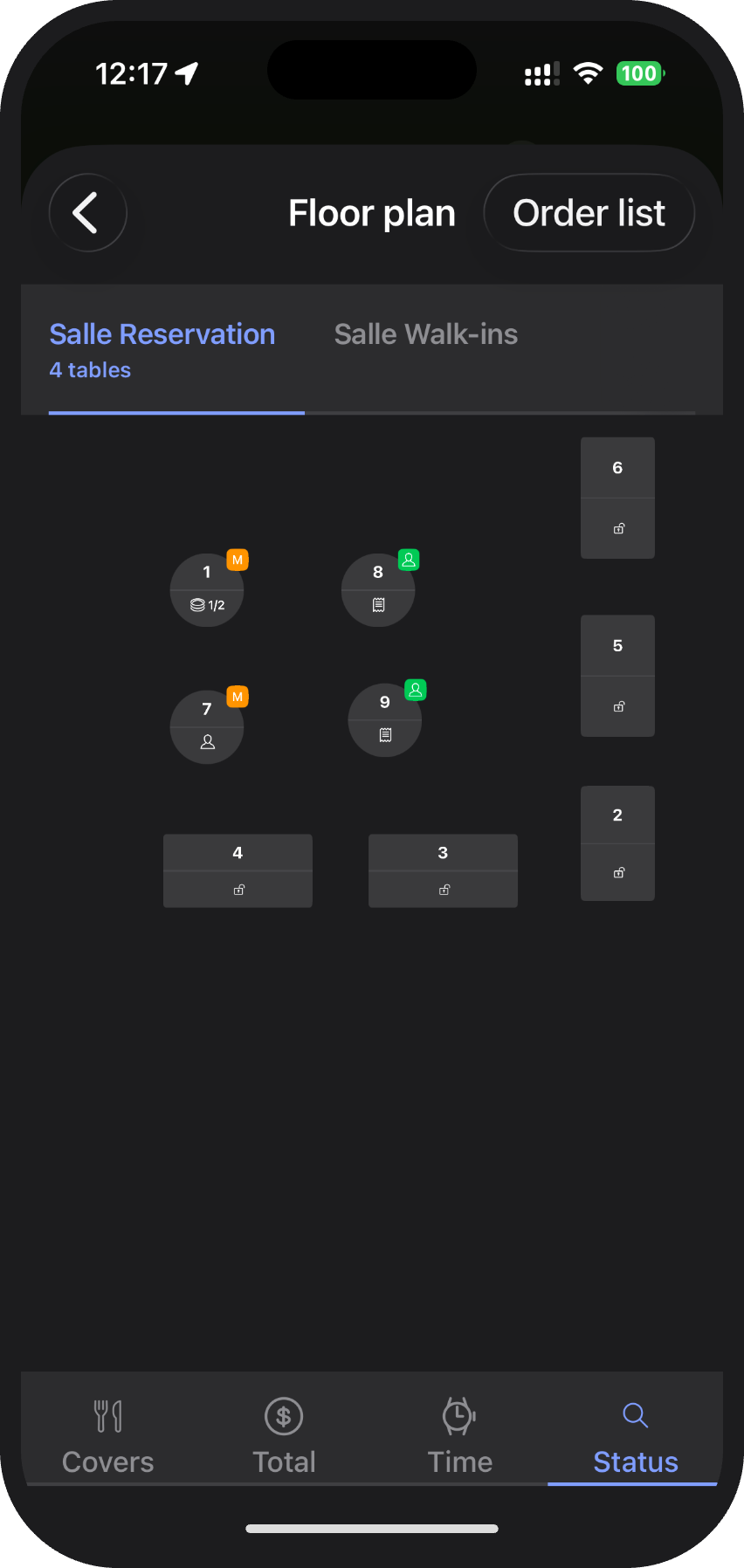
Before:
Service delays and more mistakes
- Seated times are hard to track: No quick way to spot tables that have waited too long
- Active courses are hard to follow: Staff navigates via status bar to see where service is
- Tiny status badges and poor table owner visibility: Hard to follow on smaller screens and create confusion during the busy service
After:
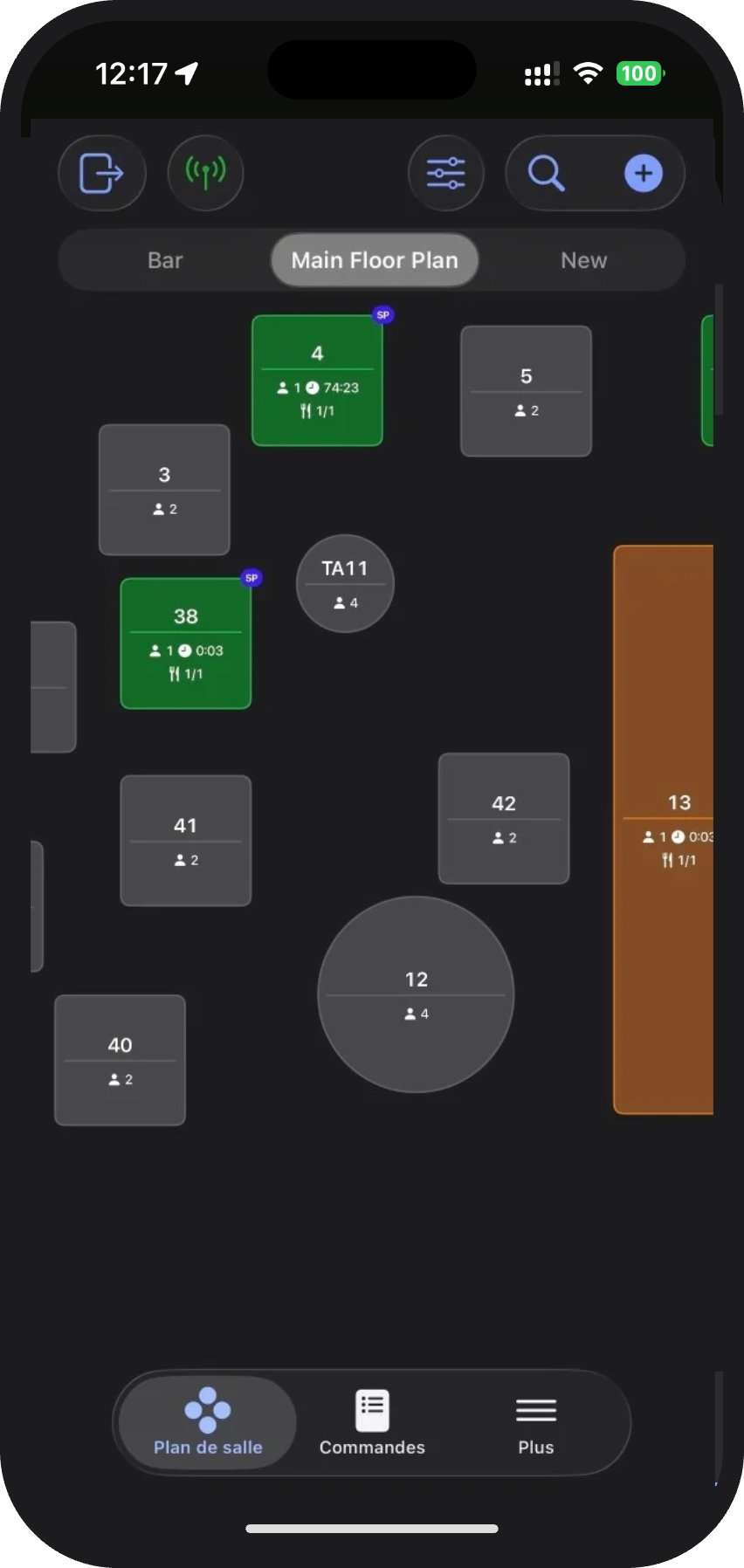
Immediate visibility across the floor and faster tableside navigation, without disrupting existing workflows
- At-a-glance visibility: Status colours and live metrics on every tile show each table’s state instantly
— More prominent table status colouring
— Customizable table tiles
— Server badges - Faster, intuitive navigation: Effortless navigation with pinch-to-zoom, panning, and table search.
— Table search
— Pan-to-slide - Zero retraining: A modern look on top of the same core workflows, usable immediately
- Better handheld ergonomics:
— Table search
— Pinch-to-zoom and panning
— Clearer service status cues
— More space for the floor - Faster tableside service:
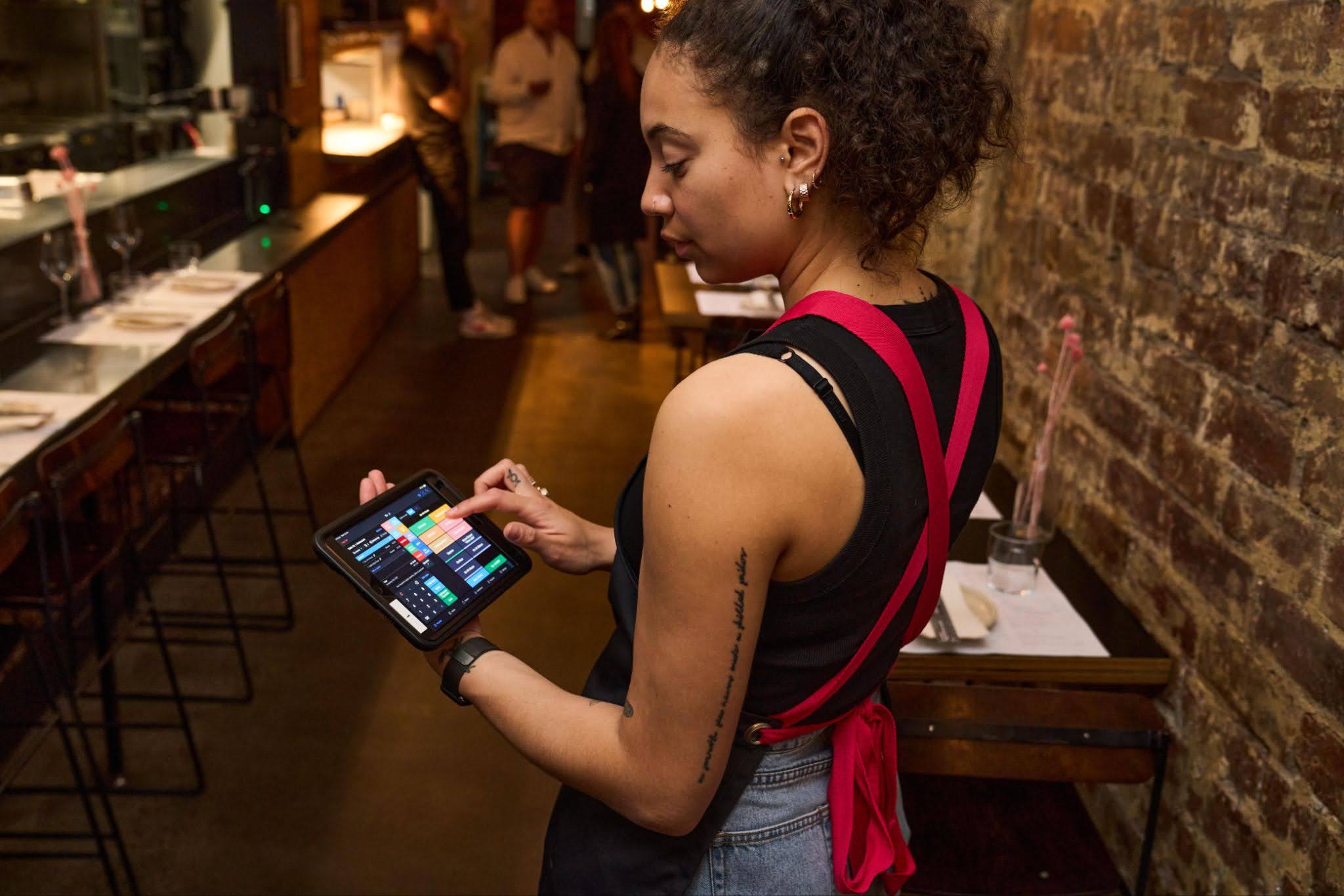
— Find and read any table in seconds
— Staff stay on the floor, not at a fixed terminals

What changes:
- The visual layout of the floor plan
- How staff navigate the floor: Zoom, pan, search
- The information shown on table tiles
- Where statuses are set: Floor Plan settings
- New table search function on handheld devices
- In addition to pinch-to-zoom introducing panning gesture to swipe between floor
What stays the same:
- Core operational workflows
- How staff run service day to day
- No retraining needed: Staff can use it immediately
Does table search support alphanumeric table names?
Yes. The Product Team said search should support numeric and alphanumeric table names.
What can staff search for?
Search is limited to table names or numbers; it does not search by item or server.
Why is table search available on handhelds, but not the stationary POS?
The team designed search for mobile, where the smaller screen makes it harder to scan the floor plan. Their research indicated that a stationary POS has enough space to show the floor plan clearly.
Does linking tables work differently?
The linking flow is unchanged. The updated view makes linked tables clearer: the primary table retains the linked-table information, and the linked table indicates which table it is linked to.
Will bar tabs appear in the floor plan?
Bar tabs are not treated as tables and remain in the Orders list. The team said broader account/order handling was being explored separately from the floor plan work.
Does the floor plan shown when starting a new order from the register screen also change?
Not in Phase 1.
Can staff edit the floor plan on the POS?
Not in Phase 1. POS editing is in design but not development. The proposed direction is temporary changes such as moving, resizing or hiding tables on the POS. Permanent floor-plan changes would still be made in the Back Office.
Do Tempo alerts appear on floor plan tiles, and can they be managed with tile settings?
Locations using Tempo will see alerts on floor-plan tiles by default. To enable, in the Back Office go to Tempo > Expected Service Times > Alert staff when time exceeds.
Is the new floor plan a separate feature toggle, and when does it roll out?
Access is controlled through the rollout and New POS Navigation is required. Rollout is planned to begin in early November and take 3–4 weeks.
Does New POS Navigation become the default for existing customers?
Existing customers can enable it from the Beta Center, while new customers will be defaulted to it (since August).
Will additional floor-plan features arrive during the beta?
This is depending on design and engineering capacity and cannot be guaranteed. POS editing and reservations integrated with the floor plan is for future releases.

ℹ️ Could this update bypass table-access restrictions for waiter groups?
Table access is not enabled for this user group, so all users in the group can access all tables.
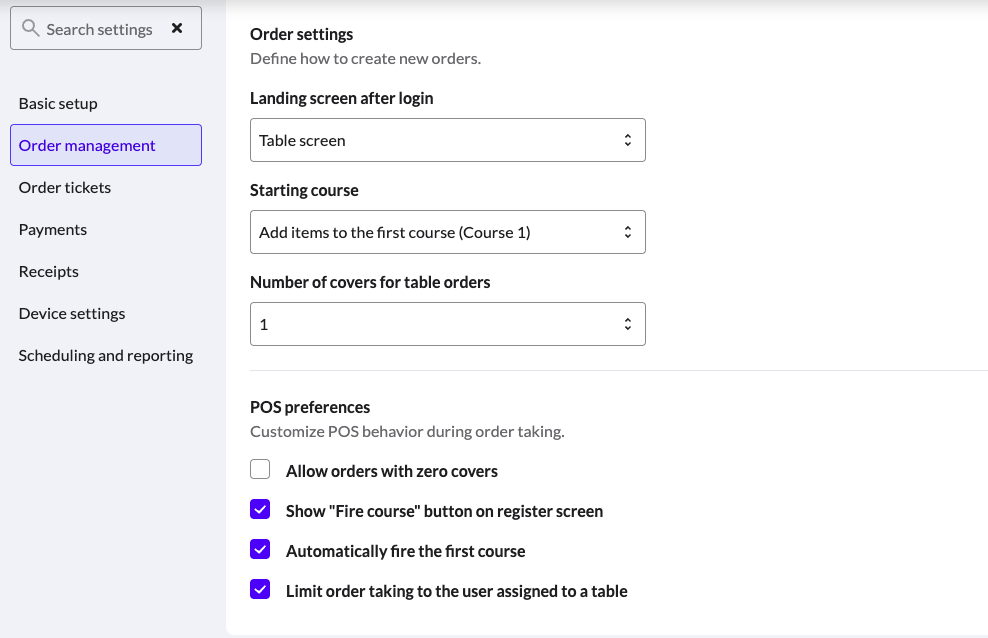
Table-access behavior should remain unchanged. To prevent one server from accessing another server’s open table, enable the following POS setting above.


