
E-invoicing in K-Series
Understanding Belgium’s new digital invoice requirements and how Lightspeed makes compliance effortless.
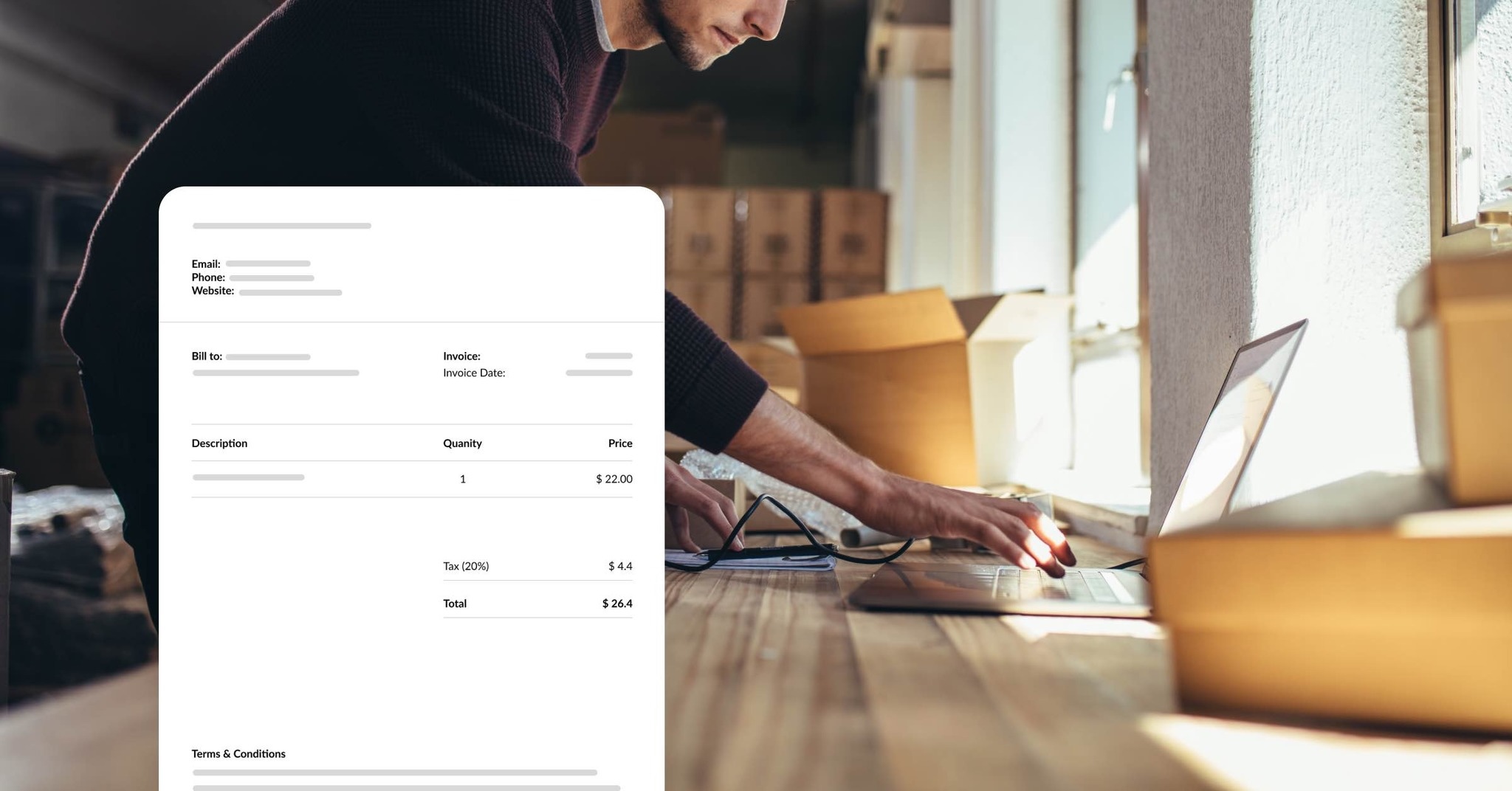
ℹ️ All VAT-registered businesses in Belgium must send and receive structured e-invoices for B2B transactions in a Peppol BIS compliant format (e.g., UBL XML). Simple PDFs or paper invoices no longer meet the legal requirement.
What happens without compliance?
Legal risk: Penalties for not issuing or receiving compliant e-invoices. However, there’s a tolerance period during the first three months of 2026.
Operational delays: Business partners may refuse invoices that don’t comply with requirements.

Regular invoice (e.g. PDF)
You print or email it. The recipient must open it and manually enter the information into their system—making it slower and more error-prone.

E-invoice
Sent digitally and goes directly into the receiver’s system automatically—no printing, no typing, no mistakes!
Good to know:
- You can still provide a paper invoice (print or email). The e-invoice must be sent as well.
- The law doesn’t specify a time frame for sending the e-invoice, but VAT rules still apply. This typically means the invoice date should match the supply of goods or services.
- Split bills to business customers require separate e-invoices for each.
- Prepayments and deposits may generate separate e-invoices—adjust the final invoice accordingly.
- Tips or service charges should be included correctly in the structured e-invoice.
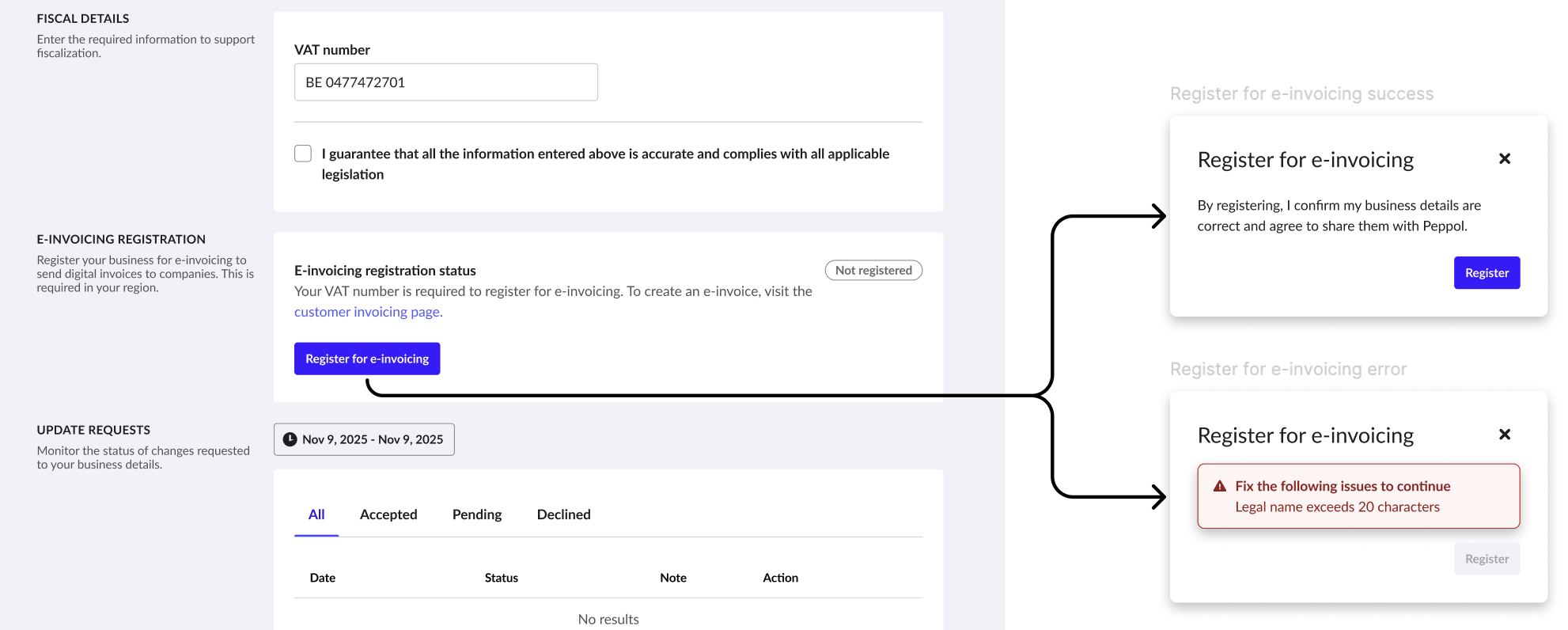
First, turn on e-invoicing in the Back Office under Business > Settings with just one click.
- Quick validations run automatically in the background (VAT number, legal name, etc.).
- If everything checks out, setup takes only a few seconds
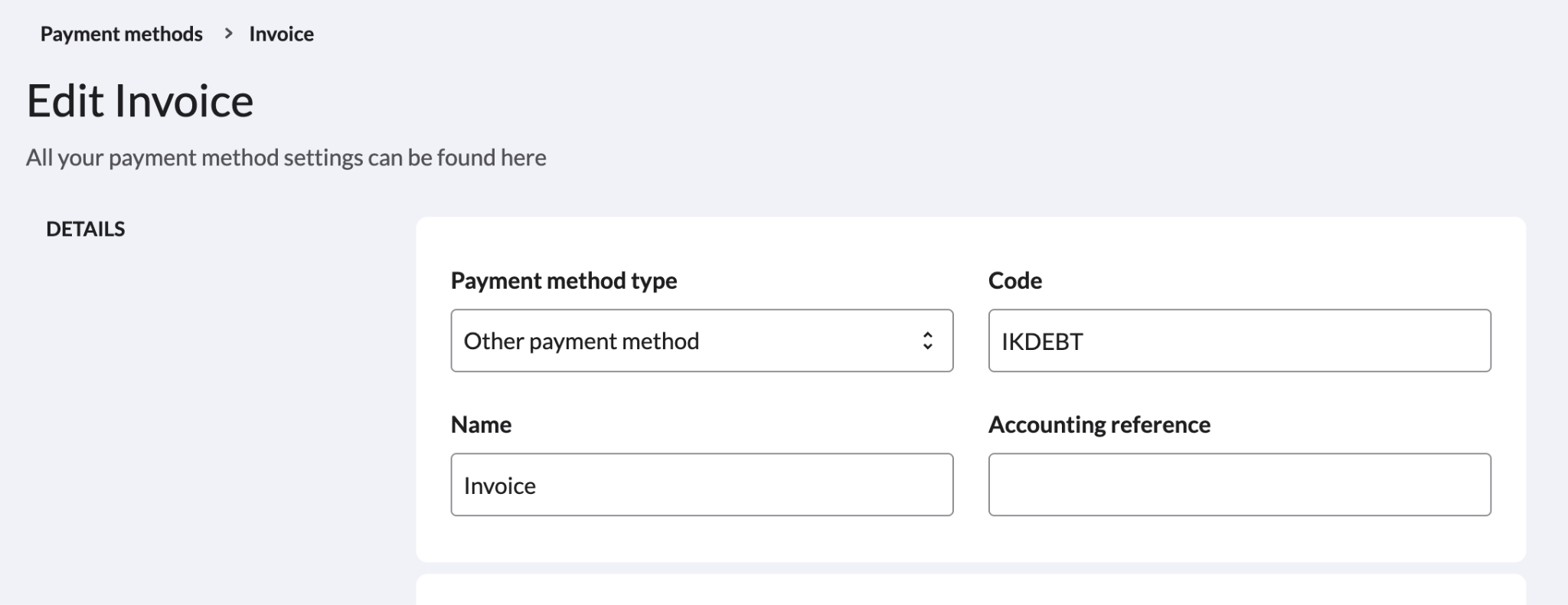
In the Back Office, go to Payments > Payment methods and ensure payment method IKDEBT is available.
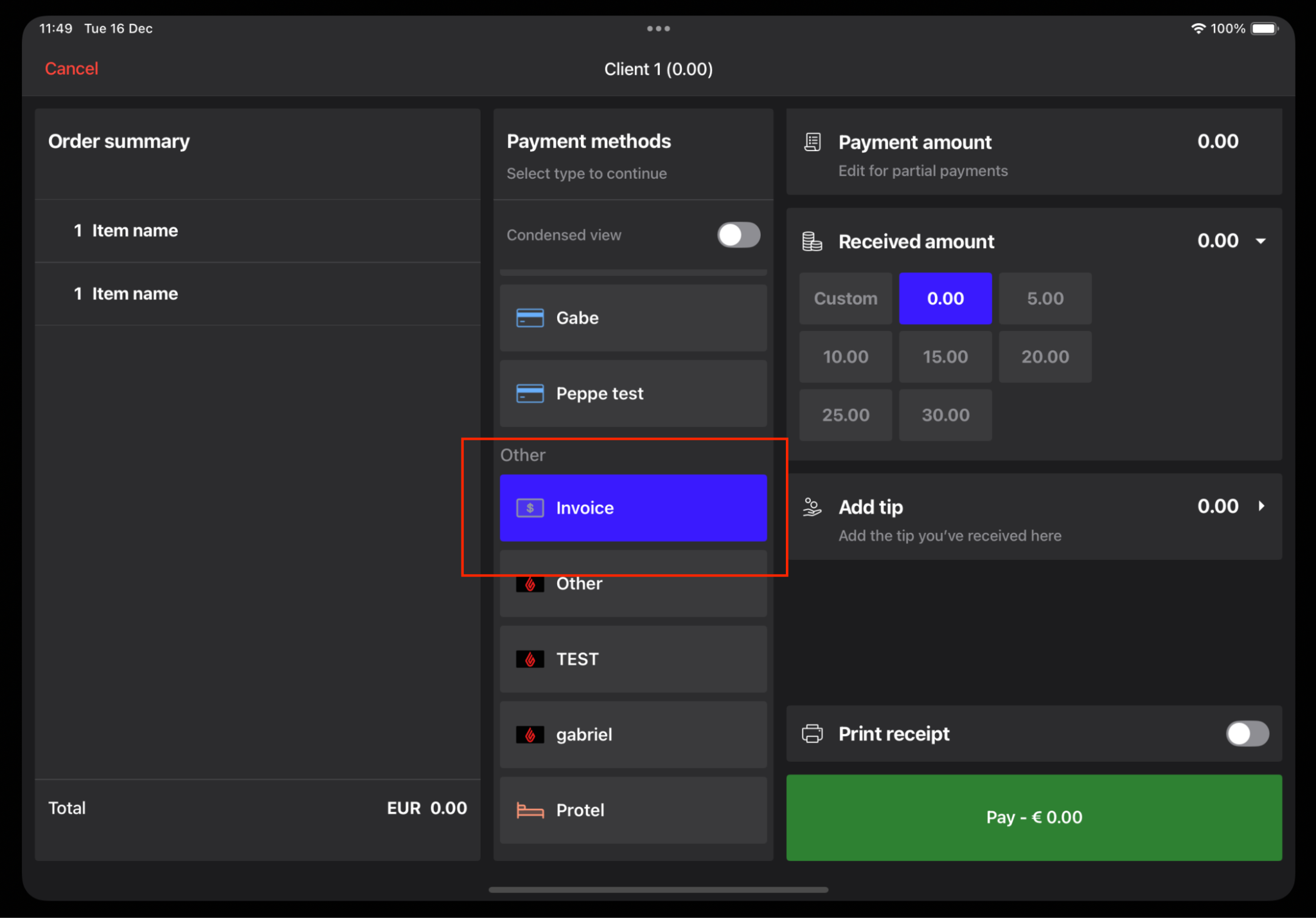
On the POS, select IKDEBT as the payment method when completing the order.
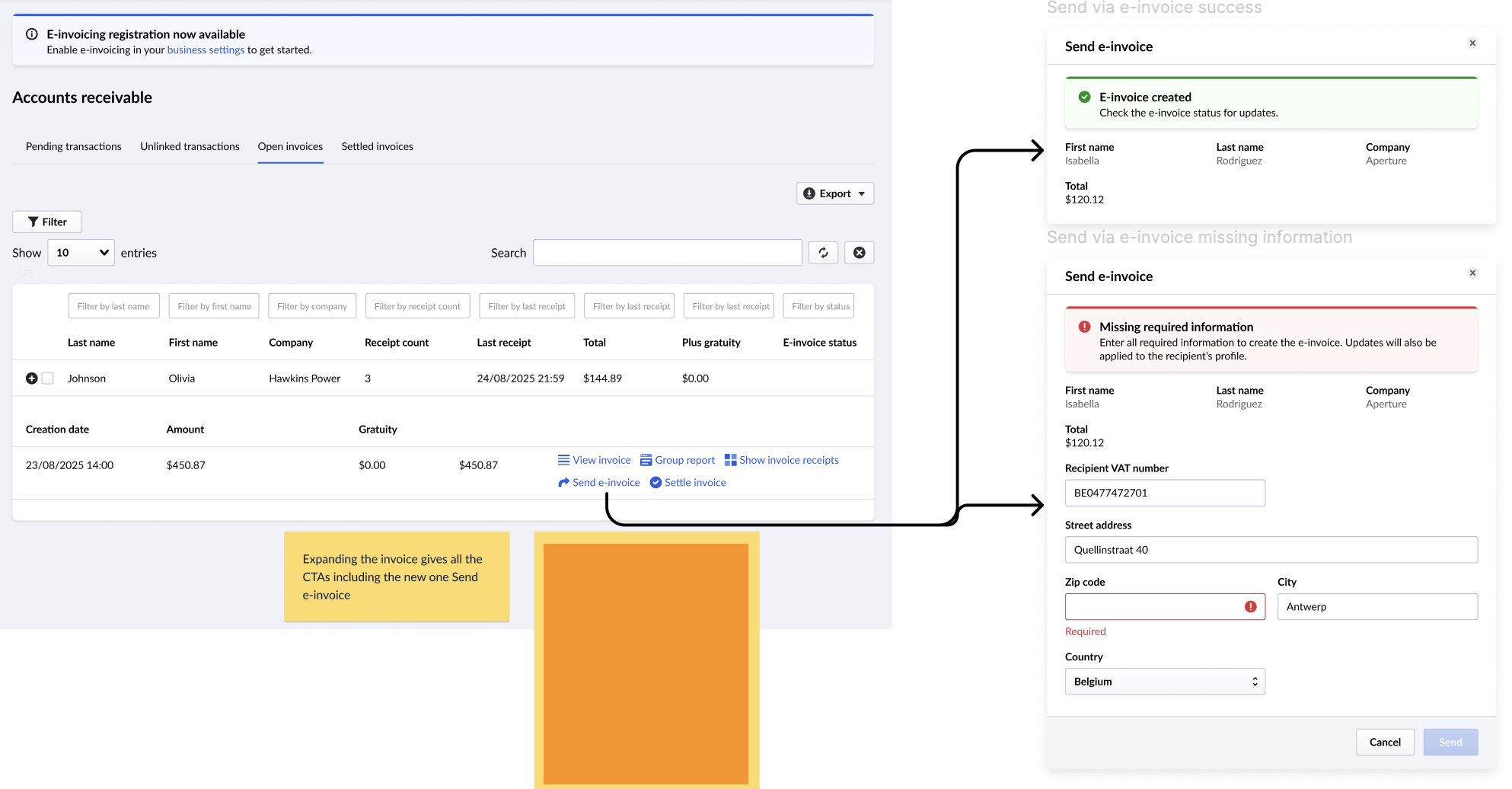
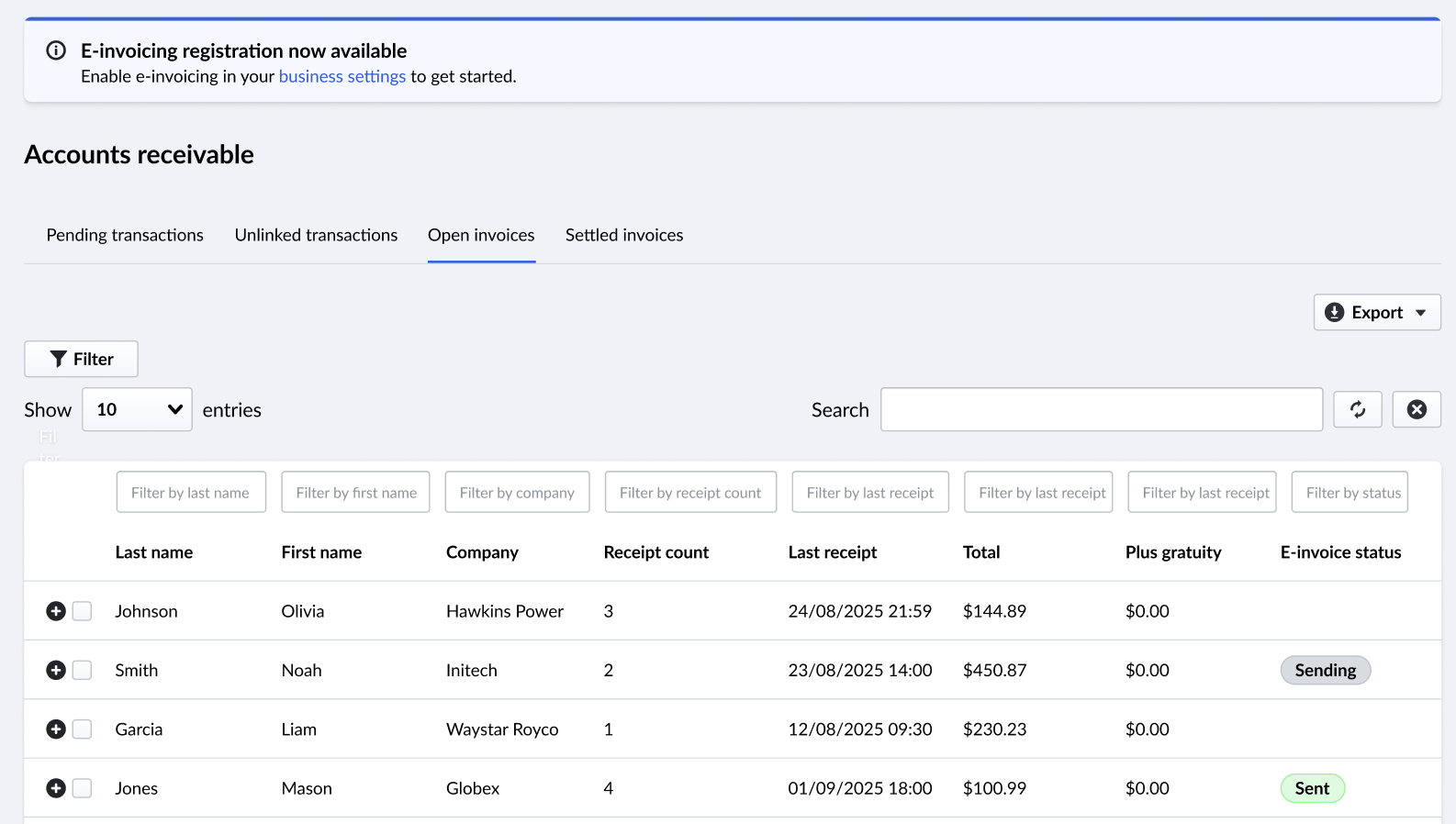
Under Customer invoices (Payments), you can track the status of each e-invoice.
The following statuses are available:
- Not sent: The e-invoice has not been sent yet.
- Sending: The e-invoice is being sent to the receiver but hasn’t been received yet.
- Sent: The e-invoice has been successfully delivered to the recipient.
- Failed: Something went wrong while sending the e-invoice. Customers cannot adjust these errors, and most issues can’t be fixed on their side. We’ll monitor these errors and resend when needed.
Is e-invoicing included in all packages?
Yes, it’s included free of charge in all packages. Customers simply need to enable it in the Back Office.
Is this only for Belgium?
Yes, this is currently only for Belgian customers. Locations in other countries won’t see e-invoicing yet.
However, this will become a requirement in more EMEA countries over the coming months and years, so we’ll enable it step-by-step for other regions.
Can I send an e-invoice from the POS?
No, e-invoices can only be sent from the Back Office for now. This functionality may be added later.
Can I use other external software (like Yuki) to send e-invoices via Peppol?
Customers can use other software, but they must first register on Peppol separately. Registration for e-invoicing in L-Series or K-Series alone is not sufficient.
Alternatively, clients can use K-Series or L-Series to send e-invoices. The invoice must be sent directly from the POS (L-Series) or the Back Office (K-Series).


